How to create password lists
If you’re looking to create and customize password lists for your protected content in WordPress, you can do so with Passster.
A password list in Passster is a comma-separated list of passwords that you can customize with expiration options. These are particularly useful if you need to set how often and when people can use the passwords in your list.
First thing’s first, let’s create your password list.
Create your password list
To create a password list, take the following steps:
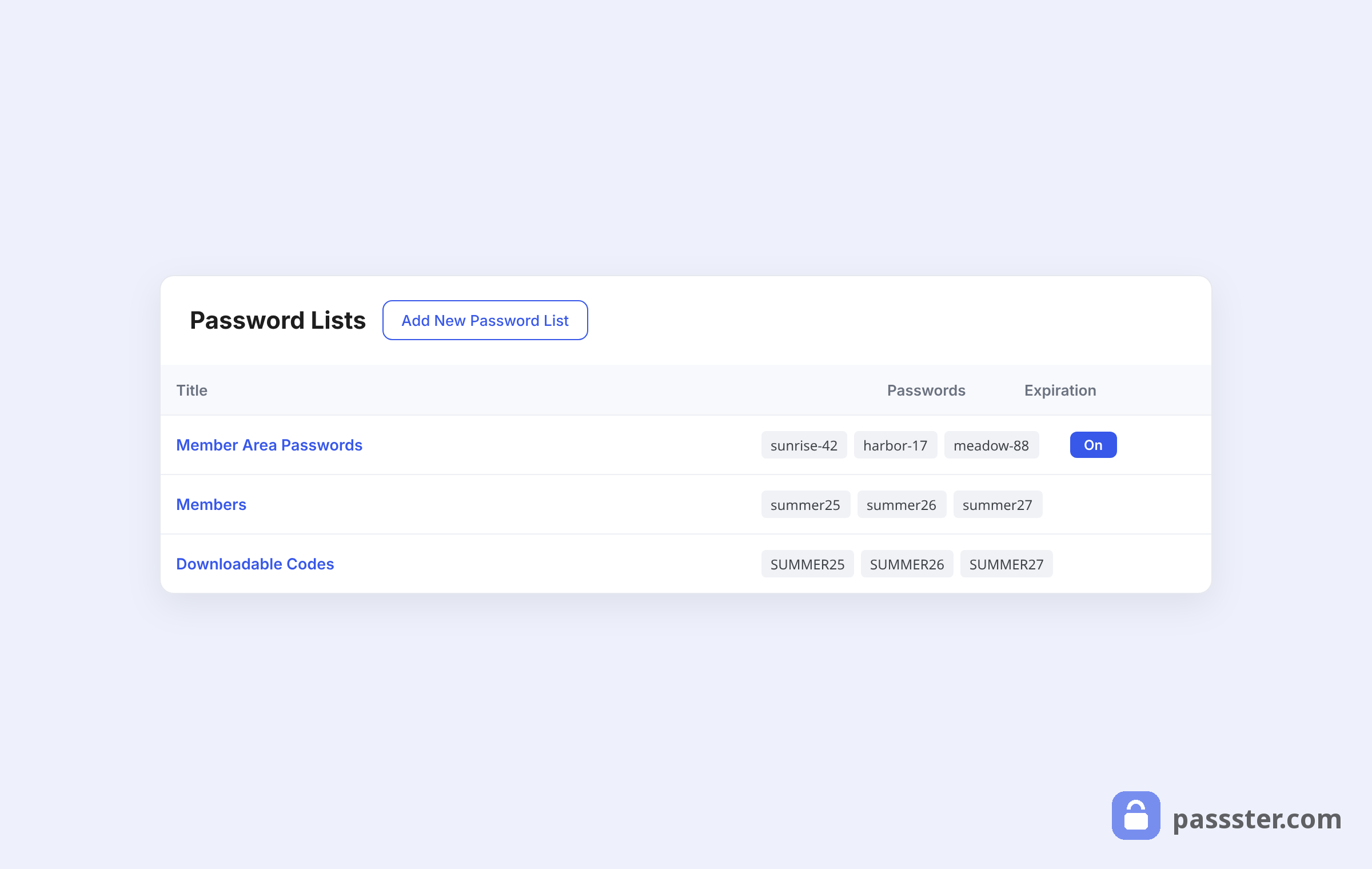
- From your WordPress dashboard, go to Passster > Password Lists and click the Add New Password List button at the top of the page.
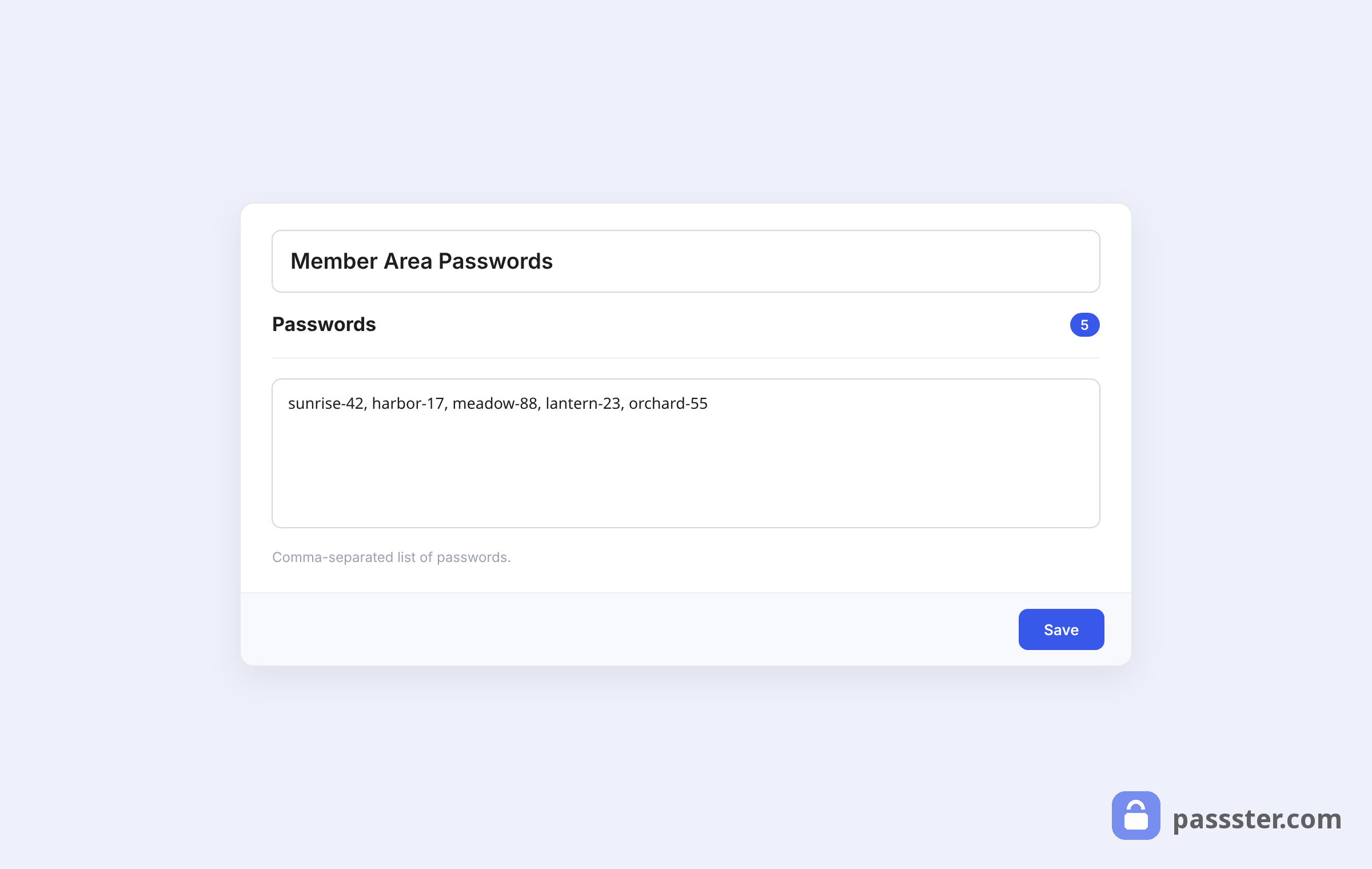
- Give your password list a title – this is for your personal use and won’t be displayed on your site.
- In the Passwords section of the Settings box, add an unlimited number of passwords. Make sure they are added as a comma-separated list like so: password, password1, password2, password3
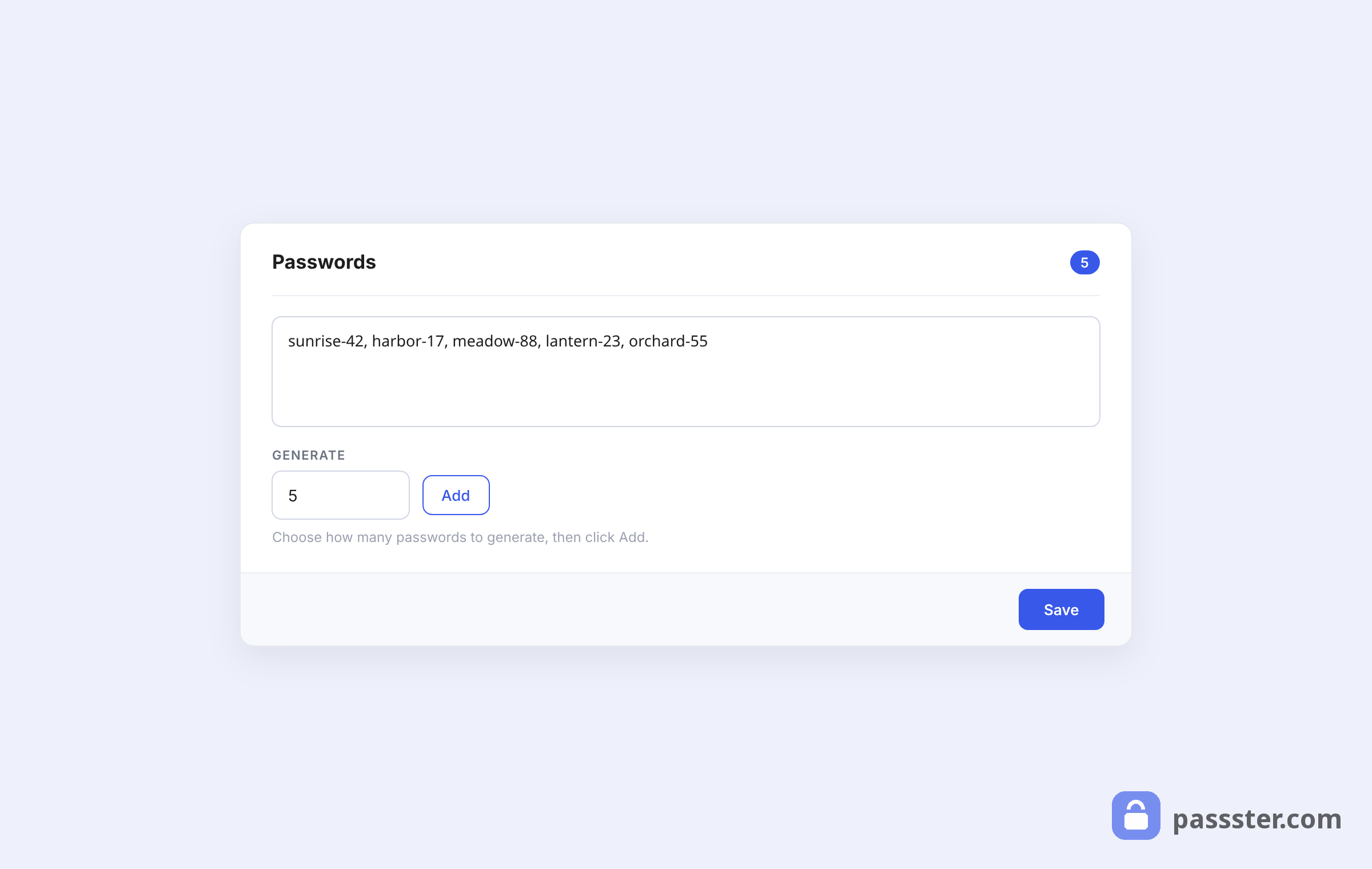
- Alternatively, you can have Passster generate passwords for you: enter how many you need in the Generate field and click Add.
Now we’ve added our passwords, let’s look at the expiry options.
Set your password expiry options
Password lists don’t require you to set expiry options, but if you’d like to, take the following steps:
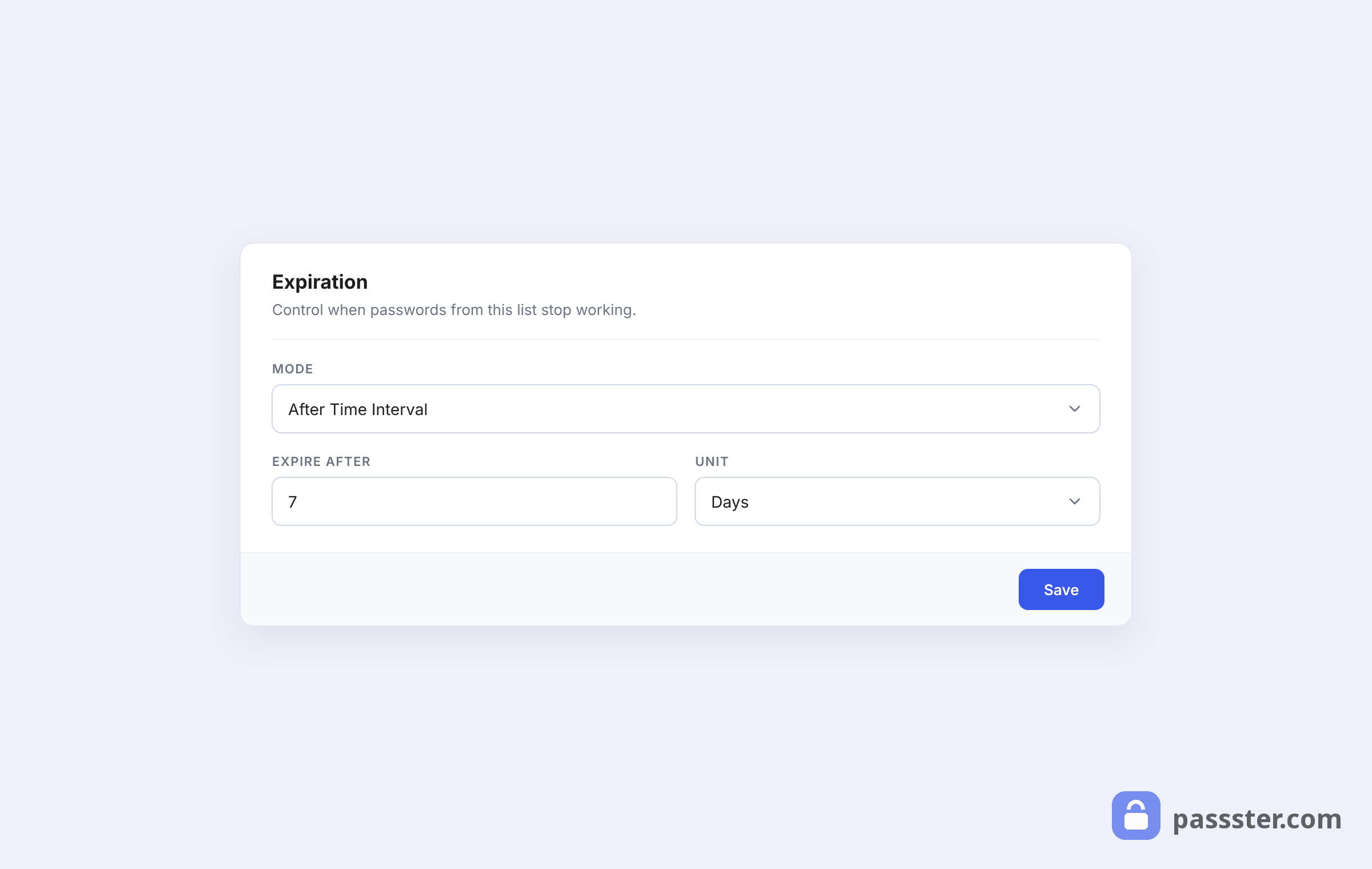
While still on the Edit Password List page, below your passwords you’ll see the Expiration section. Here you’ll have a few options to choose from in the Mode dropdown. We’ll go through each of the options in this section below:
After First Usage – by selecting this option, a password will be removed from the password list after it has been used once. Confirm it with the Remove After First Use toggle.
After X Usages – by selecting this option, a password will be removed from the password list after the number of uses has been reached. Set this number in the Max Usages field.
After Time Interval – by selecting this option, a password will be removed from the list after a specific time interval. It will start tracking once the password has been used for the first time. Set this in the Expire After and Unit fields.
View your passwords usage and statistics
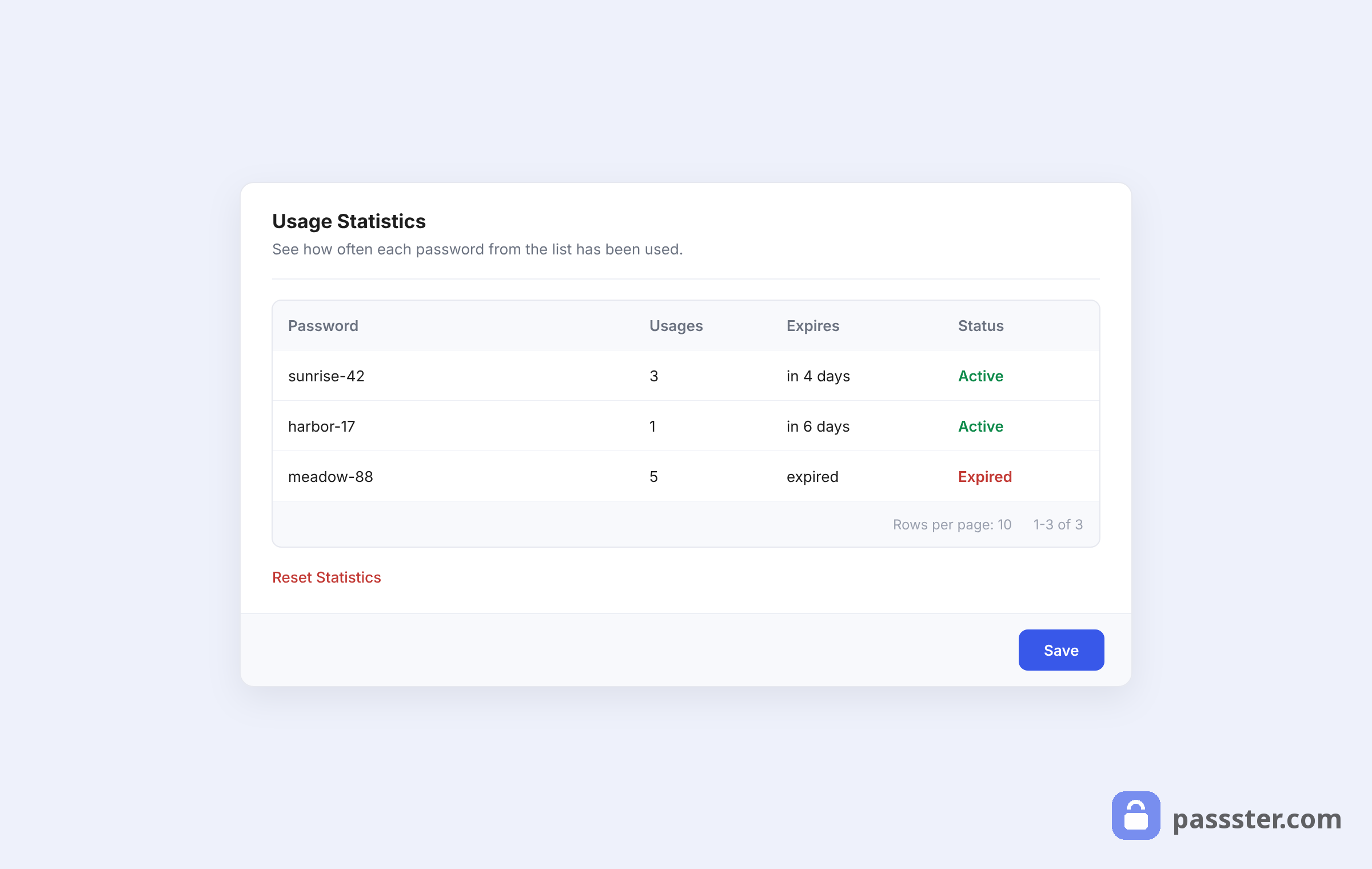
On this page is also a Usage Statistics section which shows each password that has been used from the list, how many times it has been used, when it expires, and if it has expired already.
This section only appears once a password has been used from the list. If no passwords have been used, this section remains hidden.
You can also reset all password usage data using the Reset Statistics link below the table.