
How to protect your entire website
If you’re looking to protect your entire website, you can do so with Passster.
By using Passster, you’ll be able to set up one page that every unauthenticated visitor to your site will be directed to. They’ll then gain access to your site by completing whatever protection method you set (password, Google reCAPTCHA, etc).
Activate Global Protection
Let’s start with activating global protection. To do this, take the following steps:
- From your WordPress dashboard, go to Passster > Settings and click the Global Protection section in the General tab.
- Click the toggle button next to Activate Global Protection to turn this setting on.
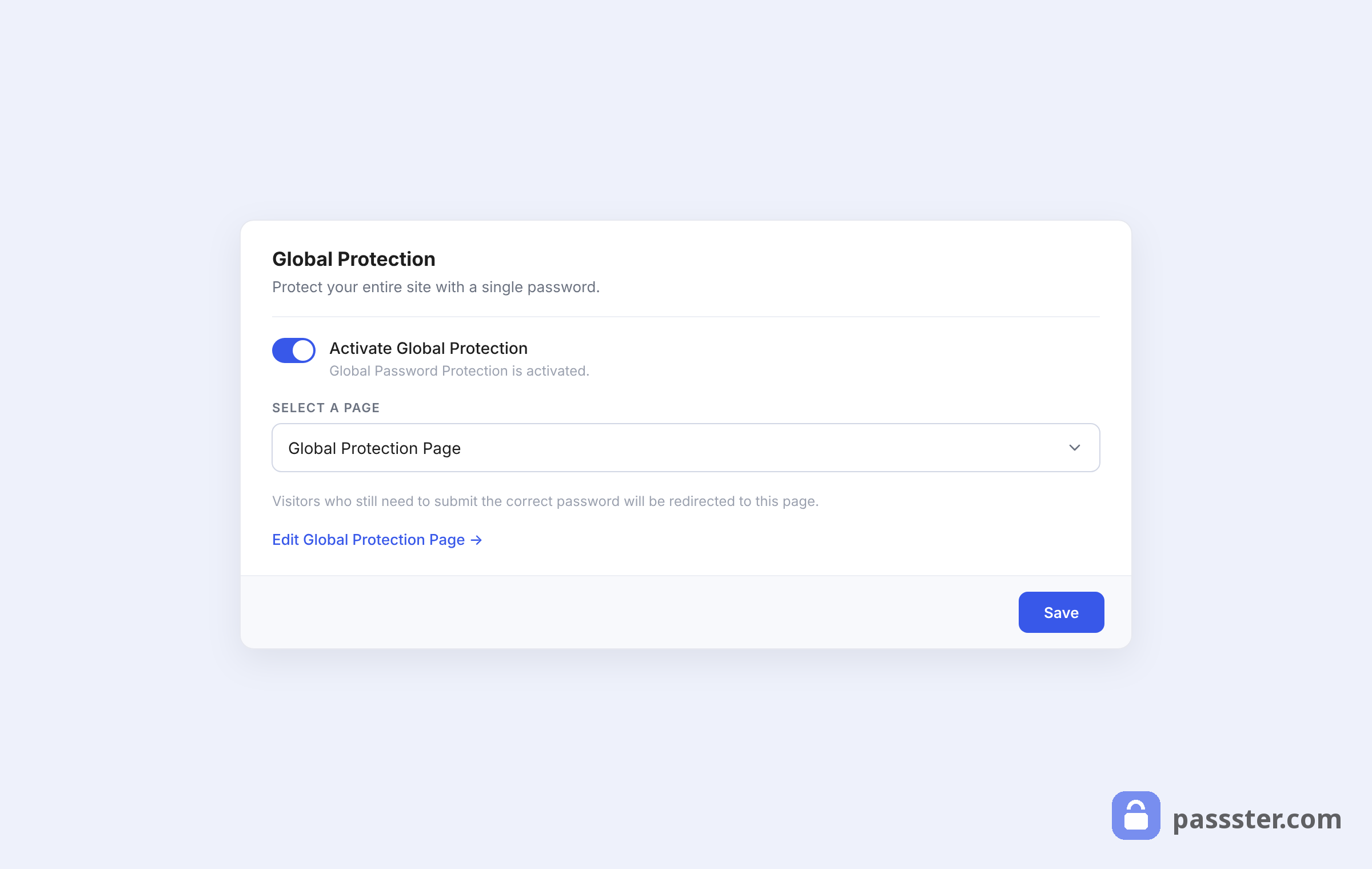
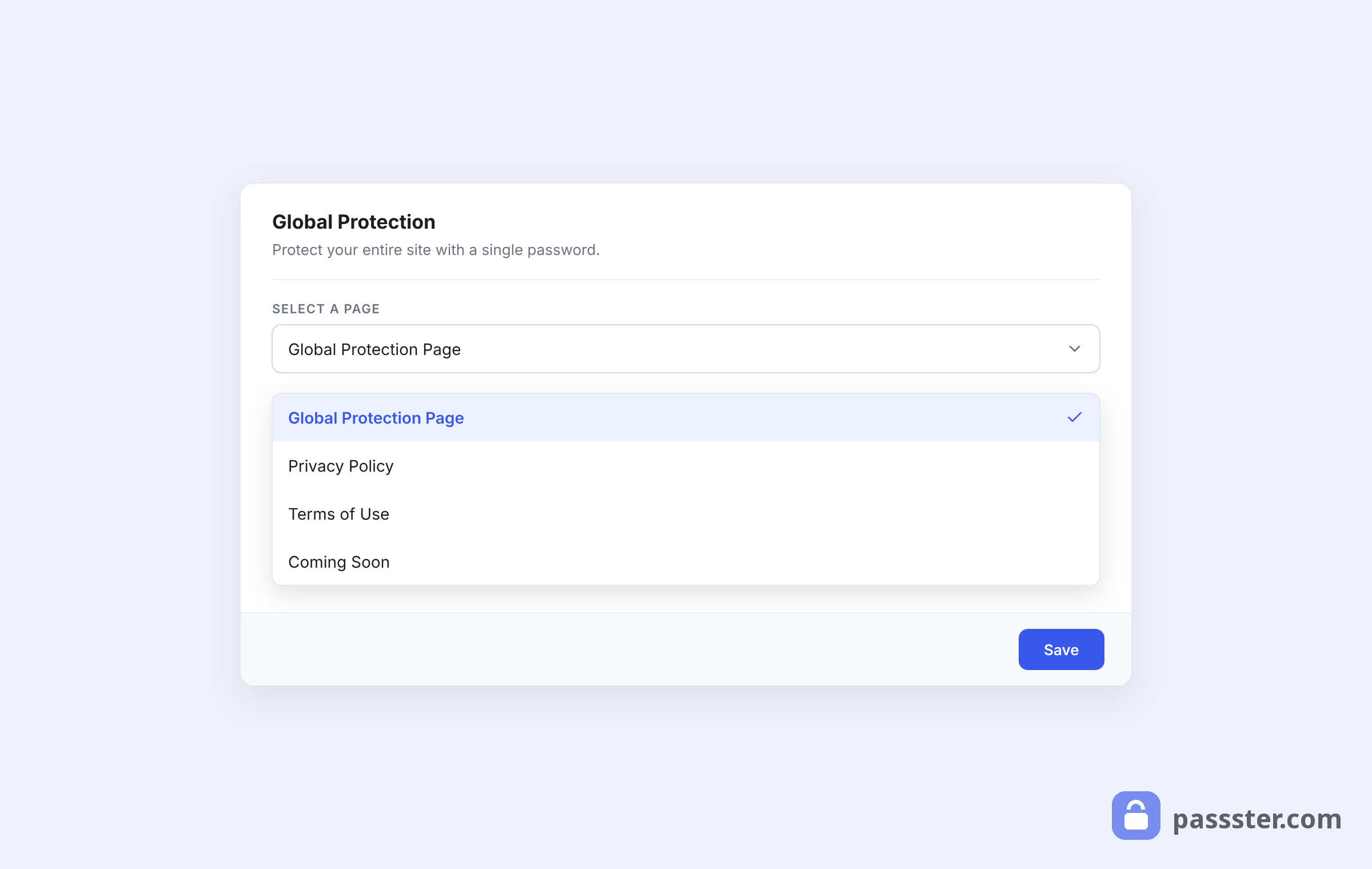
- Next, select a page from the Select a page dropdown.
- Below this, you can exclude pages from your global protection, should you want users to still be able to access them.
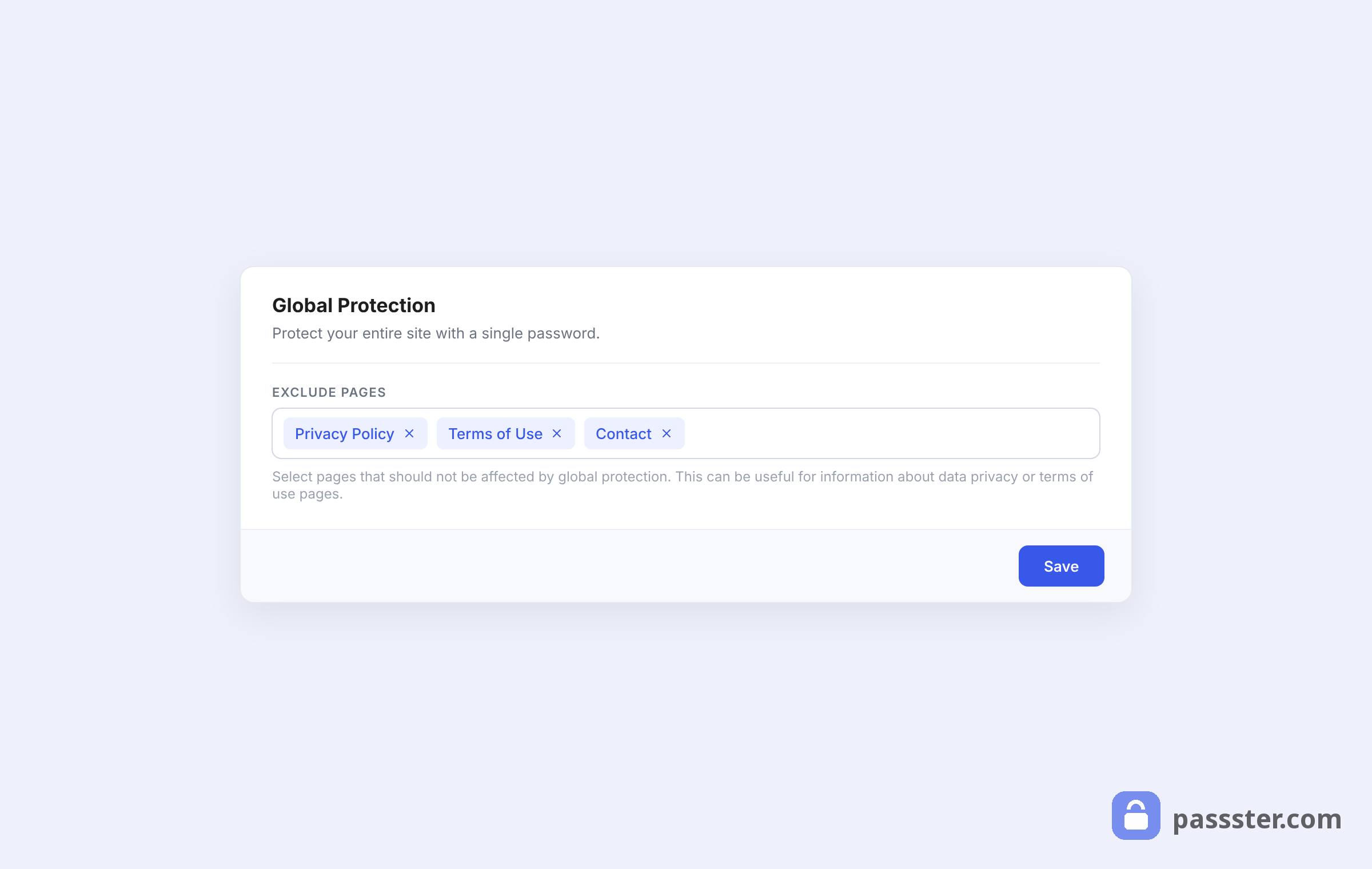
- Once happy, click Save Settings, and your whole site will be protected, with every visitor directed to your global protection page.
- Now click on the “Customize Global Protection Page” link. It will open the selected page from above and activates the protection automatically. Now set a password (or any other kind of protection and save the page) and save your page.
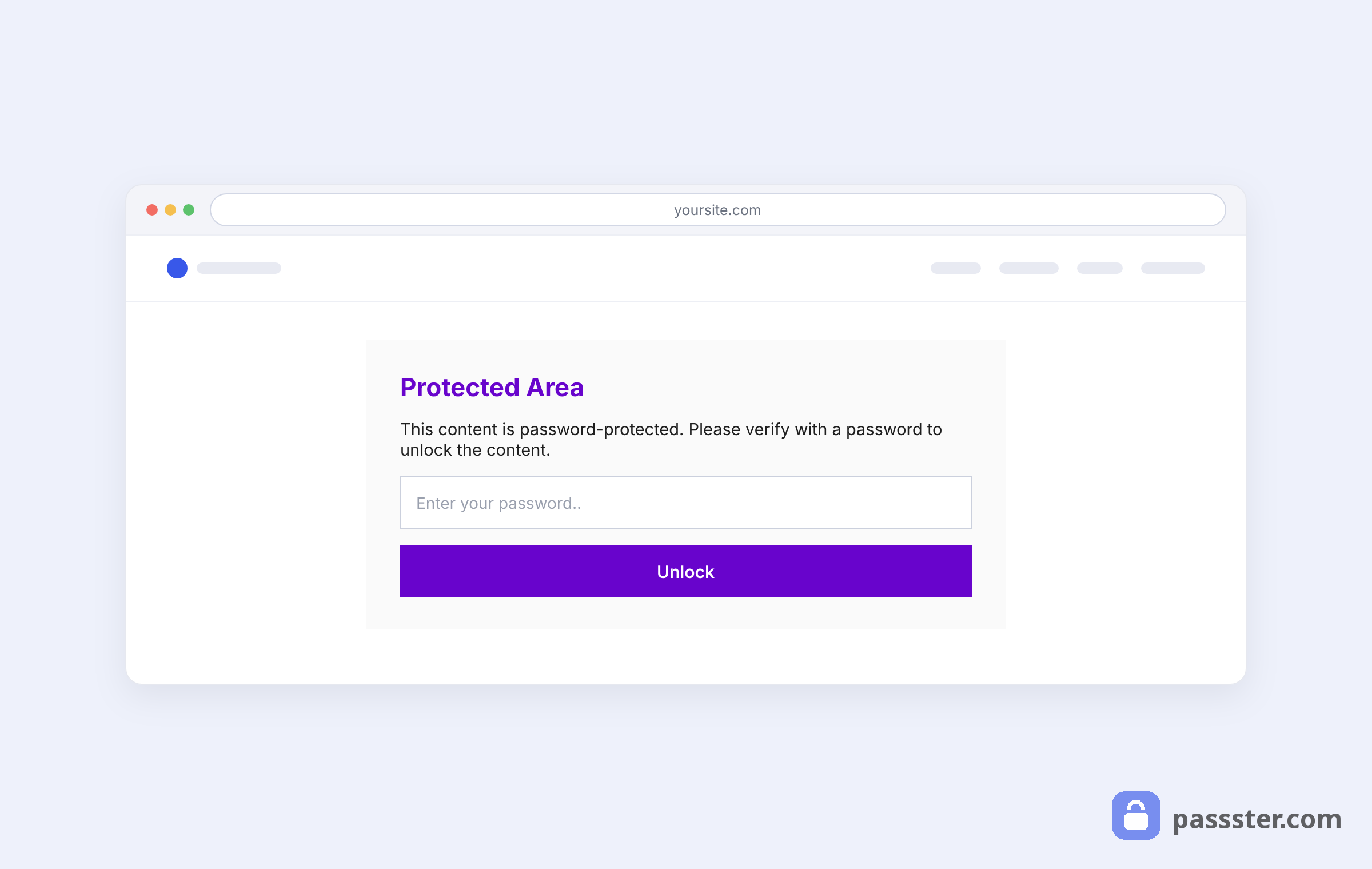
That’s it the global protection is configured now and active. All visitors will be redirected to the configured page and need to add the correct password to enter the rest of the website.