WordPress’s built-in password protection is limited: one password per post, no expiry, no customization. If you need to protect content in WordPress beyond that — gating premium material, blocking bots, sharing a client preview, or restricting a section of a page — you need something more flexible.
Passster is a focused content protection plugin for WordPress that handles each scenario without adding membership-plugin overhead. This guide covers every method Passster offers, explains which method fits which situation, and walks through the full setup.
Why protect your WordPress content?
Content you’ve written has value. Protect it like you would any other business asset. A 2025 report cited by passwordprotectedwp.com found that nearly 30% of digital creators have had their content stolen — scraped by bots, copied by competitors, or redistributed without permission. Content gates stop that.
Beyond theft prevention, there are three practical situations where a content gate earns its place:
- Bot traffic: automated scrapers inflate your server load and harvest content before you’ve had a chance to monetize it.
- Premium content: tutorials, templates, and research reports that you sell or offer as a lead magnet need a gate to stay gated.
- Client or team previews: a staging page or draft section that shouldn’t appear in search results or be visible to the public.
- Course or membership content: lesson material that should only be visible to enrolled users, not anonymous visitors.
What Passster does — and why it’s not a membership plugin
Passster is a standalone content protection plugin for WordPress. It adds a sidebar panel to the WordPress block editor that lets you activate protection on any post, page, or custom post type without touching your theme or writing PHP.
WPBeginner’s 2026 roundup of the best WordPress content protection plugins names Passster as the go-to option for partial-section protection — the ability to gate part of a page rather than the entire post. That makes it different from a membership plugin like MemberPress or Restrict Content Pro, which require user registration and subscription management to do the same job.
The distinction matters: if your use case is “show the introduction, hide the rest” or “make this page visible only to people who have the link,” a full membership plugin is overkill. Passster solves that without a user database, payment gateway, or onboarding flow.
Passster’s protection methods
Passster ships with five protection methods. Each blocks access differently — password entry, bot verification, one-time link, authenticated user check, or visual puzzle — so you can match the method to the audience and use case rather than forcing every scenario through a single gate.
Password protection
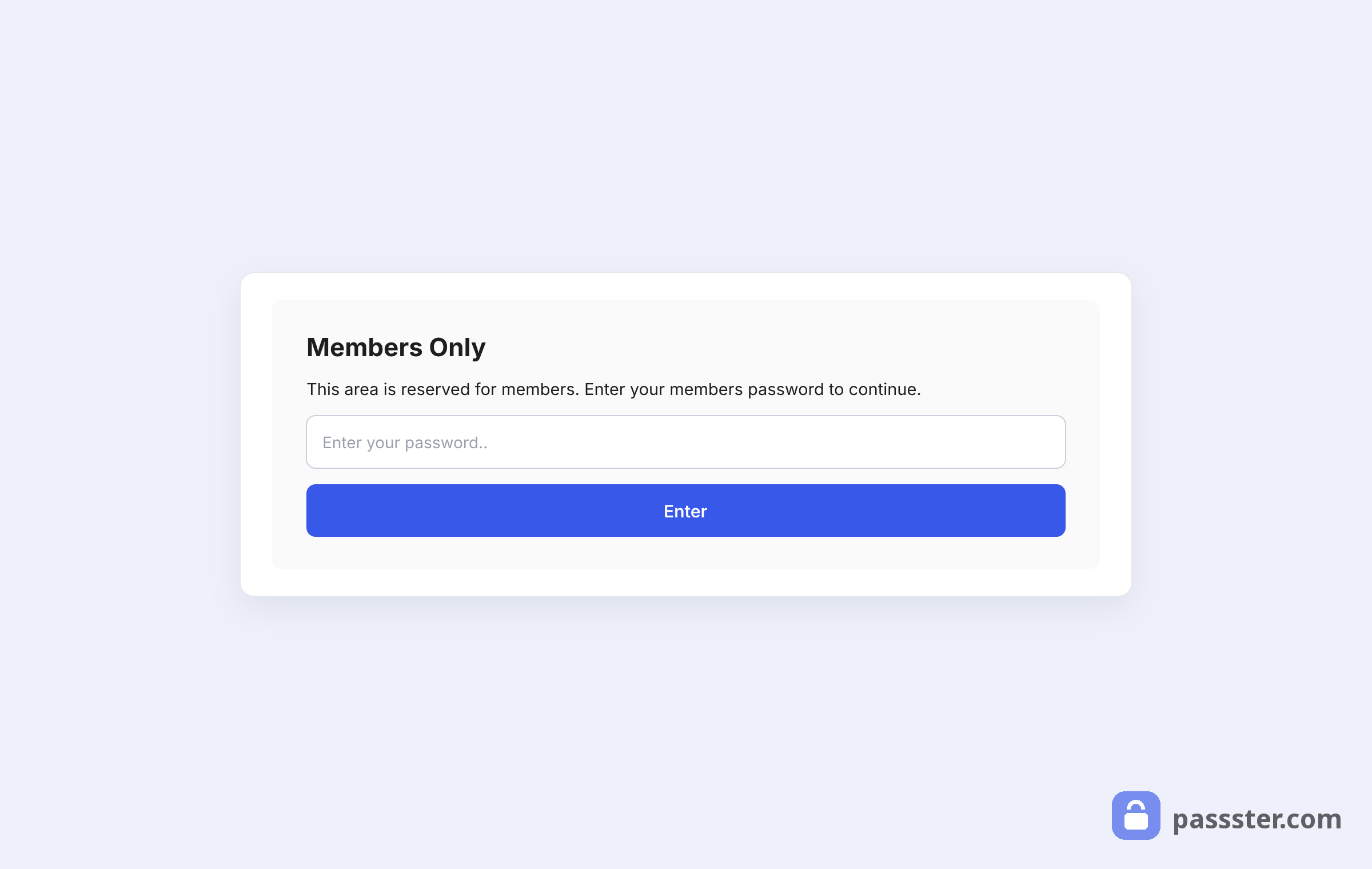
The password method displays a form in place of your protected content. Visitors enter a password, Passster validates it, and — if correct — the content loads. You can set a single password or use a password list with multiple valid codes, per-user expiry dates, and one-time-use restrictions.
Password lists are useful when you’re distributing unique codes to a group (a cohort of course participants, for example) and want to revoke access for individual codes without resetting the protection for everyone else.
The password form text, button label, and error message are all customizable per-page or globally from Settings.
Use this when: you need a quick credential gate with no login requirement — a shared page for clients, a draft review link for a collaborator, or a gated download.
Password lists
Password lists extend the single-password method. Instead of one shared password, you assign a list of unique codes to a protected page. Each code can be set to expire after a number of uses or a date, making it suitable for time-limited access or single-download links.
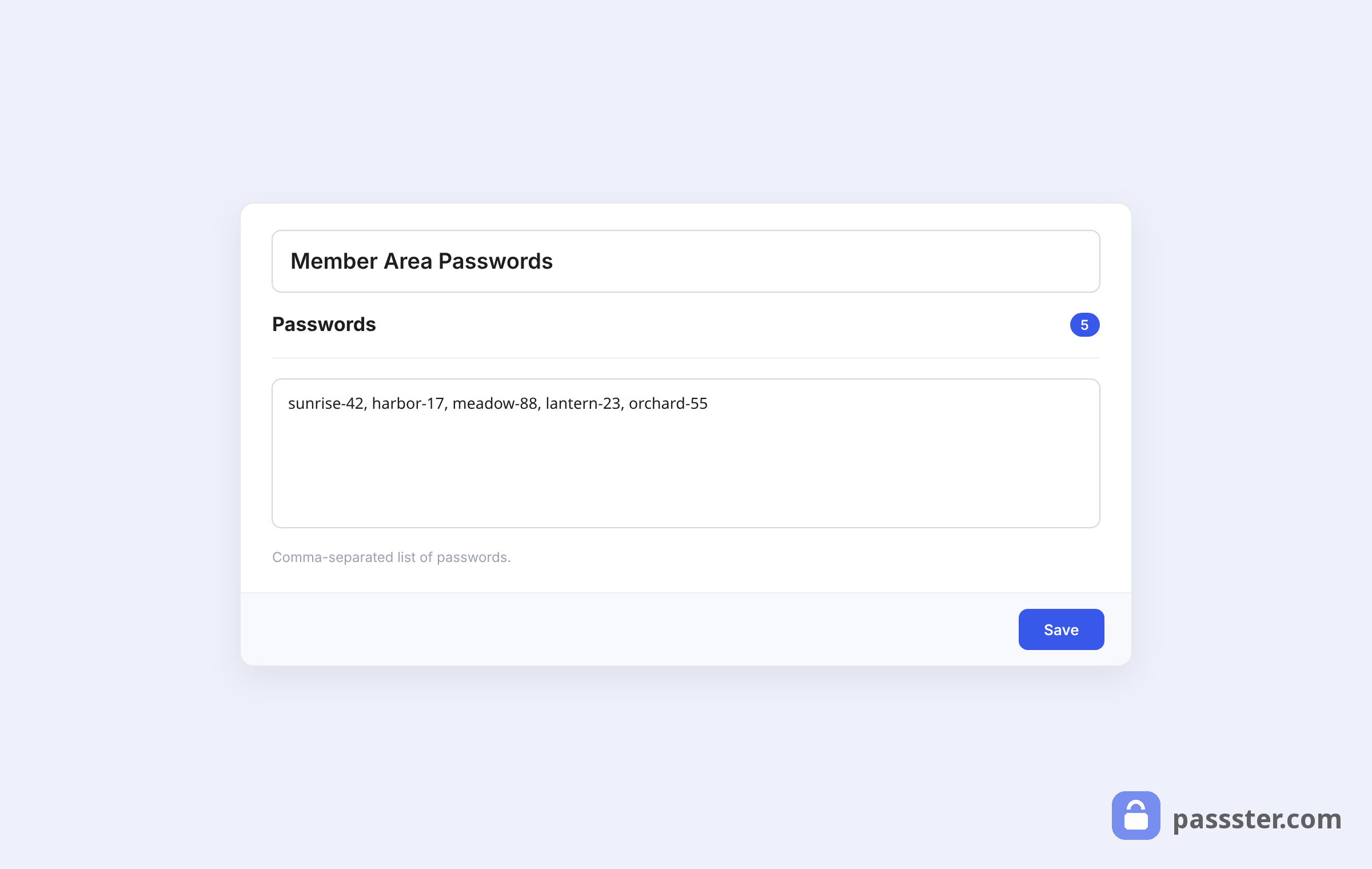
Create a list under Passster → Password Lists, generate or import codes, set expiry rules, and assign the list to a page via the sidebar protection settings.
reCAPTCHA protection
reCAPTCHA is Google’s bot-detection service. Passster supports both reCAPTCHA v2 (checkbox) and v3 (invisible). When this method is active, a visitor must pass Google’s verification before the content loads — human visitors pass silently on v3, while bots are blocked.
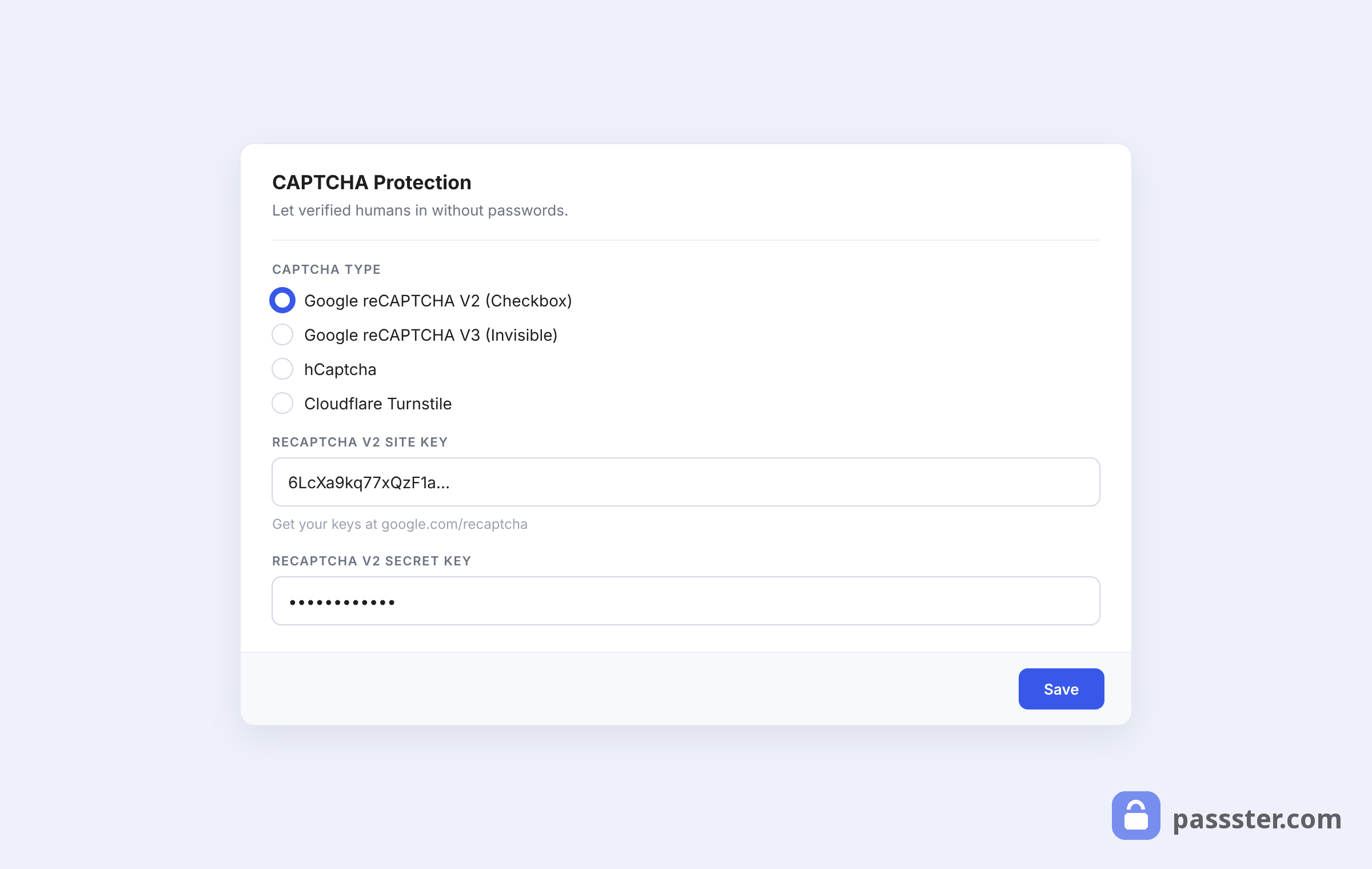
Use this when: you want to block scraper bots without asking human visitors to remember or enter a password. Works well on high-traffic pages where bot load is a problem.
Image CAPTCHA
The image CAPTCHA addon is a self-hosted alternative to reCAPTCHA. It generates a visual puzzle (distorted characters or image selection) that a visitor must solve to proceed. No Google account required, no external call, fully configurable difficulty.
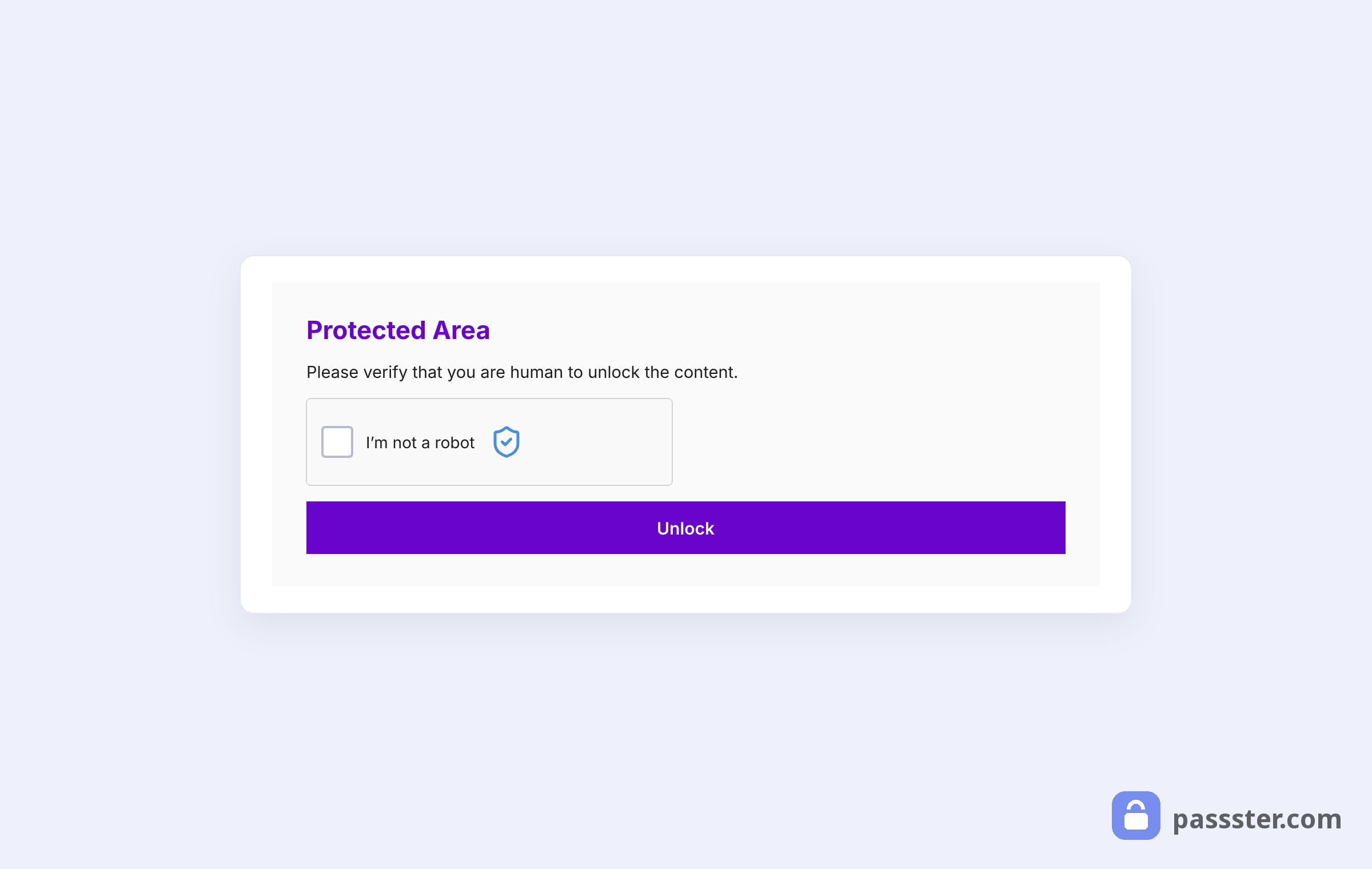
Enable under Passster → Settings → Integrations. Once active, it appears as a protection type option in the page sidebar.
Use this when: you want bot protection without sending visitor data to Google — privacy-first sites, EU-based publishers, or cases where reCAPTCHA’s dependency on external servers is a concern.
Encrypted link (unlock link)
An encrypted link is a unique URL that grants access to a protected page without a password or verification step. You generate the link from the Passster sidebar, share it with the intended recipient, and Passster validates the token in the URL when they click it.
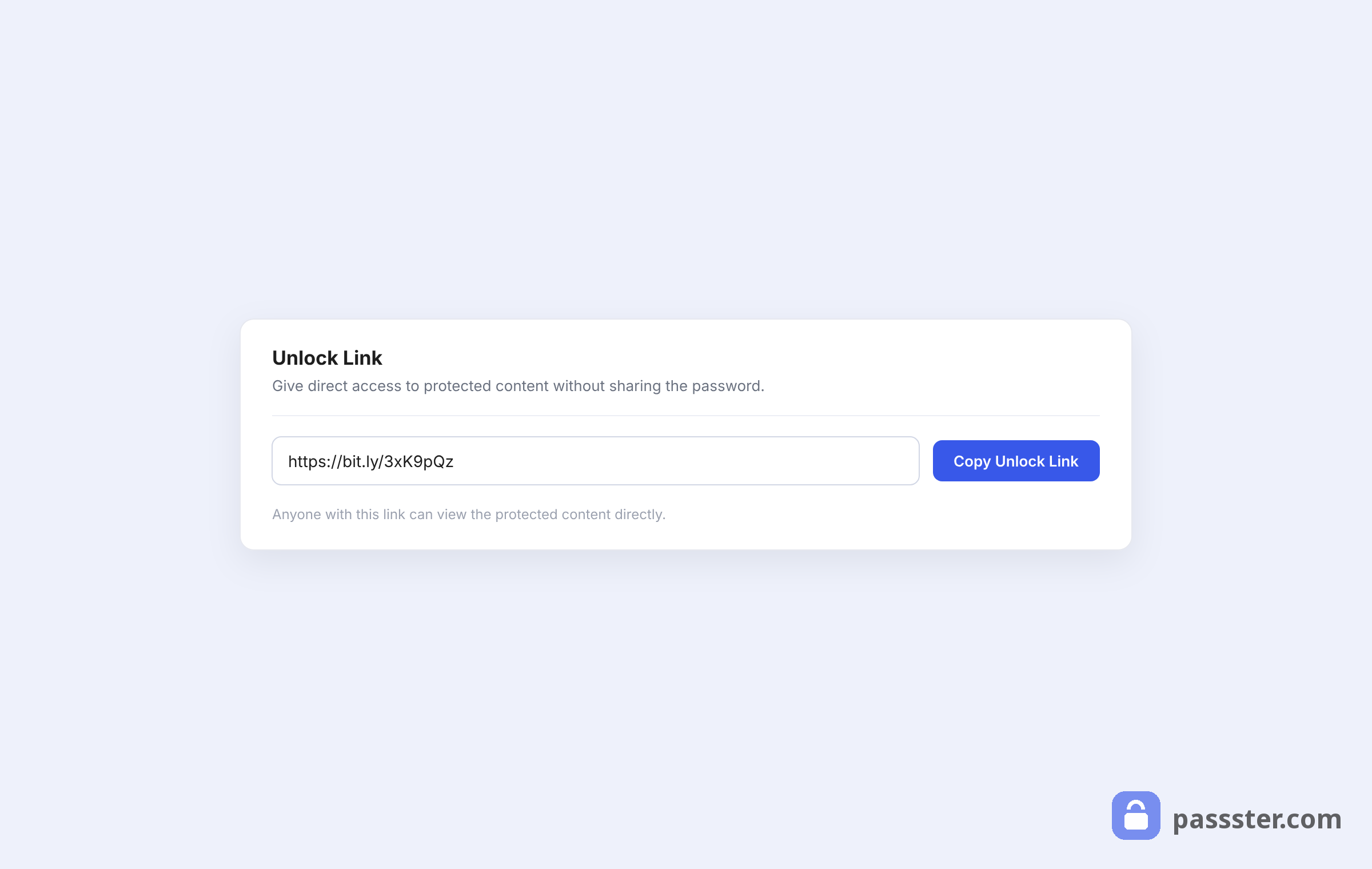
Use this when: you’re sharing a page with a specific person (a client, a reviewer) and want frictionless access without distributing a reusable password. The link can be set to expire after first use.
User role and username restriction
Passster’s Users addon restricts content to logged-in WordPress users who match a specified role or username. If a visitor is logged in and their role is on the allowed list, Passster passes them through automatically — no form, no extra step. If they’re not logged in or don’t qualify, they’re redirected to a URL you specify.
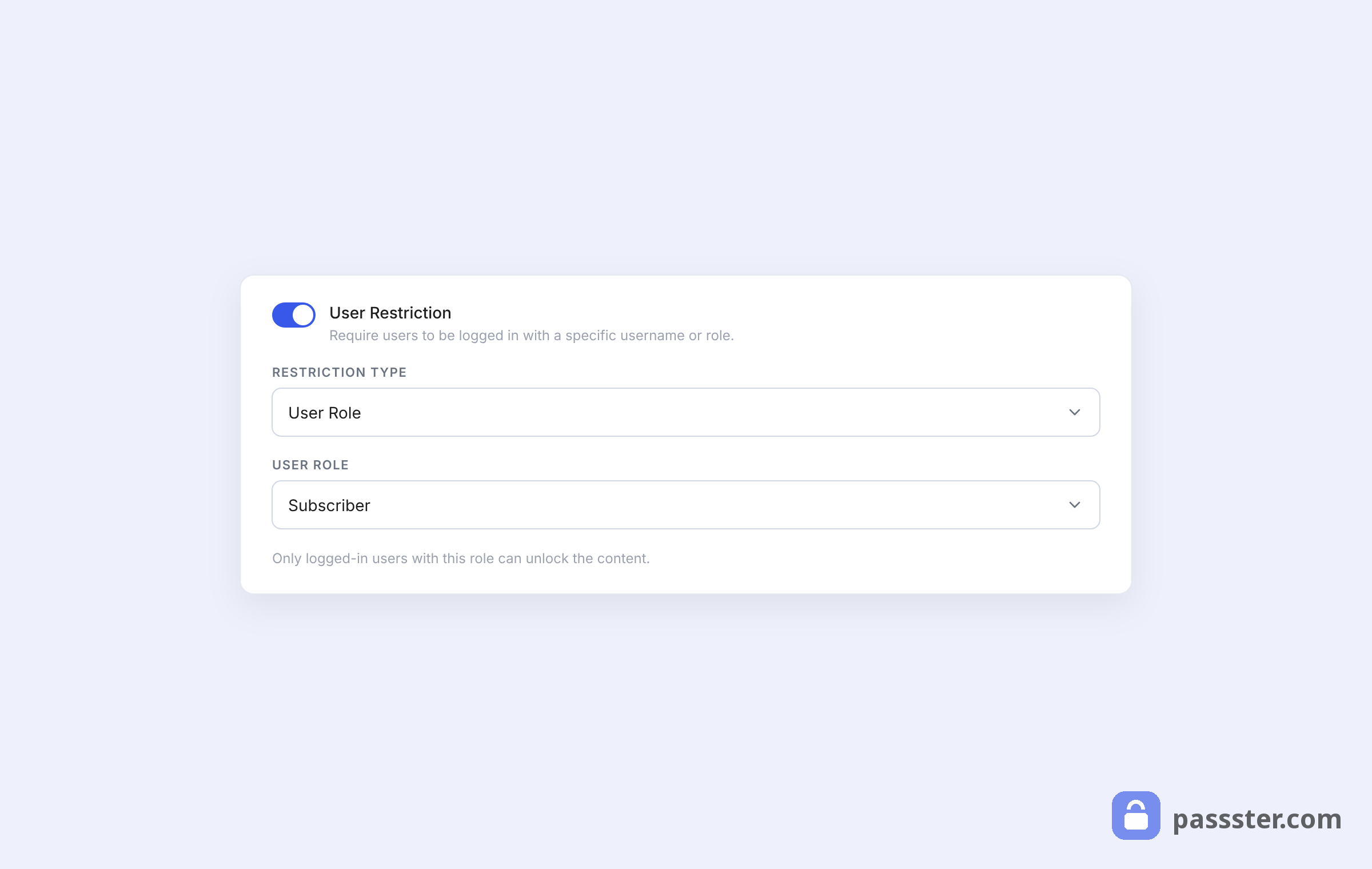
This method supports restricting content by user role in WordPress (Administrator, Editor, Subscriber, or any custom role) and by individual username. Enable the Users addon under Passster → Settings → Integrations, configure the allowed roles or names in the Shortcode tab, and paste the generated shortcode into any post or page.
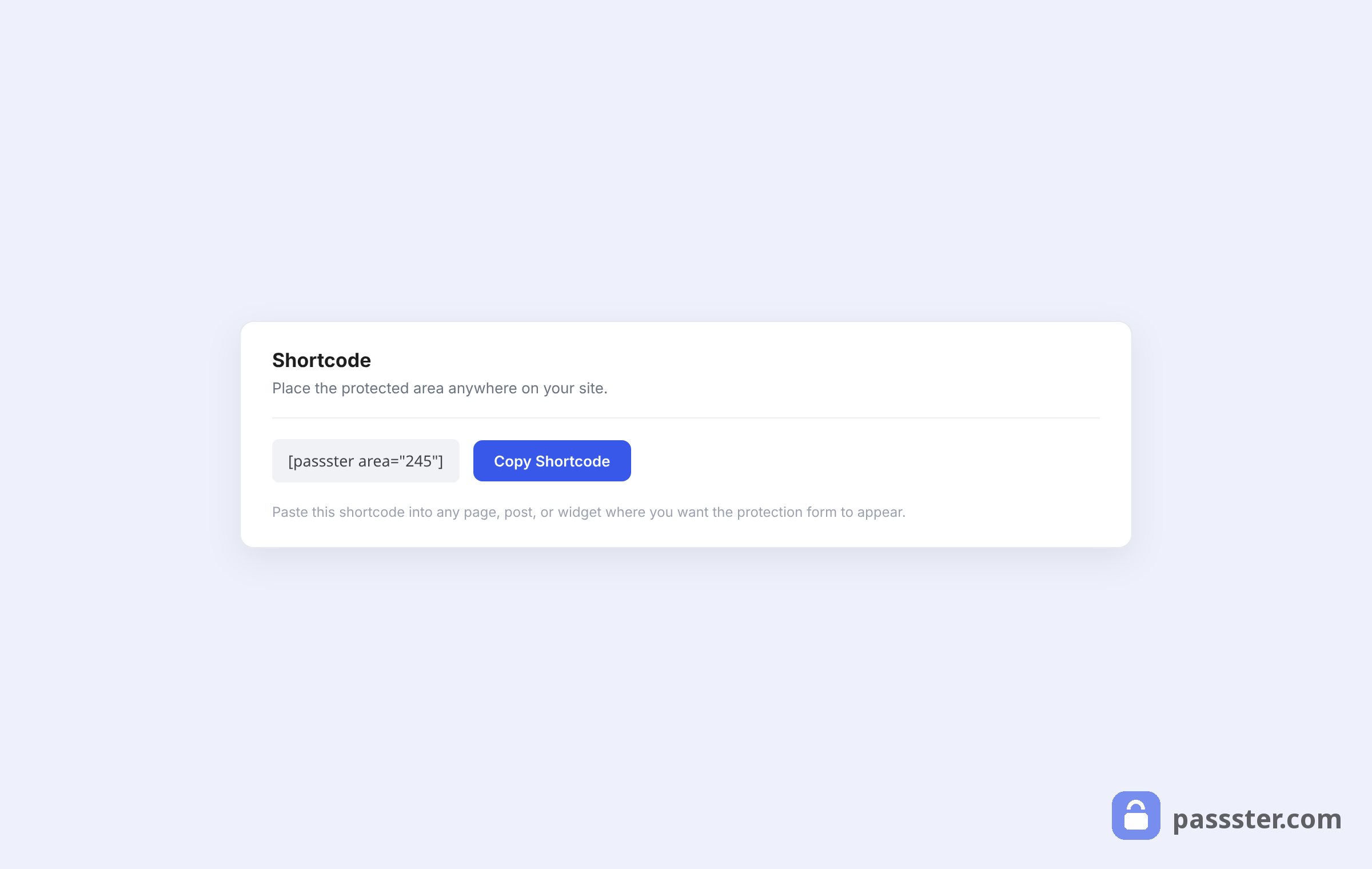
Use this when: you’re building a members-only section of your site and want to use existing WordPress user accounts instead of distributing passwords. Combines well with a user registration plugin for a lightweight membership flow without a full membership platform.
Which protection method should you use?
The right method depends on who you’re keeping out, how much friction is acceptable, and whether SEO matters for that page. Here’s a direct mapping.
| Scenario | Best method | Why |
|---|---|---|
| Block scraper bots from a public page | reCAPTCHA (v3 invisible) | Invisible to humans; blocks bots automatically |
| Share a page with one client, no password to remember | Encrypted link | One-click access; no credential to manage |
| Gate premium content behind a paywall (no membership plugin) | Password + password list | Unique codes per user; expiry control |
| Restrict course content to enrolled users | User role restriction | Automatic pass-through for logged-in users |
| Show a teaser, hide the detailed breakdown | Area protection | Partial gating preserves crawlability |
| Bot protection without sending data to Google | Image CAPTCHA | Self-hosted; no external dependency |
One note on SEO: gating an entire page with a password, CAPTCHA, or encrypted link means Googlebot cannot crawl the protected content. According to Google Search Central documentation, Google will not index content it cannot access. If you need a page to rank, use area protection (which leaves the visible portion crawlable) or keep the page public.
How to protect a WordPress page or post with Passster
The short version: edit the page, toggle Activate Protection in the Passster sidebar section, pick your protection method, and update — the page now shows a password form instead of its content. The full walkthrough, with screenshots, form styling options, and SEO notes, lives in our guide to customizing the password protected page in WordPress, so we won’t duplicate it here.
Area protection: gate part of a page, not all of it
Area protection in Passster is a shortcode-based method that wraps a section of a page behind a gate while the rest remains publicly visible. Unlike full-page protection, the content outside the shortcode is crawlable by search engines and visible to all visitors.
This is the method to use for teaser-style pages: show the introduction and summary freely, then require authentication to access the detailed breakdown, downloadable file, or premium section beneath it.
Wrap the content you want to protect in the Passster shortcode:
The shortcode accepts the same options as the sidebar panel: password, reCAPTCHA, encrypted link, or user role. Multiple protected areas on the same page can each use different passwords or methods.
Global site protection
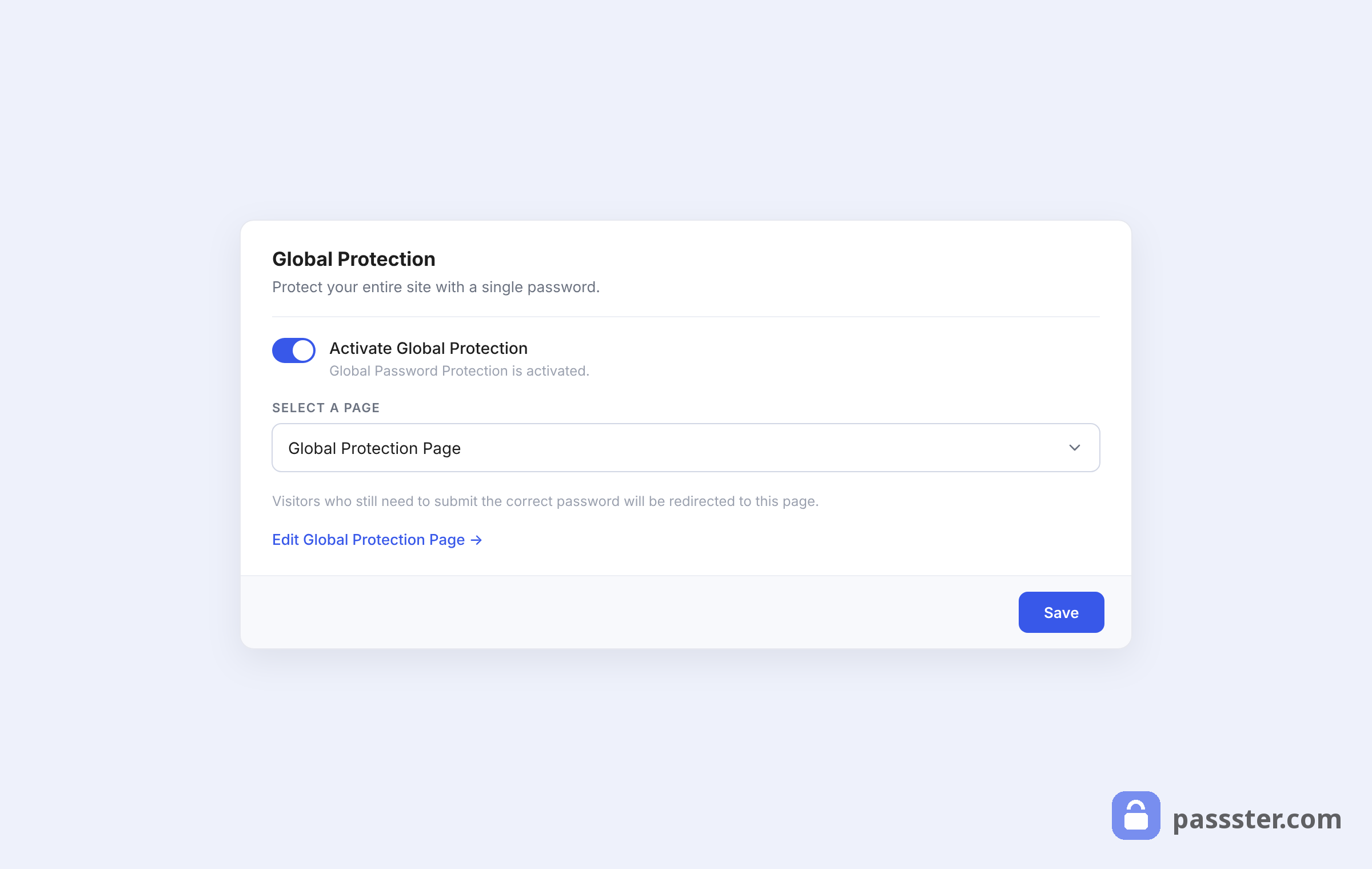
Passster’s Global Protection locks your whole site behind one protection page: activate it under Passster → Settings → Global Protection, pick the page visitors should land on, and set your protection method there. The complete setup — including which pages to exclude and how it compares to WordPress’s built-in options — is in our guide to setting up a password protected website.
Frequently asked questions
Install a content protection plugin like Passster, then use the sidebar panel in the WordPress editor to activate protection on any page or post. Choose from five methods: password, reCAPTCHA, encrypted link, image CAPTCHA, or user role restriction. Setup takes under five minutes and requires no theme modifications or code changes.
Passster’s Users addon grants automatic access based on a visitor’s WordPress user role (Administrator, Editor, Subscriber, or any custom role) or specific username. Enable the addon under Settings → Passster → Addons, configure the allowed roles or names in the Shortcode tab, and paste the generated shortcode into any post or page.
Gating content behind a password or CAPTCHA means Googlebot cannot crawl the protected sections — Google won’t index what it can’t access. If you want a page to rank, use area protection (which gates only part of a page, leaving the visible portion crawlable) or keep the page public. Password-protected pages do not rank for the content behind the form.
Passster’s reCAPTCHA method uses Google’s verification service to filter non-human traffic — the invisible variant runs silently for genuine visitors. The image CAPTCHA addon is a fully self-hosted alternative with configurable difficulty, requiring no Google account. Either method blocks scrapers without requiring human visitors to enter a password.
Yes. Passster’s area protection uses a shortcode to wrap any section of a page or post behind a gate while the rest of the content stays publicly visible. This is ideal for teaser-style layouts: show the introduction freely, then require authentication to access the detailed breakdown, downloadable file, or premium section beneath it.
Password protection requires visitors to enter a known credential before they can view the content — anyone with the password gets through, regardless of whether they have a WordPress account. User role restriction checks whether the visitor is logged in and has an allowed role or username; if they do, Passster passes them through automatically with no form to complete.
Your content, your access rules
Passster covers the full range of WordPress content protection scenarios: a quick password gate for a single page, reCAPTCHA for a scraper-targeted post, an encrypted link for a client preview, area protection for a teaser layout, or a global site lock for a pre-launch build. Each method is a distinct tool for a distinct job.
If you’re still using WordPress’s native password field and working around its limitations, Passster is the direct upgrade. Install it, activate protection on your first page, and you’ll have it running in under five minutes.