For most businesses, sharing PDF files has become a central part of content marketing. Ebooks, white papers, checklists, case studies — 290+ billion new PDFs are created every year, and many contain exclusive content meant for specific audiences.
That creates a real access-control problem: how do you password protect PDF files without Acrobat and keep only the right people downloading them?
Adobe Acrobat has long been the default answer. At ~$19.99/month for a Pro subscription, though, it’s a steep price for small teams — and it comes with workflow limitations that make managing passwords a headache.
There’s a better way. This guide walks through all three options: free file-level tools, WordPress built-in protection, and Passster — a WordPress plugin that gates access to specific page sections without touching the file itself.
Why Password Protect PDF Files on Your WordPress Site
PDF password protection restricts who can download your files — protecting lead-gen content, premium resources, and confidential documents from unauthorized access. With 290+ billion new PDFs created annually (Smallpdf, 2025), controlling access to yours directly affects the value of what you’ve built.
1. Create Exclusive Content
Many businesses use gated content — white papers, ebooks, case studies — as part of lead generation. Visitors submit their contact details in exchange for the download. Password-protecting that content ensures the exchange is genuine: only those who opted in can get the file.
2. Control Access to Premium Resources
If you sell digital resources as PDFs, password protection is what separates paying customers from the rest of your visitors. Without it, a single customer could share the direct link and give everyone else free access.
3. Restrict Unauthorized Downloads and Sharing
Beyond revenue protection, restricting access preserves your competitive advantage. Proprietary processes, internal guides, and paid research stay with the audience you built them for — and paying customers get exclusive access to materials they’ve earned.
Common Methods for PDF Protection
Three established methods let you password-protect a PDF for WordPress — free file-level tools, Adobe Acrobat, and WordPress plugins — each solving a different part of the access-control problem.
1. Free File-Level Encryption Tools
If you want to encrypt the PDF file itself — so you need the password to open it anywhere, regardless of where it’s downloaded — free tools can do this without Acrobat:
- macOS Preview: on a Mac, open the PDF, go to File > Export as PDF, and check “Require password to open.”
- LibreOffice: version 25.8 (August 2025) upgraded PDF export encryption from RC4 to AES-256, making it one of the strongest free encryption options available.
- Online tools: PDF24, PDF Candy, and Smallpdf all offer browser-based password protection at no cost.
File-level encryption protects the file wherever it travels. The trade-off: changing the password means re-encrypting and re-uploading the file.
2. External Protection Using Acrobat
Adobe Acrobat Pro remains the most widely known option. The cost is the problem — a Pro subscription runs ~$19.99/month. The same limitation as free tools applies too: changing a password requires re-encrypting and re-uploading the file.
3. WordPress Built-in Password Protection
WordPress has a native password feature on every page and post. The native password feature works, but it protects the entire page, not just the PDF. Every visitor sees the same password, and you have no way to track who actually accessed the file. It’s a blunt instrument.
File-Level vs. Content-Layer Protection: What’s the Difference?
PDF protection splits into two distinct approaches — file-level encryption and content-layer gating — each solving a different problem.
File-level encryption embeds a password directly in the PDF. Anyone who gets the file — whether they downloaded it from your site or received it by email — needs the password to open it. The protection travels with the file.
Content-layer protection (what Passster provides) gates the download experience on your WordPress page. A visitor must enter the correct password to see the download button. But the underlying file URL in the WordPress media library may still be accessible directly if someone finds or guesses it.
Neither approach is universally better. For most use cases — lead magnets, paid resources, client deliverables — content-layer protection is enough. For genuinely sensitive documents, combining both layers makes sense. Encrypt the file first with a tool like LibreOffice or Acrobat, then gate the download with Passster to control access from the dashboard.
That’s where Passster’s core advantage over the WordPress built-in option lies: flexibility. You can change passwords without touching the file, set different passwords for different audiences, and protect just a section of a page rather than the whole thing.
Why Passster for WordPress PDF Protection
Passster is a WordPress plugin that password-protects your entire site, a specific page, or just part of your content. With 10,000+ active installs (WordPress.org), it’s the most widely adopted WordPress plugin for granular content protection.
That granularity is what sets Passster apart from both the WordPress built-in option and file-level tools.
You can choose from multiple password types: a single shared password, multiple passwords, password lists, or Google reCAPTCHA and hCAPTCHA for bot protection. Passster also works with custom post types (ACF, Widgets, Gutenberg), and it’s compatible with major page builders including Elementor.
Here’s what makes Passster the smarter choice for managing PDF downloads in WordPress:
- Change passwords from the dashboard: no need to re-encrypt or re-upload the file. Update the password once and it takes effect immediately.
- Protect only what you want: gate just the download section of a page, leaving the rest visible. No need to lock the entire post.
- Generate multiple passwords: useful for distributing different passwords to different user groups, so you can track which group accessed the file.
- No extra workflow steps: install once, manage everything from the WordPress dashboard.
How to Password Protect PDF Files Without Acrobat Using Passster
Follow these three steps to gate any PDF download on your WordPress site with Passster — no Acrobat required.
Step 1: Installing and Activating Passster in WordPress
Log in to your WordPress dashboard and go to Plugins > Add New. Search for Passster and press Enter.
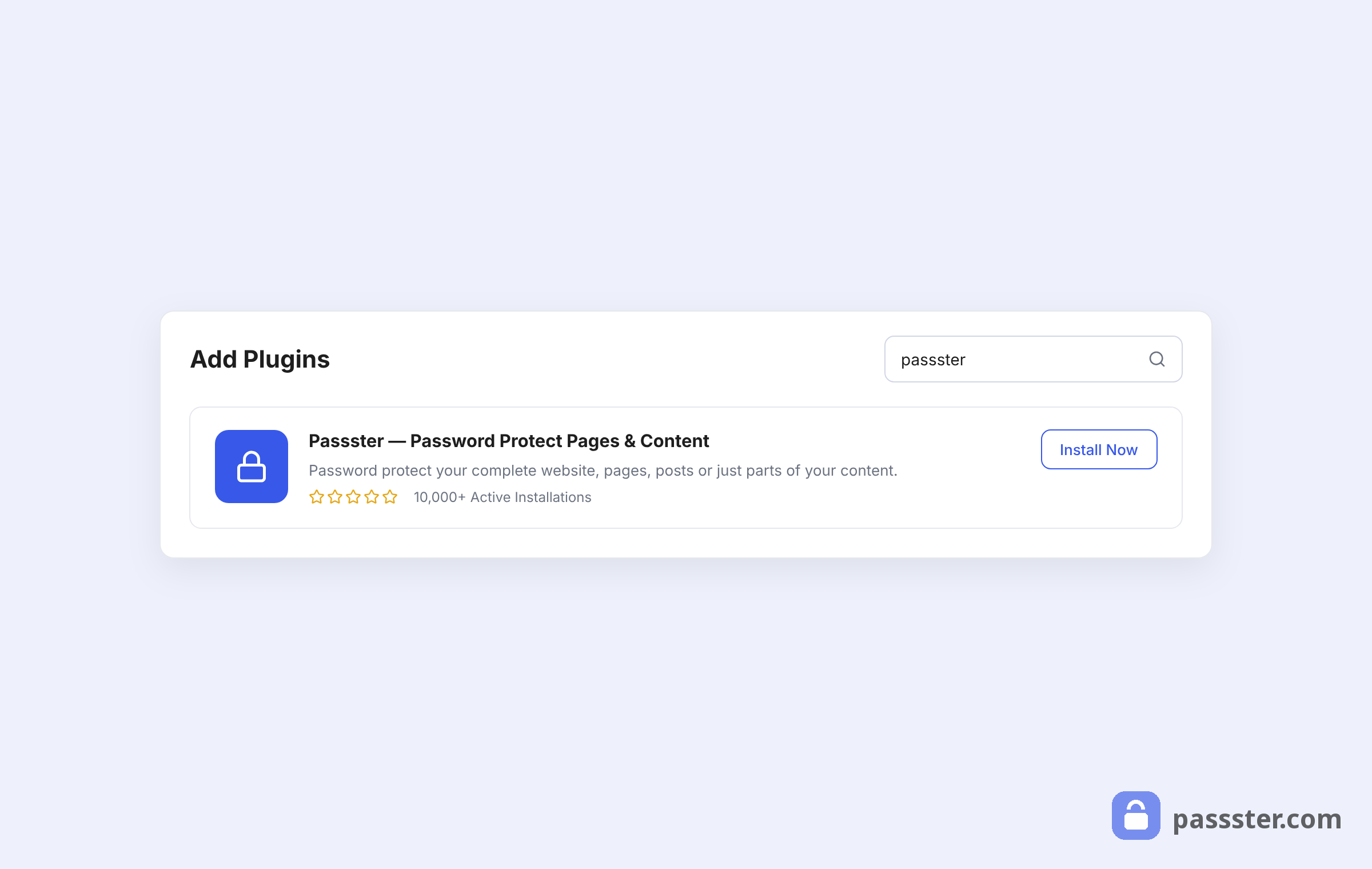
Click Install Now > Activate. Once activated, a new Passster menu appears in your WordPress dashboard.
Step 2: Creating a Protected Area in WordPress
Go to Passster > Protected Areas > Add New Protected Areas.
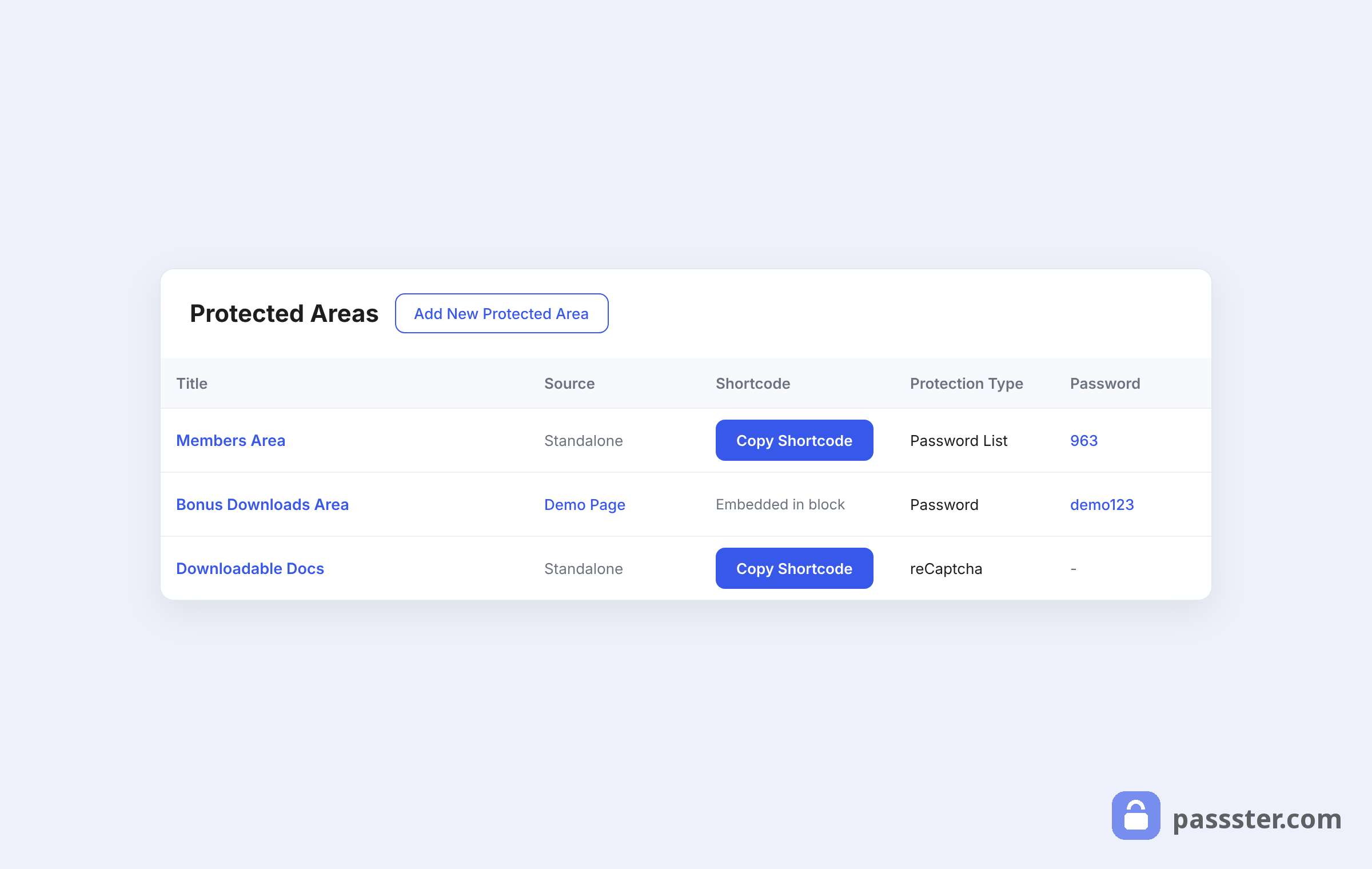
A page editor opens. Add a title for your protected area — for example, “Download this eBook.”
In the content section, click the + icon to add a block, then search for File.
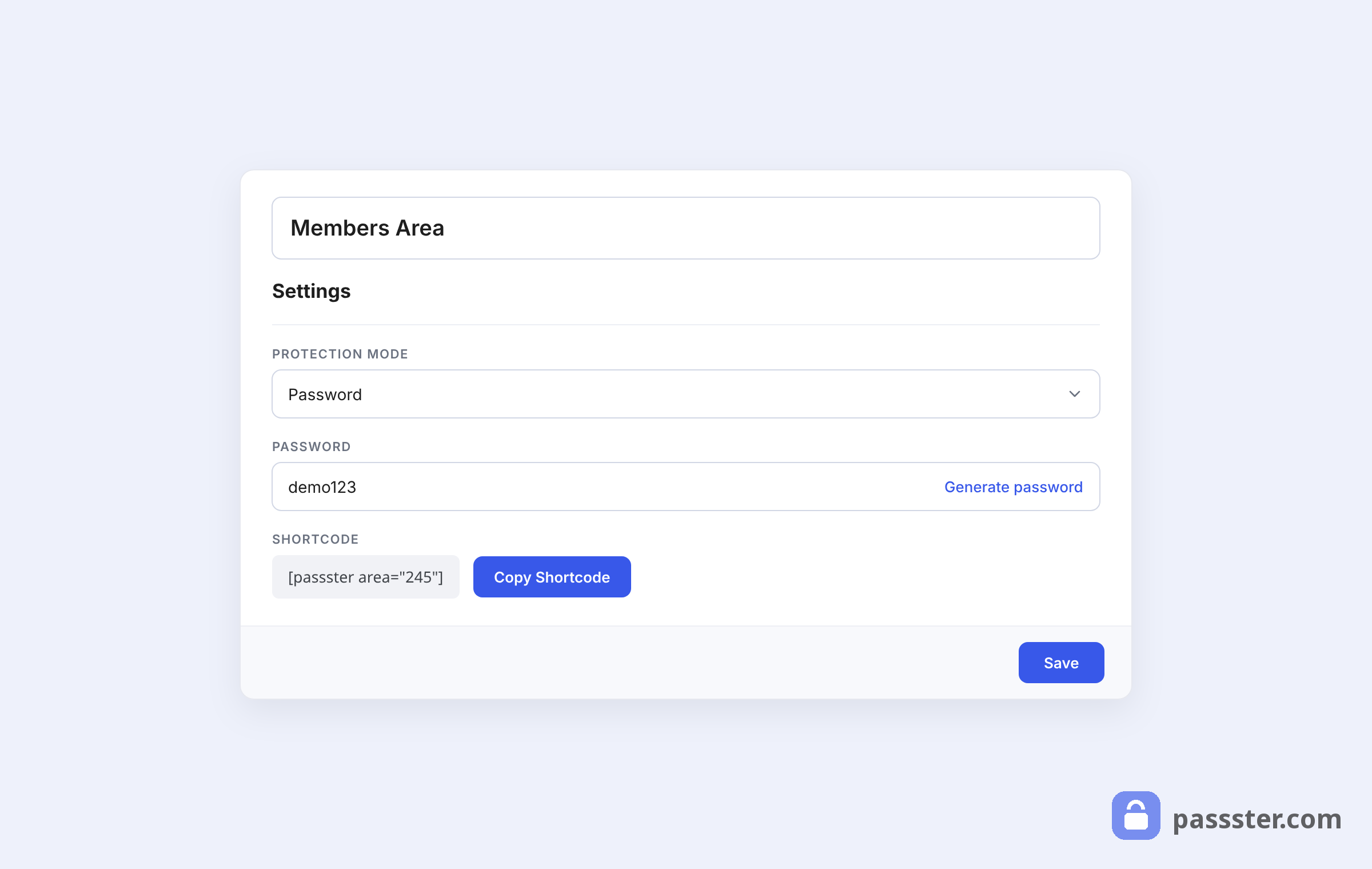
Select File and use the Upload button to upload your PDF. If it’s already in the media library, you can select it from there.
On the right side panel, under Protected Areas, find Protection Mode, click the dropdown, and select Password. Then click Generate Password.
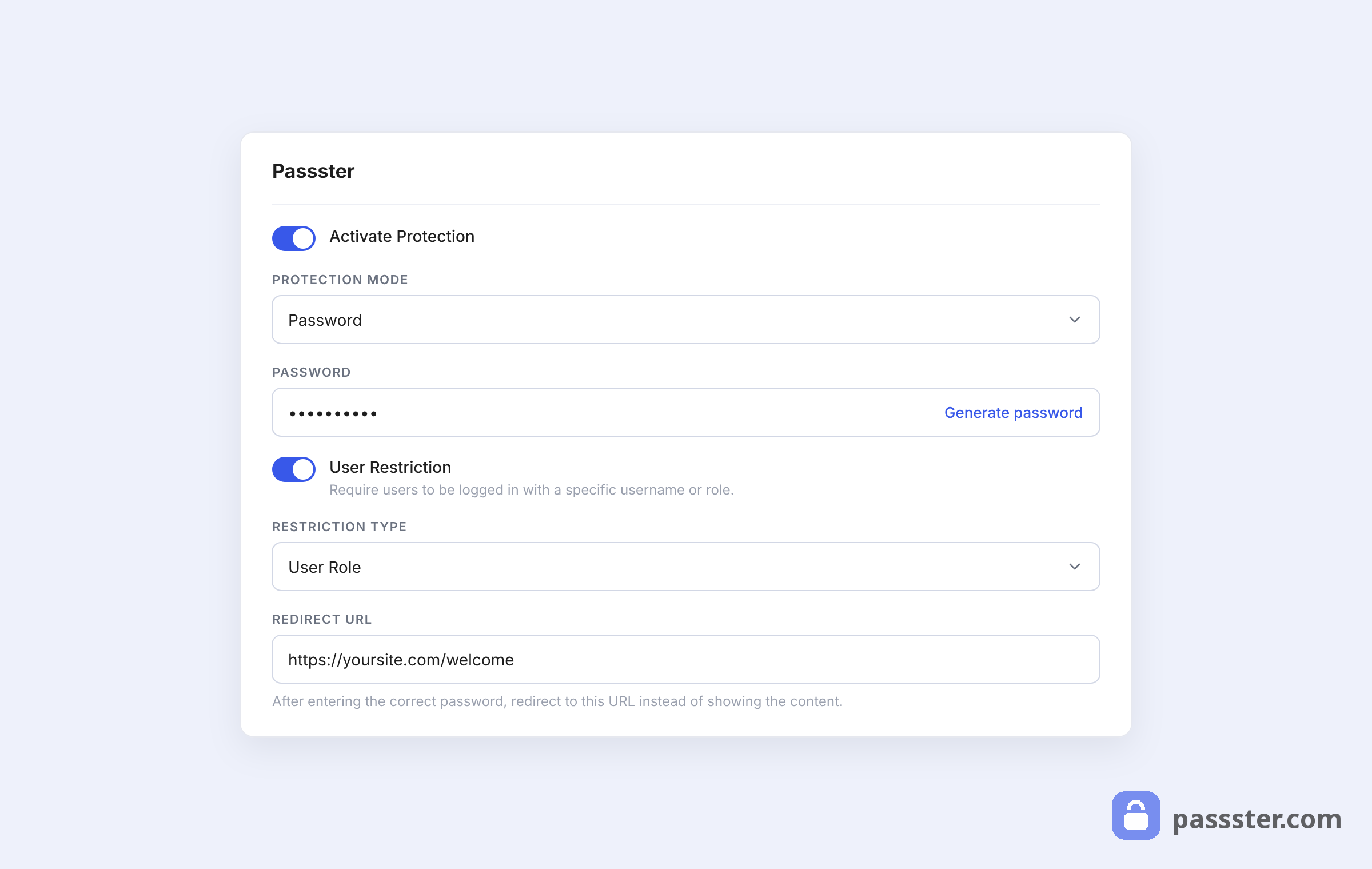
Next, activate the Overwrite Defaults toggle. This lets you customize the headline users see on the password form, the instructions, and the button label — fill these in as needed.
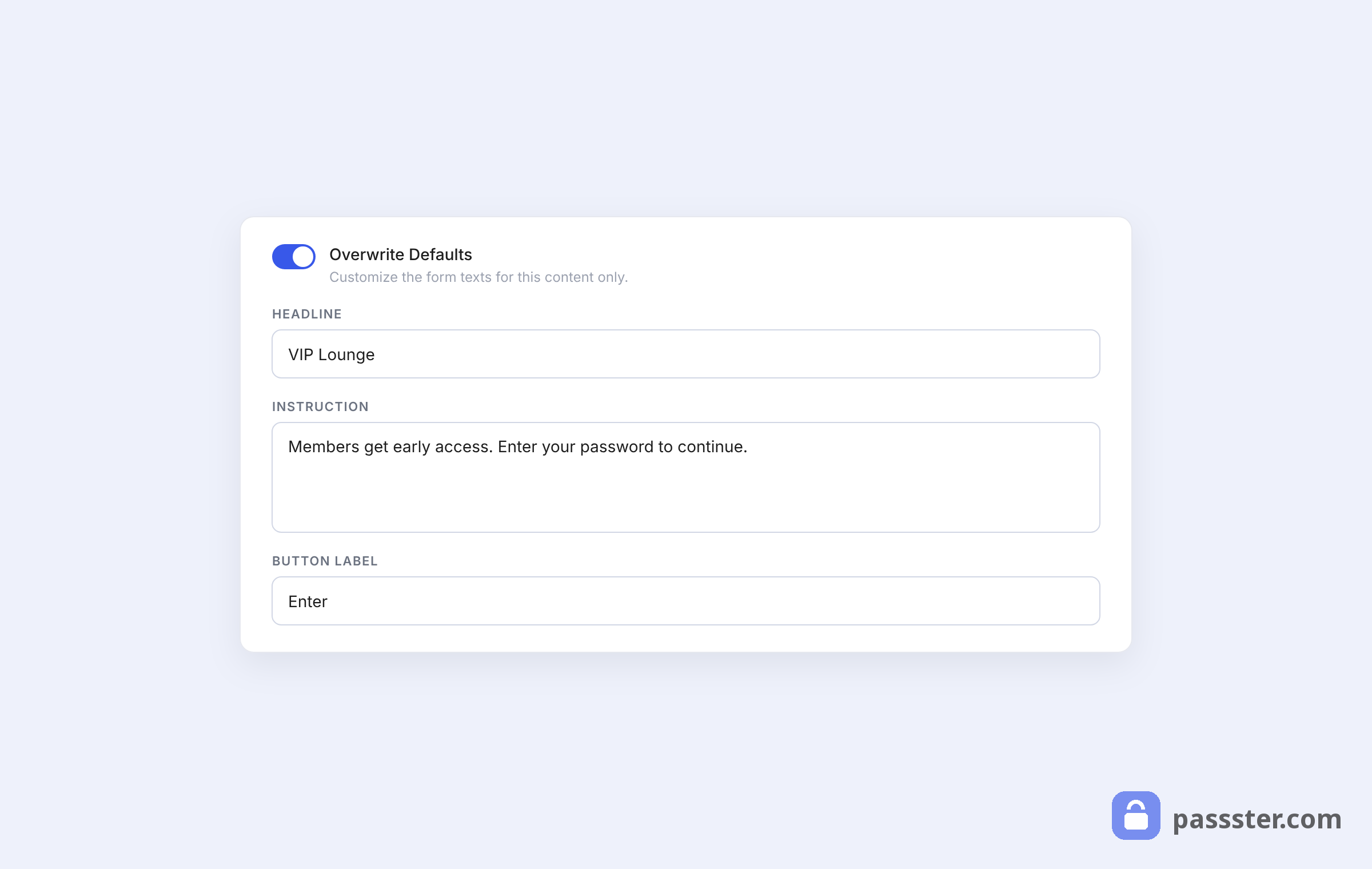
Scroll down and click Copy Shortcode to copy the shortcode for this protected area.

Click Save > Publish in the top right corner.
Step 3: Publishing Your Password-Protected PDF
Now add the shortcode to the page where you want the PDF download to appear. Go to Pages > Add New (or open an existing page).
Add the page title and any content you want visitors to see before the password prompt. Then paste the shortcode into the body where the download should appear.
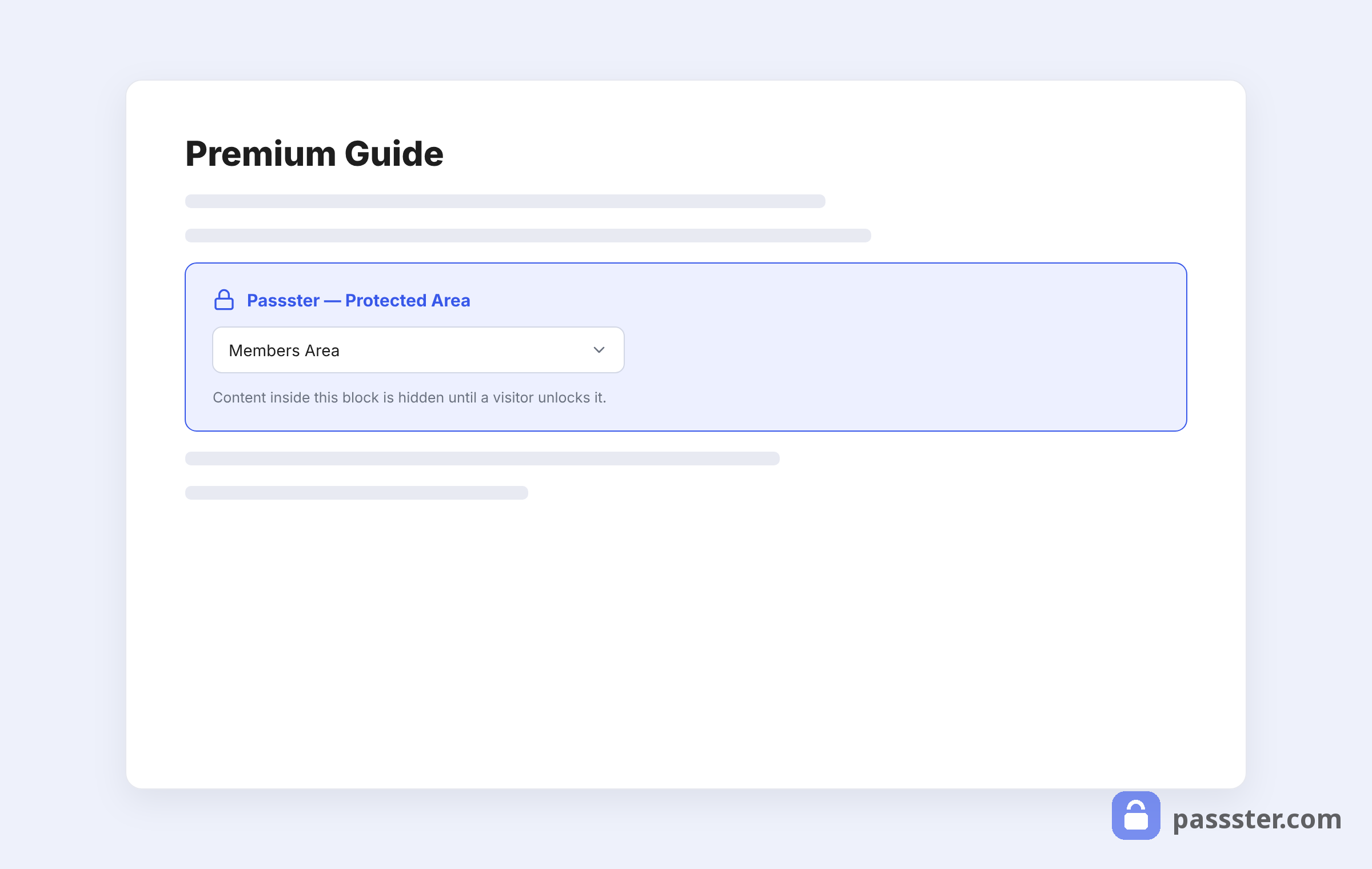
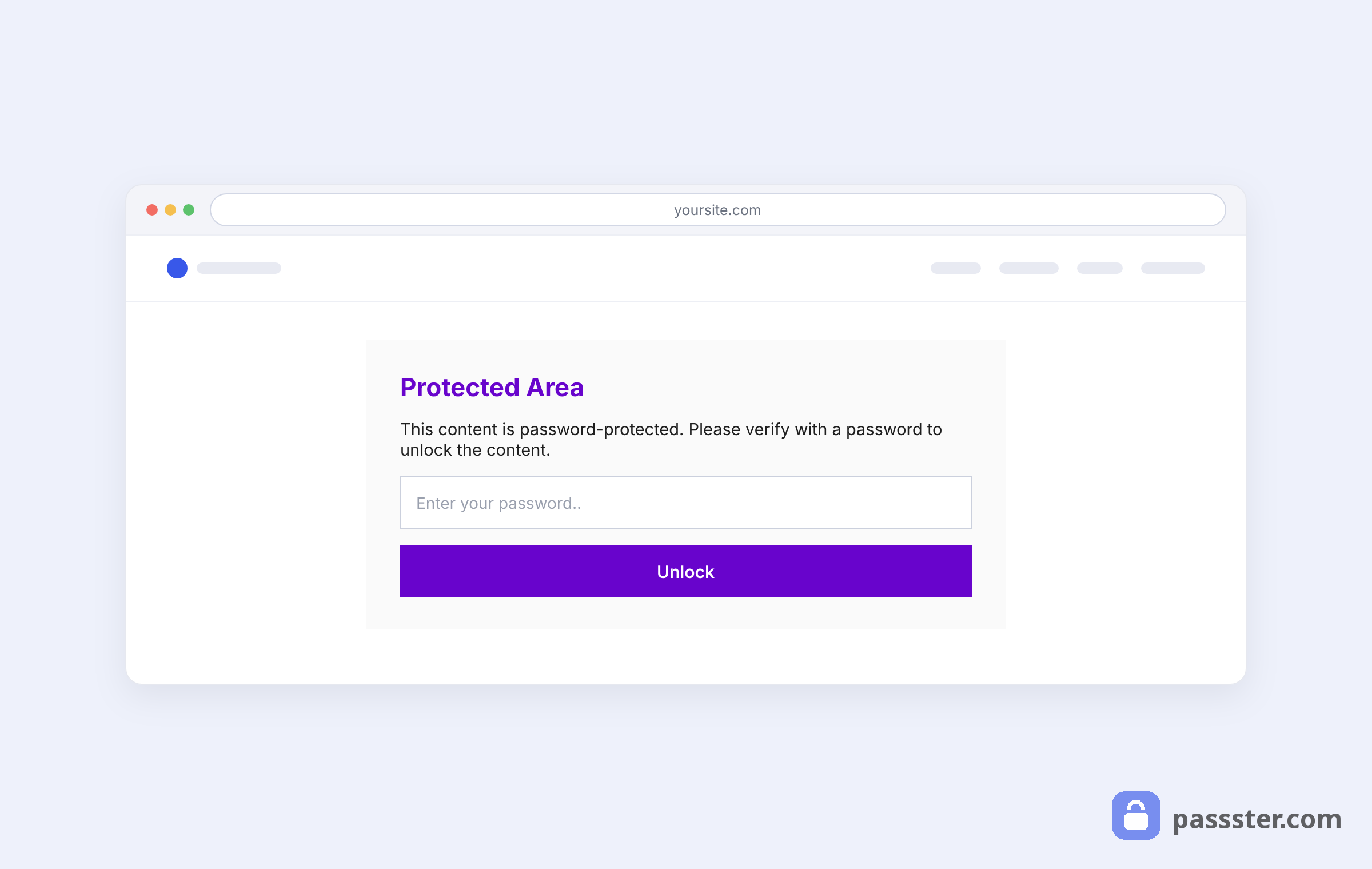
Click Publish. Your password-protected PDF is now live. Here’s how the password prompt appears to visitors on your site:
Frequently Asked Questions
Yes. macOS Preview, LibreOffice, PDF24, and Smallpdf all offer free file-level PDF password protection — no subscription required. These tools embed the password directly in the file. Passster is also free for basic use as a WordPress plugin and handles the access-control layer on your site without any file modification.
Most modern tools use AES (Advanced Encryption Standard). Older tools default to AES-128; newer ones use AES-256. LibreOffice 25.8 (released August 2025) upgraded to AES-256 by default, and Adobe Acrobat also supports AES-256. AES-256 is much harder to brute-force than AES-128, so it’s worth choosing a tool that offers it for sensitive files.
Not by default. Passster gates the download experience on your WordPress page — visitors need the correct password to see the download button. But the file URL in the WordPress media library may still be accessible directly. If that’s a concern, combining Passster with file-level encryption (encrypt the PDF before uploading) gives you both protection layers.
Yes. Passster lets you generate multiple passwords for a single protected area. You can distribute different passwords to different user groups and update any of them from the WordPress dashboard at any time — without re-uploading or modifying the file.
Conclusion
If you want to share PDF files only with specific clients or paying customers, you have solid options — from free file-level tools to WordPress-native access control. Passster sits at the practical center: dashboard control over access, multiple password types, and the flexibility to protect exactly the part of the page you want.
Get Passster now and add passwords to your PDF files without relying on Acrobat.