Managing WooCommerce product visibility gives store owners control over what customers see — and who gets to see it. Whether you’re running a wholesale store, preparing a product launch, or selling age-restricted items, the right approach depends on how much control you need.
Native WooCommerce settings cover most situations. For tighter control — like putting products behind a password — a purpose-built plugin such as Passster fills the gap.
When (and why) to hide WooCommerce products
WooCommerce store owners hide products for five distinct reasons — wholesale pricing, seasonal catalogs, pre-launch staging, members-only access, and age-restricted goods — without deleting URLs or losing rankings.
- Wholesale pricing: Show trade prices only to registered wholesale customers, not the general public.
- Seasonal offerings: Remove out-of-season products instead of deleting them, so all your data stays intact.
- Pre-launch products: Keep a new item off the shop until launch day while you finish the product page.
- Members-only items: Reserve certain products exclusively for subscribers or a specific tier.
- Age-restricted goods: Keep alcohol, tobacco, or other regulated items out of the public catalog for compliance reasons.
One thing to keep in mind before you start: don’t delete products to hide them. Deleting removes the product URL permanently, which can hurt existing SEO rankings and break inbound links pointing to that page (wholesalesuiteplugin.com, 2025). Instead, hiding or drafting keeps all the data intact and the URL recoverable.
How to change WooCommerce product visibility using default settings
WooCommerce provides four built-in Catalog Visibility options — each controlling where a product appears on the storefront — alongside Draft and Private post status settings. These settings live in the product editor under Publish.
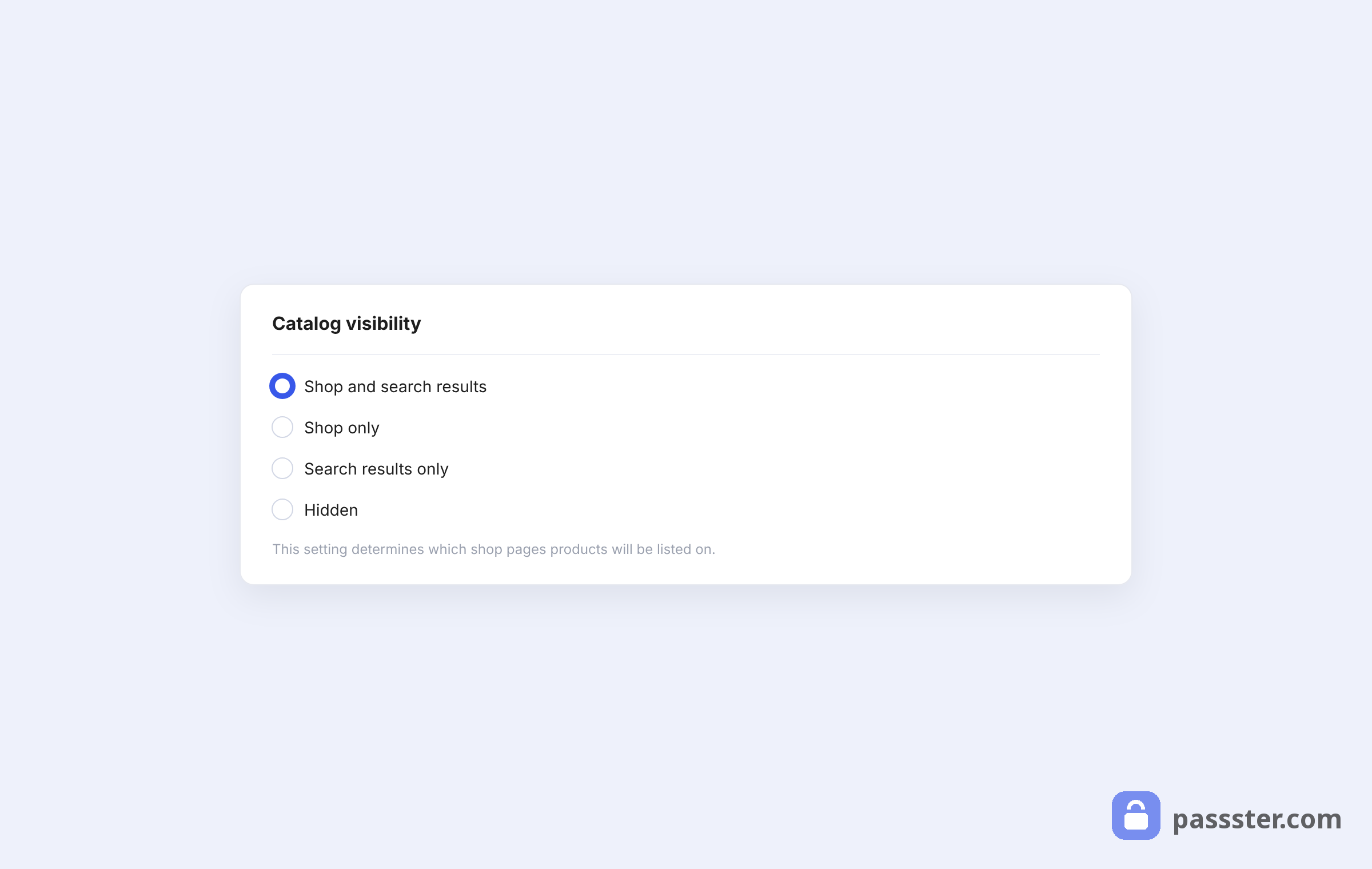
Catalog Visibility is the WooCommerce setting, found under Publish > Catalog visibility in the product editor, that controls whether a product shows in shop pages, search results, both, or neither — independent of the product’s published status.
Catalog Visibility options
The Catalog Visibility setting has four options, each with a different effect (WooCommerce documentation, 2025):
- Shop and search results: the default; the product appears everywhere on the storefront.
- Shop only: shows in shop and category pages, but not in site search results.
- Search results only: findable via search, but not listed in the shop or category archives.
- Hidden: removed from both shop pages and search results; the direct product URL still works.
That last point is important: “Hidden” in Catalog Visibility does not make the product private. Anyone with the direct link can still reach the product page. For true privacy, you need Private post status or a password-protection plugin.
You’ll also find a password-protect option in this panel. It lets you set a single password for the product. The downside is that once someone has that password, you can’t revoke their access without changing it — and changing it locks out everyone who already has it.
It’s also not trackable. The plugins section below covers a better alternative.
By contrast, the Private post status (in the main Publish panel) makes a product invisible to the public entirely. Only logged-in users with the right permissions — typically administrators and editors — can see it. Note that search engines can still index a private product, so it doesn’t replace proper SEO noindexing if that’s your goal.
Draft status
Setting a product to Draft pulls it off the storefront entirely while keeping all its data intact. It’s the cleanest option for temporarily hiding a product — no URL impact, and easy to re-publish whenever you’re ready.
Use Draft when the product isn’t ready yet, when you’re managing a seasonal catalog, or when you want to pause sales without losing the work you’ve put into the page.
How to hide out-of-stock products in WooCommerce
WooCommerce has a one-click setting to automatically hide out-of-stock products from the catalog. Here’s where to find it:
- Go to WooCommerce > Settings > Products > Inventory.
- Check Hide out of stock items from the catalog.
- Click Save changes.
Once you enable it, any product with zero stock (and stock management turned on) disappears from shop pages and search results automatically. The product URL stays live, so direct links still work — shoppers just won’t encounter the item while browsing.
This is the lowest-effort way to keep your catalog clean without touching each product individually.
How to bulk-edit product visibility in WooCommerce
WooCommerce’s built-in bulk editor updates catalog visibility across multiple products at once, without extra plugins.
Go to Products > All Products, select the products using the checkboxes, then choose Edit from the Bulk actions dropdown and click Apply. In the bulk edit panel, change the Catalog visibility field to your preferred setting and click Update.
For more granular control — like targeting a specific category, user role, or product attribute — dedicated plugins like WooCommerce Bulk Edit Products by Elextensions give you extra filtering options.
How to change product visibility using plugins and tools
Native WooCommerce settings cover the basics, but they don’t handle password-gated access. Fortunately, a dedicated plugin addresses that gap directly.
Hiding products with a password using Passster
Passster — with 10,000+ active installs (WordPress.org) — adds password protection to pages, individual products, or your entire WooCommerce store, with more control than WooCommerce’s built-in password field.
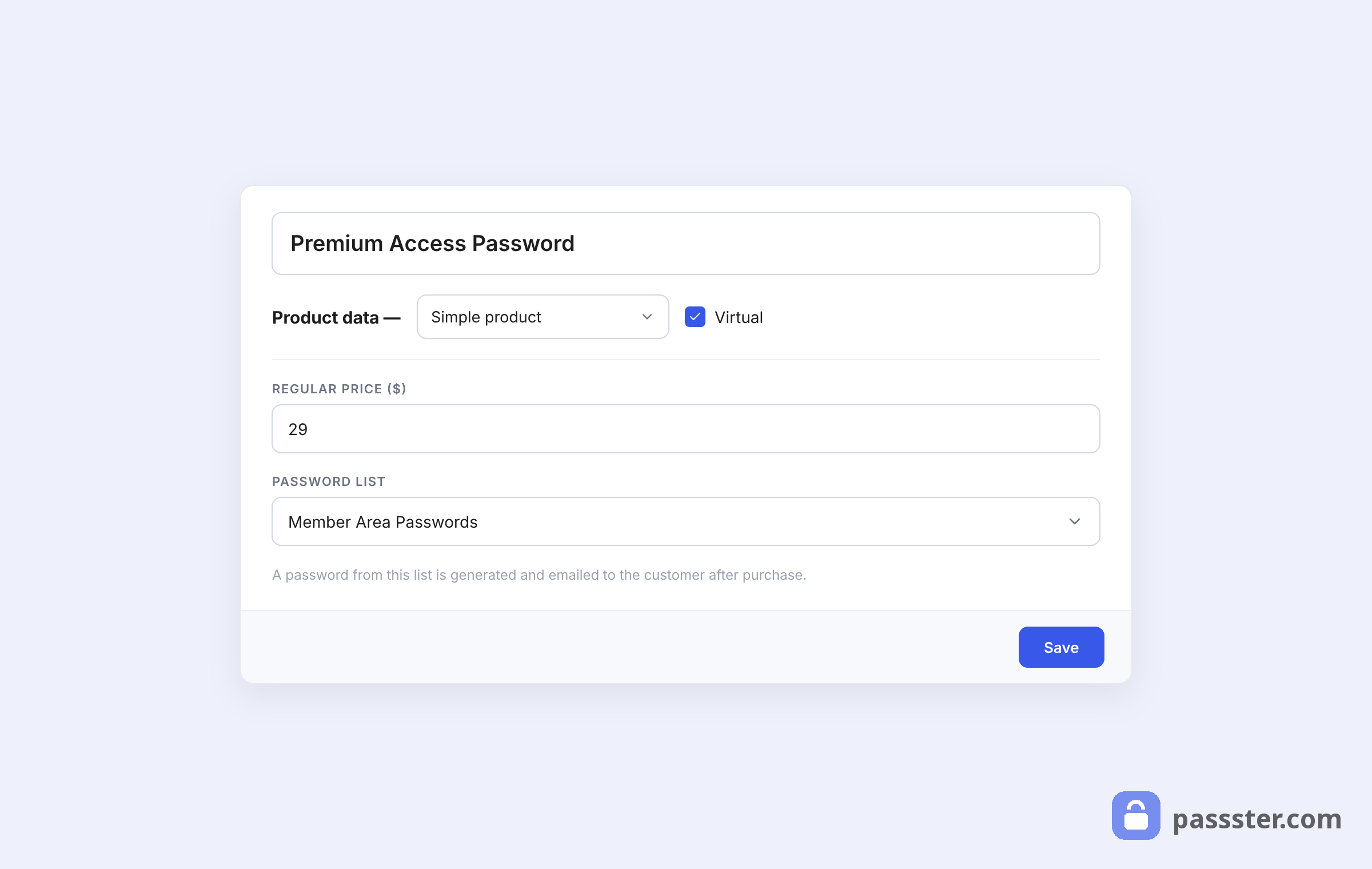
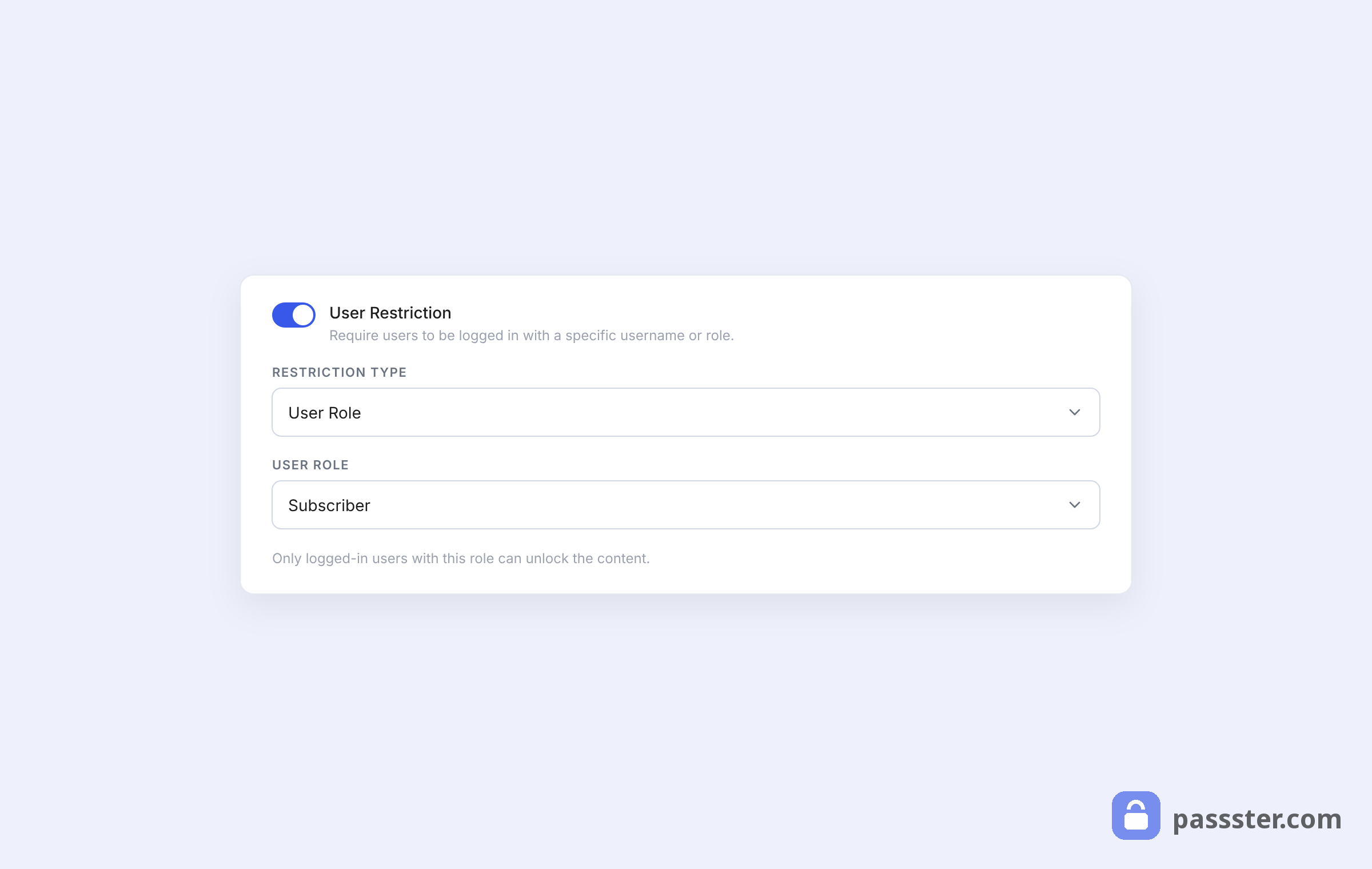
With Passster you can use a single password, multiple passwords, a password list, or reCAPTCHA. You can also restrict access by user role, so a product is only accessible to customers with a specific WooCommerce role — useful for wholesale stores and member tiers.
Step 1: Install Passster
- Download and install Passster from passster.com.
- In your WordPress dashboard, go to Plugins > Add New, upload the file, and activate.
Step 2: Set up password protection
For individual products:
- Go to Products > All Products and open the product you want to protect.
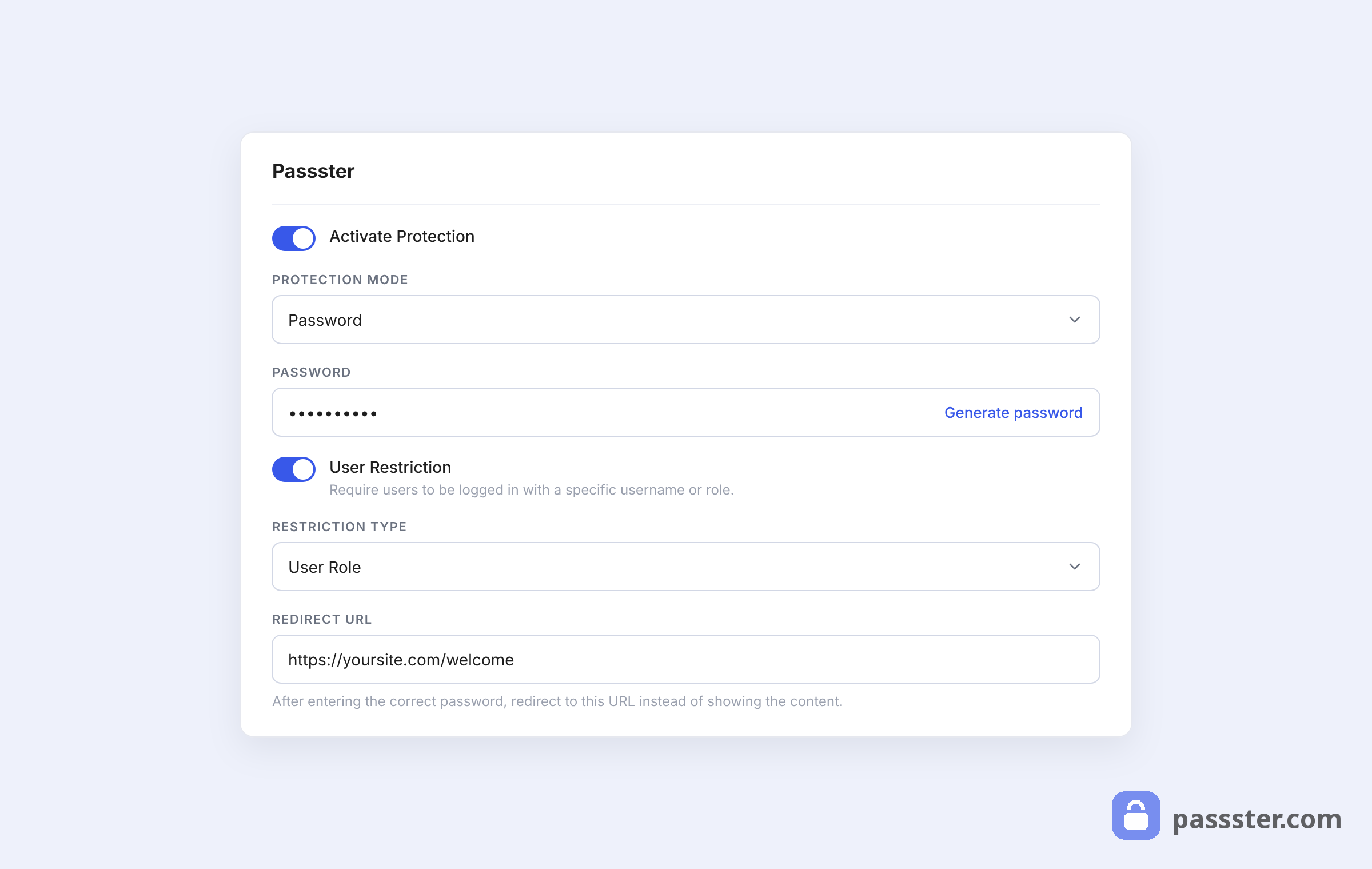
- In the Passster meta box (right sidebar), turn on Activate Protection.
- Choose your Protection Mode — single password, multiple passwords, password list, or reCAPTCHA.
- Optionally set a user role or username restriction for tighter access control.
- Adjust the password form settings, then click Update.
For your entire WooCommerce store:
- Go to Pages > All Pages and open your Shop page.
- Enable Passster protection in the meta box.
- Turn on Protect Child Pages to cover all shop-related pages automatically.
- Click Update.
Frequently asked questions
“Hidden” (Catalog Visibility) removes the product from shop pages and search results, but the product URL stays publicly accessible. “Private” (post status) hides the product from the public entirely — only admins and editors can see it — though search engines may still index it. “Draft” takes the product offline; no one can access it until you re-publish.
Go to WooCommerce > Settings > Products > Inventory and check Hide out of stock items from the catalog. WooCommerce will hide any product with zero stock automatically from that point on.
Using “Hidden” in Catalog Visibility, or switching a product to Draft status, doesn’t remove the URL — so you don’t lose link equity. Deleting a product, by contrast, permanently removes the URL and can harm any rankings or backlinks it had built up.
Native WooCommerce doesn’t have a built-in “hide from guests” option. The cleanest solution is Passster’s role restriction: set protection to allow only logged-in users (or a specific role), and the product stays hidden from anyone who isn’t signed in.
Yes. Go to Products > All Products, select the products you want to update, choose Edit from the Bulk actions menu, and change the Catalog visibility setting in the bulk edit panel that appears.
Take control of your WooCommerce product visibility
Hiding a product in WooCommerce comes down to matching the tool to the job: Catalog Visibility keeps a product out of your shop pages and search results, Private and Draft statuses take it out of public view entirely, and the bulk edit panel applies either change to dozens of products at once.
For everything WooCommerce can’t do natively — hiding products from guests, restricting them to specific user roles, or putting them behind a password — Passster picks up where Catalog Visibility stops. Get Passster and decide exactly who sees every product in your store.