Adding premium content to your WordPress site is one of the most direct ways to generate recurring revenue — readers pay for access to material they can’t find freely elsewhere.
This guide covers how to set up a premium content model using the Passster plugin: what payment stack to pair with it, how to restrict content by user role or password, and how to handle SEO for gated pages.
Why add premium content to your WordPress site
Premium content converts existing audience trust into direct revenue — subscription-based or one-time — without requiring ad networks, affiliate commissions, or freelance clients. Notta.ai’s 2026 analysis projects the global membership site market will reach $1.5 trillion by 2026 (Notta.ai, 2026), and WordPress — which powers 43.5% of all websites globally (marketingltb.com, 2026) — gives creators an unusually large, ready-made platform to sell on.
Content types that sell well:
- Online courses and tutorials: step-by-step instruction people can’t easily replicate on their own
- Research and data reports: original analysis, surveys, or industry benchmarks
- Templates and downloadables: ready-to-use tools readers apply directly in their work
- Video and audio: recorded workshops, interviews, or coaching sessions
- Ebooks and whitepapers: long-form content for readers who need serious depth
A quick market-fit check before you start. Ask yourself three questions: Does your content deliver value readers can’t easily find elsewhere? Have you published enough free content to show authority in your subject? And does your current audience size support a subscription or one-time purchase model?
If you answer yes to at least two of those, you’re ready to move forward.
Once you decide to sell content on WordPress, you’ll need to choose a model. Subscription works well for creators publishing new material regularly — readers pay monthly for ongoing access. Membership suits businesses where the content ties directly to products or services, and access levels vary by tier. Passster supports both models, so the choice depends on how you structure your offering rather than any technical constraint.
What you need before you start
Passster is a WordPress paywall plugin with 10,000+ active installs (WordPress.org) that wraps content in a shortcode and checks whether a visitor holds the correct user role or password before displaying it. Passster does not handle payment or account creation — you need a separate payment layer that assigns the correct WordPress user role after a customer buys.
Shortcode: a short tag like
[passster]...[/passster]that you insert into a WordPress post or page to trigger a feature — in this case, content restriction.
User role: a named permission level in WordPress (for example, Subscriber, Editor, or Member) that controls what a logged-in user can access.
Two practical stacks to consider:
- Passster + WooCommerce Subscriptions: WooCommerce Subscriptions manages recurring billing. A role-assignment plugin (such as User Role Editor paired with a WooCommerce role plugin) automatically assigns the right WordPress role after purchase. Passster then restricts content to that role.
- Passster + Stripe payment link: For a lighter setup, create a Stripe payment link for each tier. After payment, a webhook (via Zapier or a Stripe WooCommerce integration) updates the user’s WordPress role. Passster handles the rest.
The core idea: Passster is the restriction layer and works with any payment stack that can assign WordPress user roles. Because the two systems work independently, you can switch payment providers later without touching your Passster shortcodes.
How to sell premium content using Passster
Passster restricts content by user role or password using shortcodes you paste into any post or page. The three steps below cover the full setup — install the plugin, configure protection, then wrap your content.
Step 1: Install and activate Passster
Log into your WordPress dashboard and go to Plugins > Add New. Search for Passster, then install and activate Passster – Password Protection.
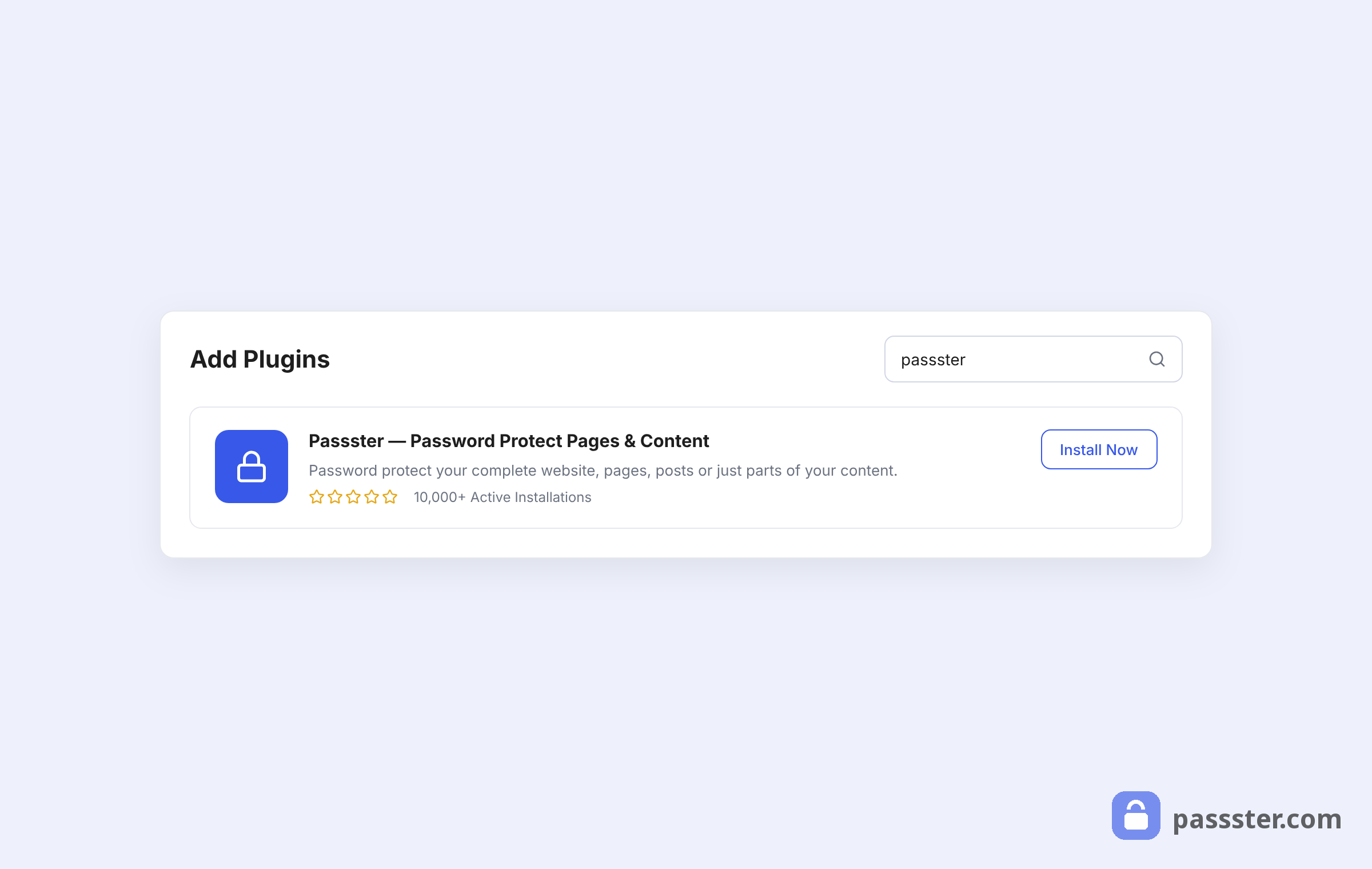
The free version lets you restrict content with a single password — a solid starting point for testing your setup. To restrict by user role or use multiple passwords, upgrade to the pro version.
Step 2: Restrict access by user role
User role restriction works well for both membership and subscription models. A Member or Subscriber WordPress role maps naturally to a paid tier, so your payment system grants access the moment it assigns the role.
With Passster Pro active, go to Settings > Passster and click the Integrations tab to enable the Users add-on.
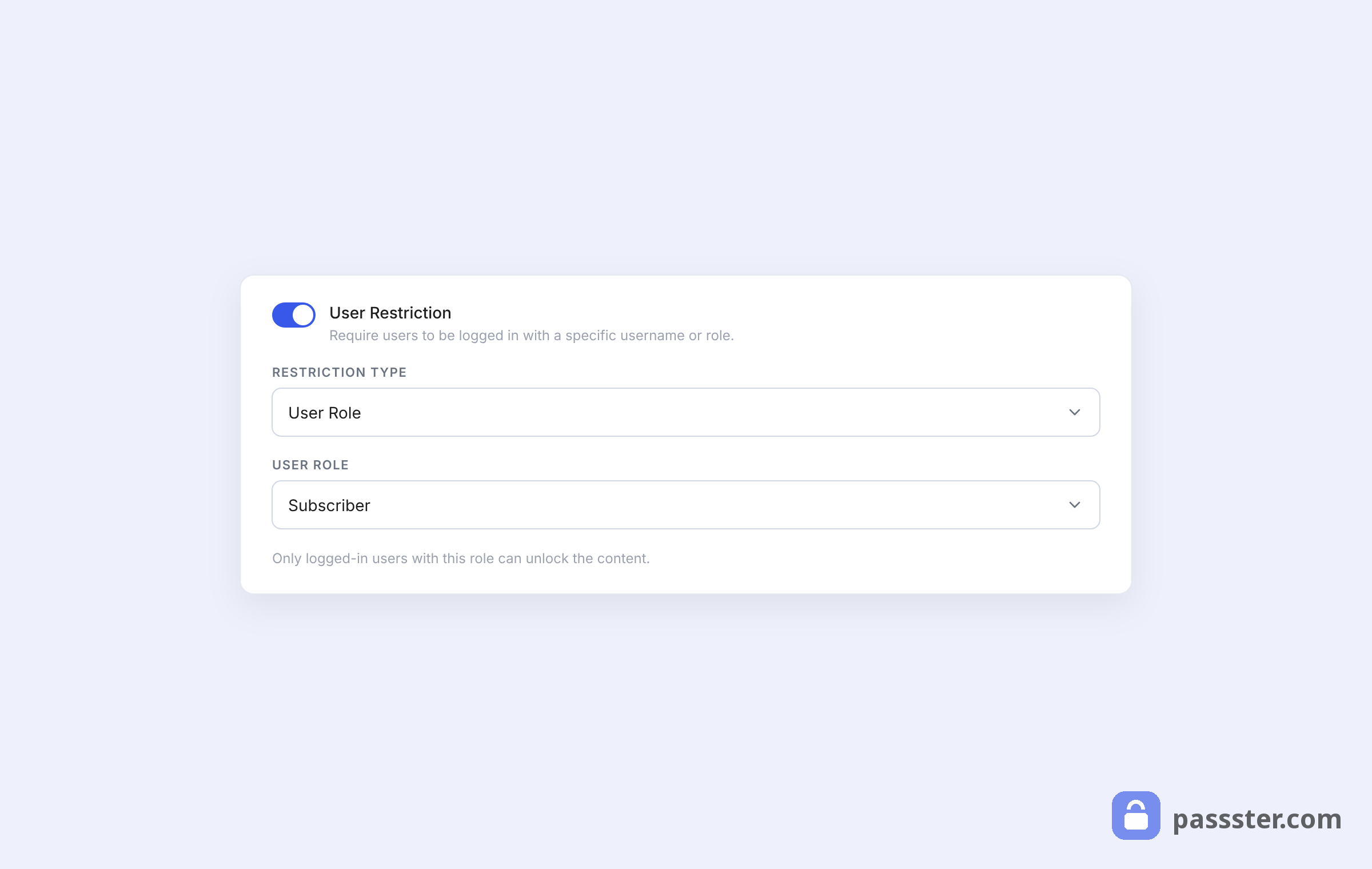
Next, open the page’s Passster panel. Add a comma-separated list of the user roles you want to grant access to — for example, silver-member or gold-member. You can also add individual usernames if you’re selling access to a small, specific group. Save your changes and copy the shortcode that generates automatically.
Step 2b: Use multiple passwords instead
Multiple passwords are another way to grant access under both the subscription and membership models. Each reader gets a unique password, and you can create as many as you need.
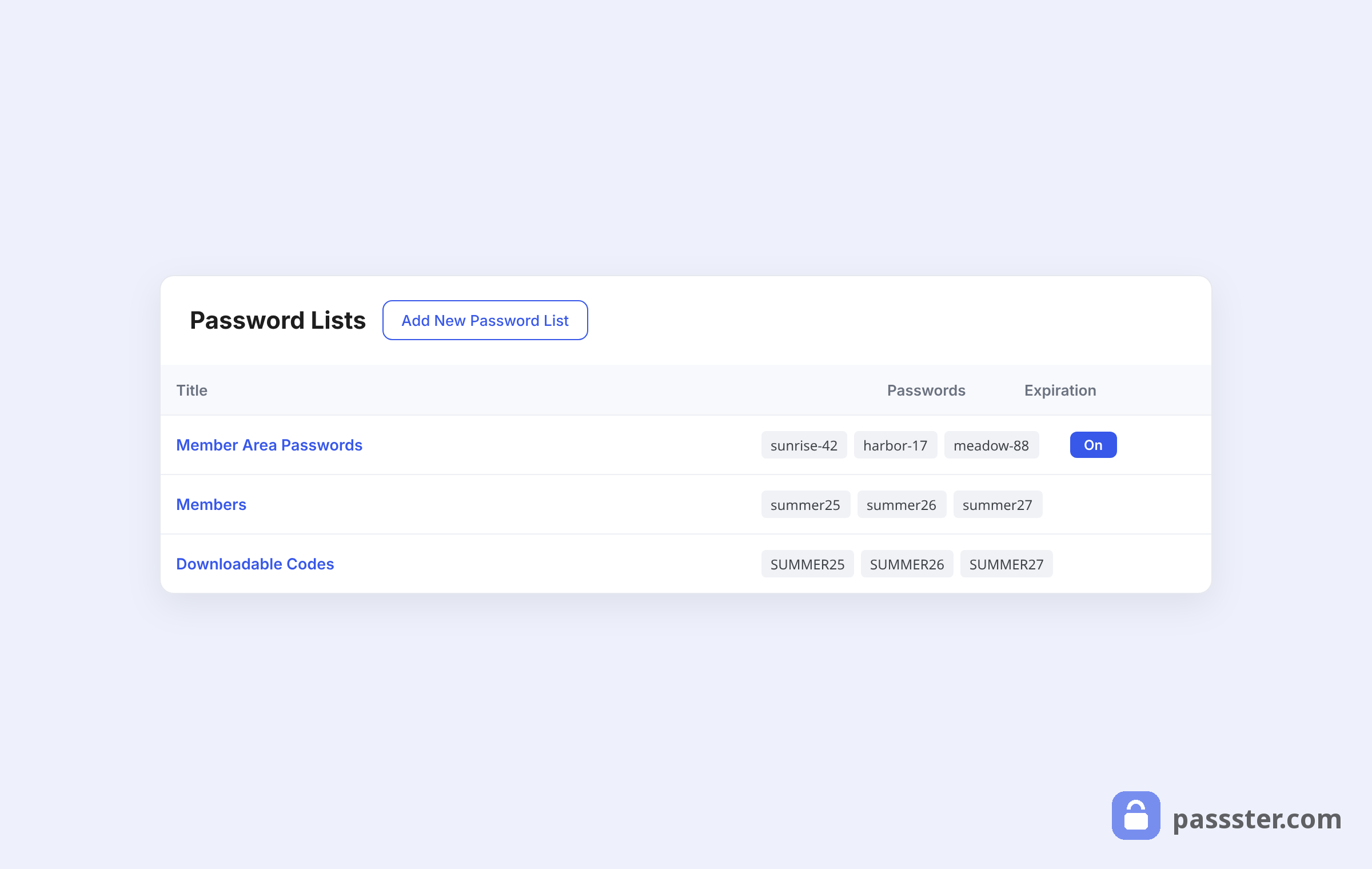
- Go to the Password Lists tab and click Add new Password List.
- Give it a name, such as Members or Subscribers.
- Set Expire passwords to No.
- Add a comma-separated list of passwords, then click Save Password List.
- Open the page’s Passster panel, set Protection Type to Password List, select the list you just created, and save.
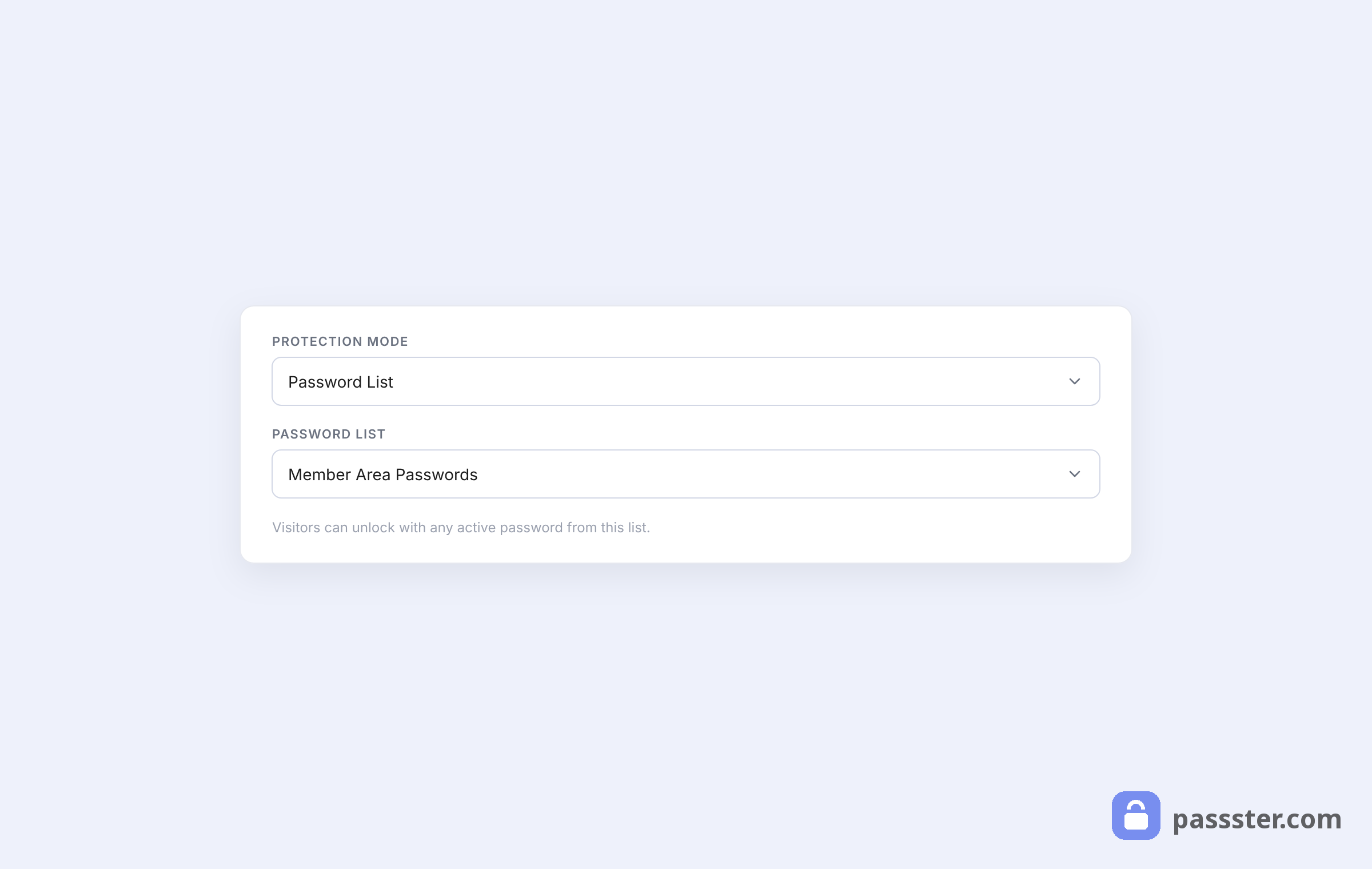
A new shortcode generates automatically once you save.
Step 3: Wrap your content in the shortcode
Open the post or page you want to protect and wrap the gated content with the shortcode you copied. On the front end, visitors without access see a password prompt or a “content locked” notice, depending on the protection type.
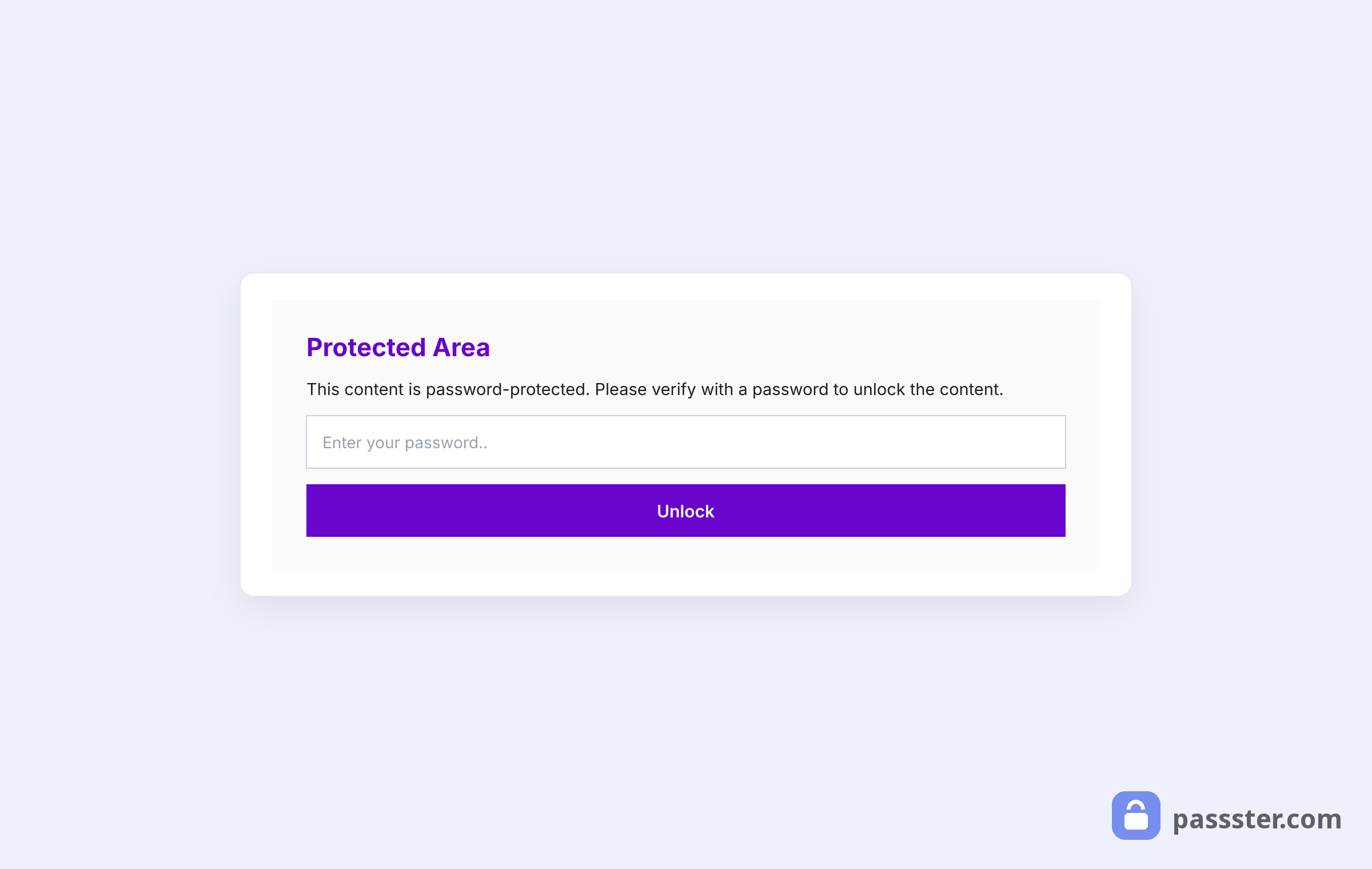
Users with the correct role bypass the prompt entirely and see the content directly. In short, that’s the full loop: payment assigns the role, Passster checks the role, content appears.
How Google indexes paywalled content
Google does not penalize paywalled content — Google’s official structured-data documentation (last updated August 2025) states there is no inherent bias against gated material, provided you mark it up with structured data correctly.
The right approach uses NewsArticle or Article schema with a hasPart property and isAccessibleForFree: false on the paywalled section. This tells Google the content exists and is real — it just requires payment to access — rather than flagging it as hidden or cloaked.
Offering free trials and content previews
Metered paywalls — models that allow visitors a limited number of free reads before the gate activates — let Google index the full content, and search rankings typically improve over a hard wall (Leaky Paywall, 2024).
Metered paywall: a content access model that allows visitors a limited number of free reads before requiring a subscription or payment.
Passster’s partly shortcode parameter supports exactly this kind of preview model:
[passster password="" role="silver-member,gold-member" partly="demo,another-demo"]{part}This section is visible to anyone, including Googlebot.{part}This section is only visible to authorized user roles.[/passster]The {part} divider splits your content into a free preview and a locked section. Anyone can see the first part; only users with the right role or password see the rest.
Free trial options with Passster:
- Single password: share a temporary password with trial users so they can preview what they’ll get after subscribing.
- Unlock via link: generate an encrypted link and send it by email when a visitor registers for a trial. Passster unlocks the content automatically when the visitor clicks the link.
Frequently Asked Questions
No. Google explicitly supports paywalled content as long as you apply structured data correctly. Use NewsArticle schema with isAccessibleForFree: false on the gated sections. Cloaking — showing Google different content than users see — is a policy violation. A properly marked-up paywall is not. Google’s structured data documentation for paywalled content was last updated in August 2025.
Passster handles restriction, not payments. Connect Passster to a payment system — WooCommerce Subscriptions, a Stripe payment link, or a dedicated membership plugin — that assigns a WordPress user role after purchase. Passster grants content access based on that role. Because the two systems work independently, you can swap or upgrade your payment provider without changing your Passster shortcodes.
Yes. Use the single password method or the unlock-via-link option to give trial users temporary access to gated content. For a preview open to all visitors, use the partly shortcode parameter to expose the first section freely and gate the rest behind a role or password check.
A paywall restricts specific content pieces and grants access via a password or user role — Passster is one example. A membership plugin (such as MemberPress or ARMember) bundles payment processing, account registration, content restrictions, and member management in a single system. Paywalls are lighter-weight; membership plugins offer more features but require more setup and typically cost more.
Content that has standalone, actionable value and that visitors can’t find freely elsewhere. High performers include original research and data reports, step-by-step courses, templates and toolkits, expert video workshops, and in-depth ebooks. The key signal: does your free content already attract repeat visitors? If yes, some of that audience will pay for deeper access.
Not ready to monetize yet? You can run the same gating without a payment layer — see our guide to members only content in WordPress without a membership plugin.
Conclusion
Passster makes it straightforward to restrict content by user role or password, covering both the subscription and membership models. The key is pairing Passster with a payment layer — WooCommerce Subscriptions, Stripe, or another provider — that assigns user roles after purchase so members get access automatically.
On top of that, you can offer free trials, give all visitors a content preview via the partly parameter, and keep paywalled pages fully indexed by Google with the right structured data in place.