WooCommerce powers more than 4.5 million active stores worldwide and holds around 33% market share among tracked eCommerce platforms (WPFactory, 2025). But despite that reach, it ships with no built-in option to password-protect WooCommerce pages or restrict who can browse your shop. If you need a private WooCommerce store — for wholesale buyers, paid members, or a soft launch — you’ll need a plugin.
Passster adds password protection to any WooCommerce page in a few clicks. It covers three methods: protecting individual product pages, the main shop page, or specific category pages.
Why WooCommerce needs a plugin for password protection
WooCommerce targets public-facing stores. Its core feature set assumes you want as many visitors as possible to see your products, so access control was never part of the standard package. WordPress itself offers a basic password option on individual posts and pages, but it doesn’t integrate with WooCommerce’s product catalog or category structure.
WooCommerce has surpassed 230 million downloads (WPFactory, 2025), yet not one of those installs ships with a native option to lock down a product page or category. That gap is why dedicated plugins exist. Passster lets you set passwords at the page level using a metabox (a settings panel that appears in the WordPress post/page editor) — no code required.
When you might need to password-protect WooCommerce
Password-protecting your store isn’t just about hiding things — it’s a way to segment access and drive specific actions. Here are the most common use cases:
- Members-only store. Require visitors to register or log in before they can browse or buy, turning your store into a WooCommerce members only experience.
- Wholesale / B2B catalog. Lock product pages or categories behind a trade password so retail visitors never see your wholesale pricing.
- Age-restricted products. Gate categories containing alcohol, CBD, or other regulated items to meet basic compliance requirements.
- Pre-launch access. Share a private link and password with select buyers before your store goes public — a simple way to run a private WooCommerce store.
- Subscriber-only products. Make certain products exclusive to newsletter subscribers or paying members.
Each of these maps to one of the three methods below. Across WooCommerce’s 4.5 million active stores (WPFactory, 2025), use cases like these — wholesale catalogs, members-only stores, age-gated categories — come up across every industry and business model.
How to password-protect your WooCommerce website (3 methods)
You’ll need the Passster plugin installed and activated before you start. WooCommerce also needs to be active on your site. Once those are in place, pick the method that fits your use case.
Method #1: Password-protect WooCommerce products
Use this to create WooCommerce password-protected products — for example, making specific items available to paid members or wholesale account holders only.
- Go to Products > All Products and open the product you want to protect.
- Find the Passster metabox on the right-hand side of the editor.
- Toggle Activate Protection on.
- Set Protection Type to Password using the dropdown.
- Enter a password in the Password field.
- Click Update.
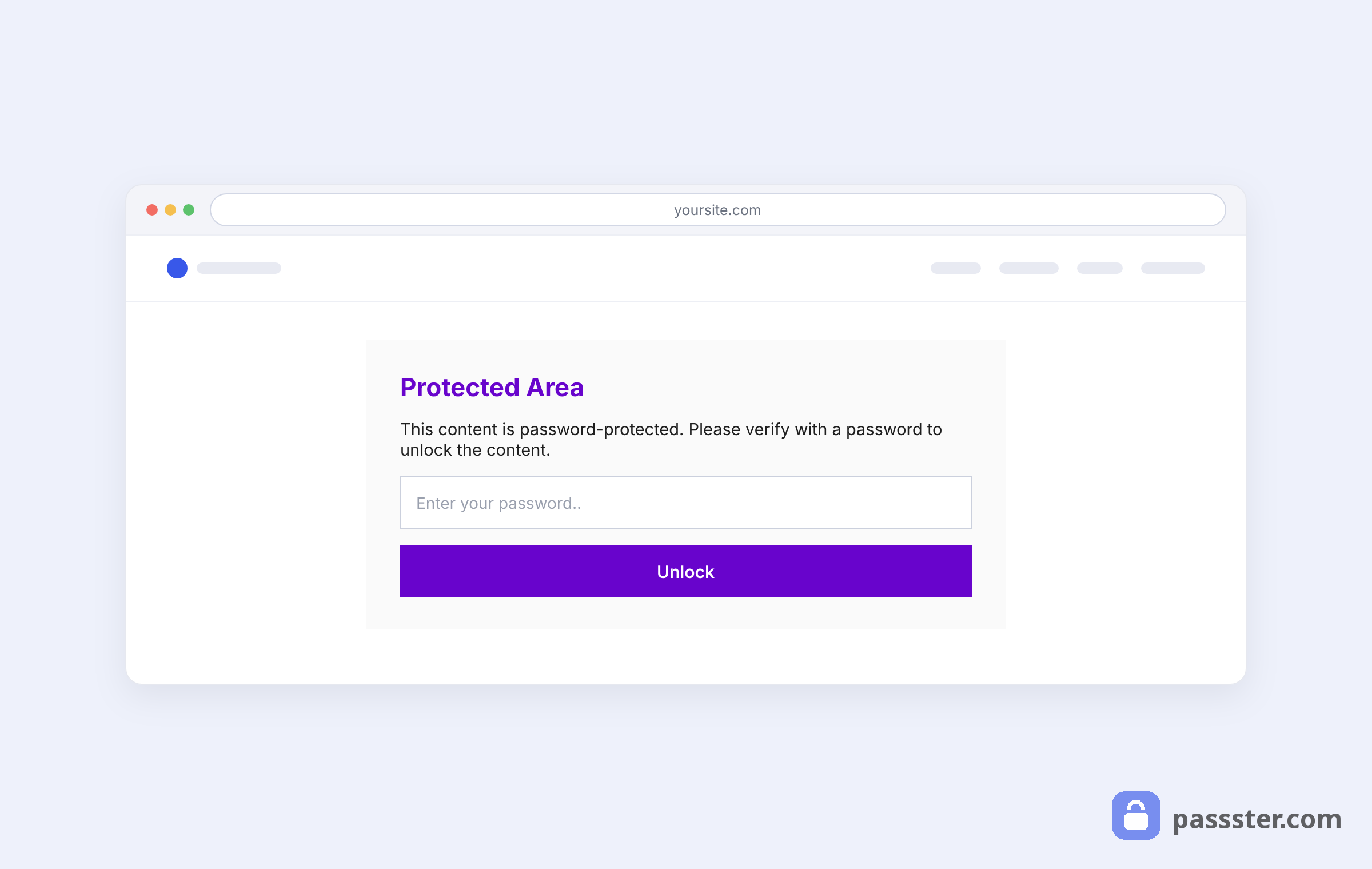
Anyone who lands on that product page will see a password prompt before the product details load.
Method #2: Password-protect the WooCommerce shop page
Use this when you want to hide your entire store from the public — for example, running a private wholesale catalog or keeping the store invisible during a pre-launch phase.
- Go to Pages > All Pages and open the Shop page.
- Find the Passster metabox on the right-hand side of the editor.
- Toggle Activate Protection on.
- Set Protection Type to Password.
- Enter a password in the Password field.
- Click Update.
Once protection is on, anyone who tries to access the shop sees a password prompt right away.
Note on cascading protection: Protecting the shop page blocks the listing, but a visitor who knows a direct product URL can still reach that page. For a full store lockdown, apply protection to the shop page and to the relevant product or category pages separately.
Method #3: Password-protect WooCommerce categories
Use this to set up WooCommerce password-protected categories — for example, locking a “Wholesale” or “VIP” product line behind its own password.
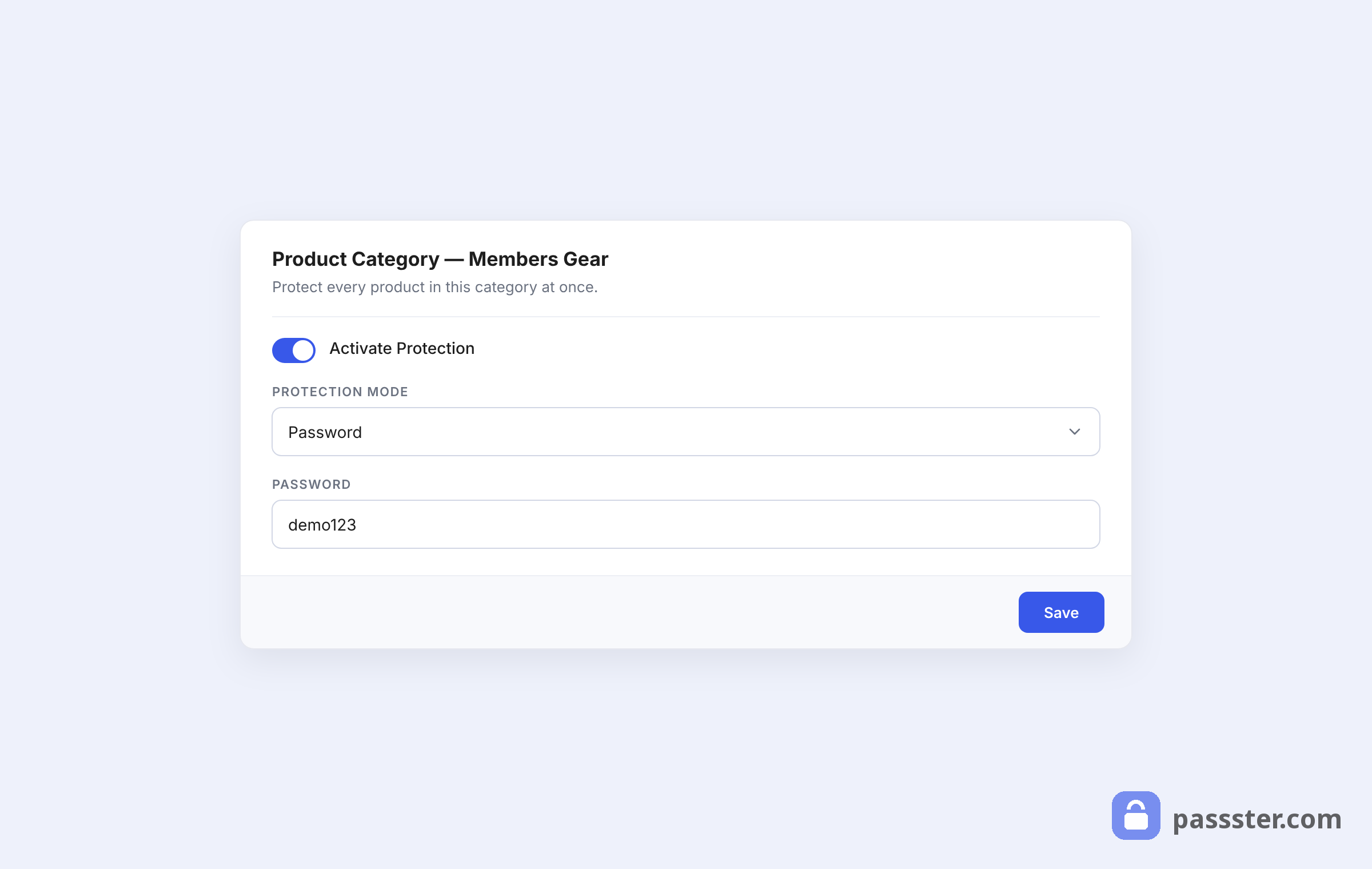
- Go to Pages > Add New and insert the Products by Category shortcode in the editor.
- Select the WooCommerce product category (or categories) you want to protect.
- Find the Passster metabox on the right-hand side.
- Toggle Activate Protection on.
- Set Protection Type to Password.
- Click Publish.
Anyone who navigates to that category page will see a password prompt before the products load.
Which method should I use?
The right method depends on what you want to restrict and who needs access — use this table to match your use case to the correct Passster workflow.
| Use case | Best method |
|---|---|
| Hide the entire store from the public | Method #2 — shop page |
| Sell specific products to subscribers | Method #1 — product pages |
| Restrict a product line to wholesale buyers | Method #3 — category pages |
| Run a pre-launch store | Method #2 — shop page |
| Protect age-restricted items by category | Method #3 — category pages |
Need different passwords for different customer groups? Passster supports multiple password protection — you can assign separate passwords for wholesale buyers, VIP members, or any other segment.
Frequently asked questions
Password-protecting your WooCommerce shop page does not automatically lock individual product pages. Protecting the shop page blocks the shop listing, but a customer who knows a direct product URL can still reach that page. For a complete lockdown, apply protection to the shop page, individual product pages, and category pages separately.
WooCommerce targets public-facing stores, so access control was never part of its core feature set. WordPress has a basic post-password feature, but it doesn’t integrate with the WooCommerce product structure. A plugin like Passster fills that gap.
Yes. Passster’s multiple password protection feature lets you create separate passwords for different segments — for example, one for wholesale buyers and another for retail members.
Open the protected page or product in the WordPress editor, find the Passster metabox, and toggle Activate Protection off. Save or update the page and the protection drops immediately.
Password-protect your WooCommerce store today
Out of the box, WooCommerce doesn’t give you the option to password-protect product pages, the main shop page, or category pages. Passster covers all three with the same straightforward metabox workflow — no coding required.
Once protection is active, visitors who land on a protected page see a password prompt — so only the right people get through. The result: more control over who sees your products, and a direct path to conversions from the audience you actually want.