Classic Oxygen (the page builder formerly known as Oxygen Builder) is a powerful tool for building WordPress sites without writing code. But it doesn’t include built-in content protection. To password protect an Oxygen Builder page or restrict a section to authorized users, you need an extra layer — either the Passster plugin or Oxygen’s own Conditions API.
This guide walks through the Passster setup step by step. It also covers why WordPress’s native visibility setting silently fails with Oxygen pages and compares the no-plugin approach. If you’re on Oxygen 6, there’s a compatibility note further down to check before you start.
Does password protection work with Oxygen Builder?
WordPress’s built-in visibility setting does not protect pages built with Classic Oxygen — a mismatch that catches many users off guard.
WordPress stores page content in the wp_posts database table and checks that table to enforce password gates. But Classic Oxygen stores its visual layout in wp_postmeta. When a page uses an Oxygen template, the WordPress password check fires on an empty wp_posts entry and the content renders anyway, bypassing the gate entirely.
GitHub issue #1035 documents this — filed in 2020 and still unresolved as of 2026. If you’ve set a page to “Password Protected” in WordPress and found it didn’t work on your Oxygen page, that’s why.
The fix is a dedicated approach: Passster’s plugin-based protection, or Oxygen’s own Conditions API. Both options appear below.
Why you’d want to password protect your website
Password protection isn’t just for membership sites. Here are the most common reasons to lock content:
- Exclusive content or products. If you publish articles or sell products that only paying users should see, a password keeps casual visitors out.
- Subscriber-only content. Online magazines and newsletters can publish some posts publicly while gating premium pieces behind a password.
- Client portfolio work. Freelancers can share detailed project case studies with specific clients without putting that work on the public portfolio.
- Protected forms. Gating a form behind a password cuts down on spam submissions and ensures only the right people can interact with it.
Passster has 10,000+ active installs (WordPress.org), deployed across these use cases.
How to password protect sites with Oxygen Builder
Passster gives you two protection modes: Area Protection locks a specific section of content within a page. Page Protection locks the entire page or post. The steps below apply to Classic Oxygen. If you’re on Oxygen 6, check the compatibility note further down before proceeding.
Create a protected area
Area Protection is the right choice when you want to gate a section rather than hide the whole page. Think portfolio pieces, videos, downloads, or gated forms. The content lives in Passster and gets placed anywhere on the site via a shortcode.
Go to Passster → Protected Areas in your WordPress admin. Click Add New and give the area a descriptive title, such as My Web Design Portfolio. Then configure the Shortcode Configuration meta box:
- Set Protection Type to Password.
- Enter a password in the Password field.
Click Publish.
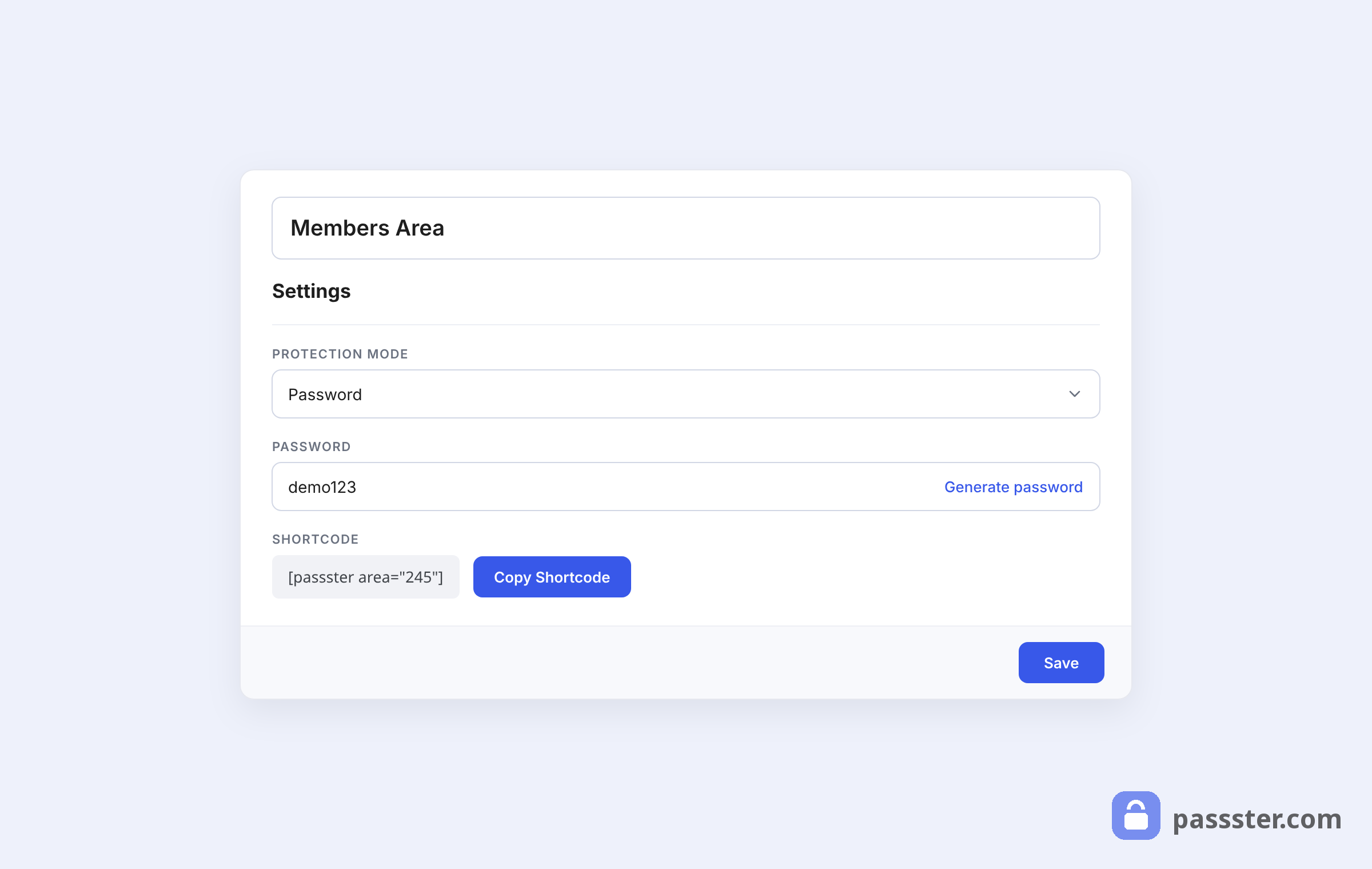
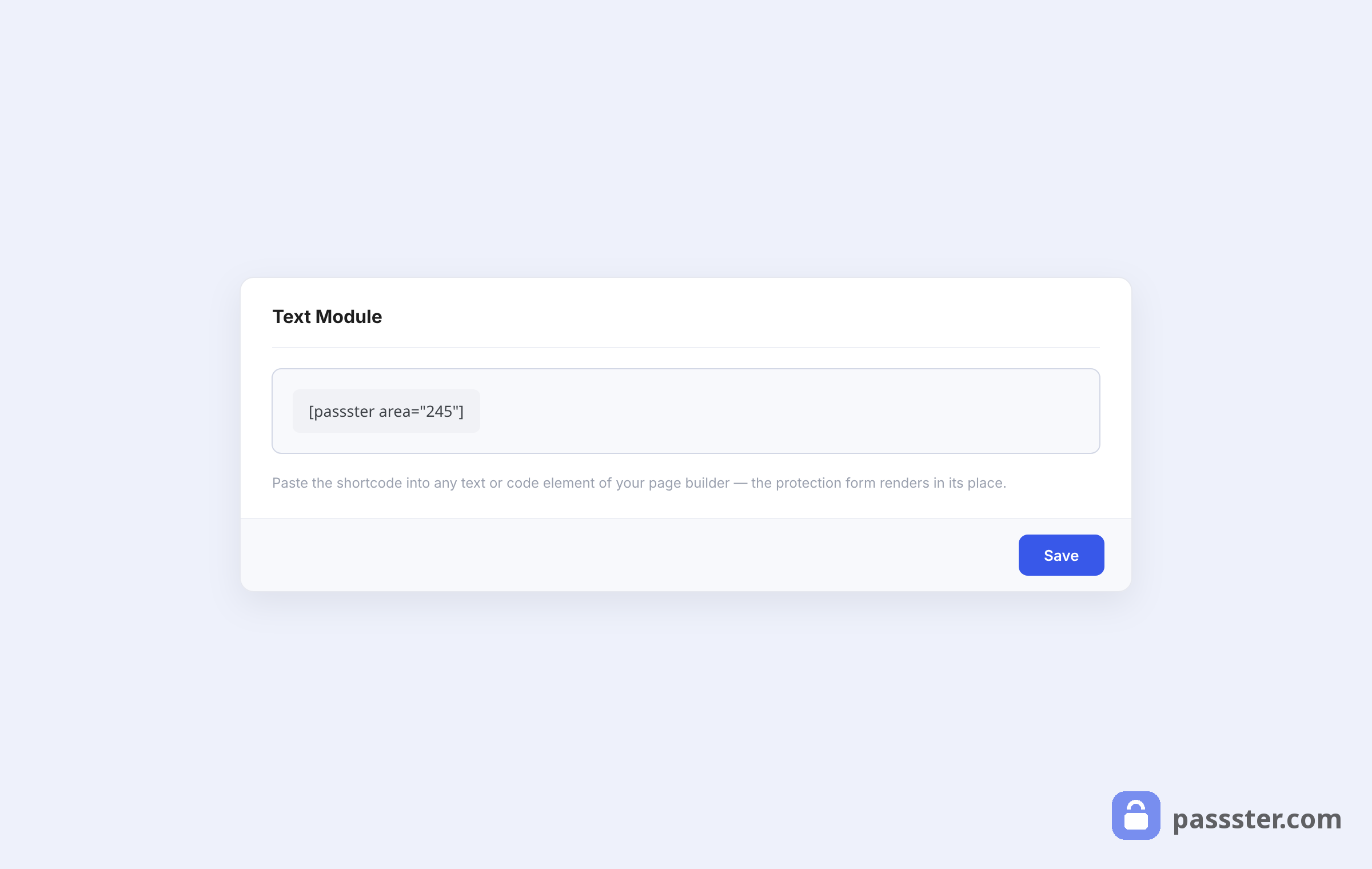
Add the content you want to protect to the text editor — text, images, video, downloadables, or a form all work. Once published, copy the shortcode that appears in the Shortcode meta box.
Open your page in Classic Oxygen and insert the shortcode using a Code Block or shortcode element. Oxygen renders it inline, so the protected area sits exactly where you place it.
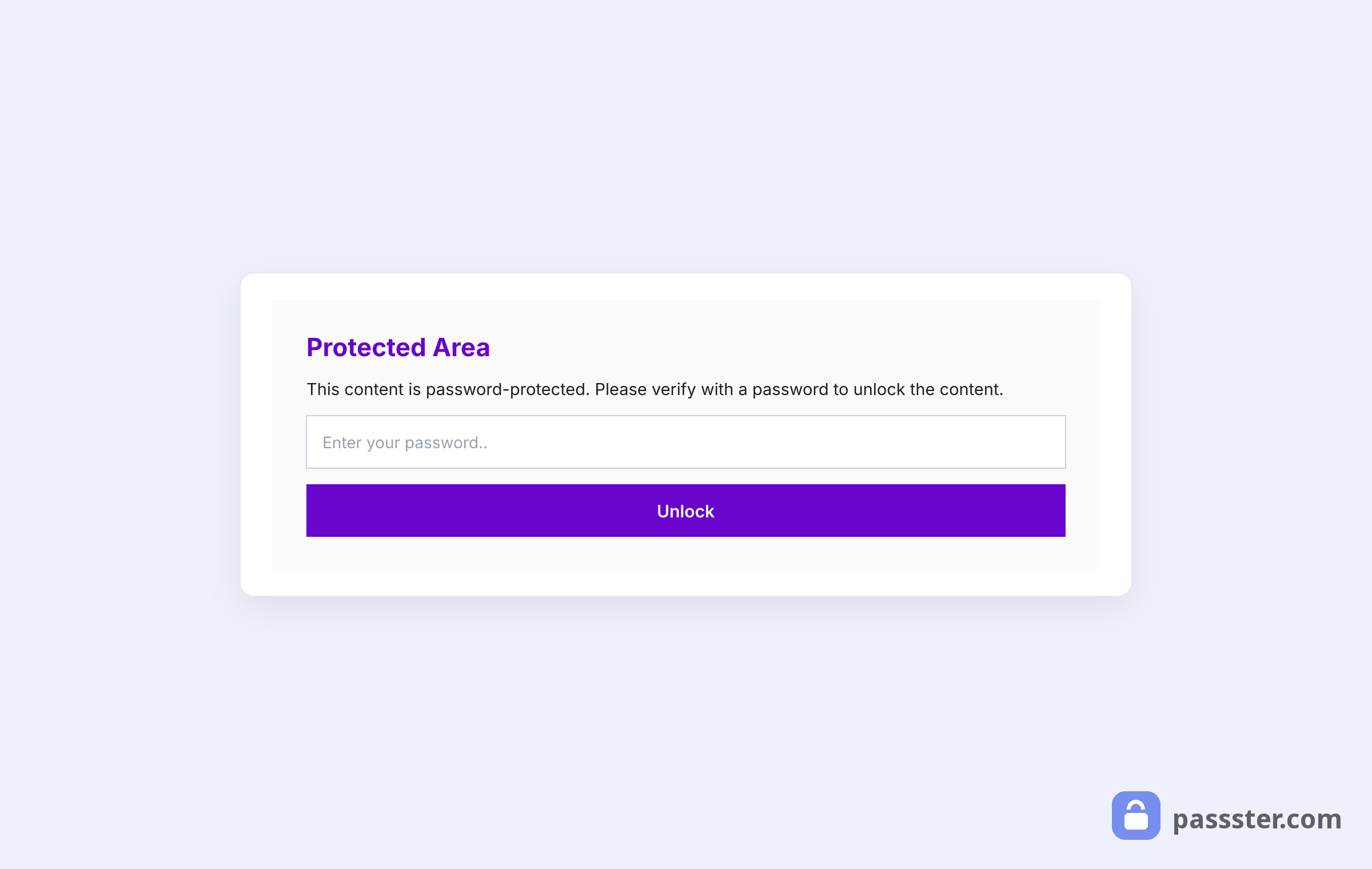
On the front end, visitors see a password prompt where the protected content would appear:
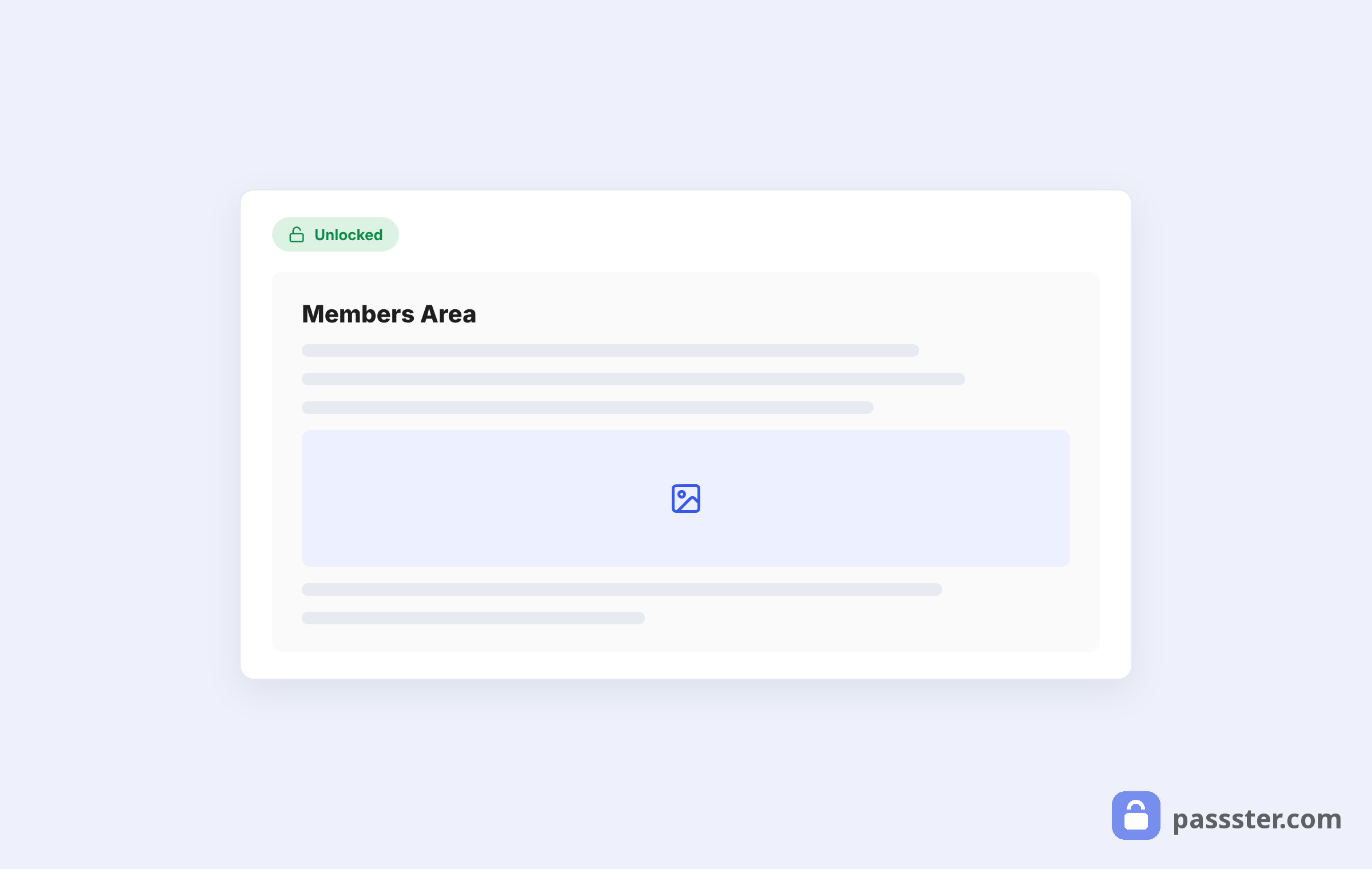
Once they enter the correct password, the content loads:
Restrict access to pages and posts
If you need to lock an entire page or post, use Passster’s Page Protection feature. It adds a meta box to the edit screen for any page or post — no shortcode required.
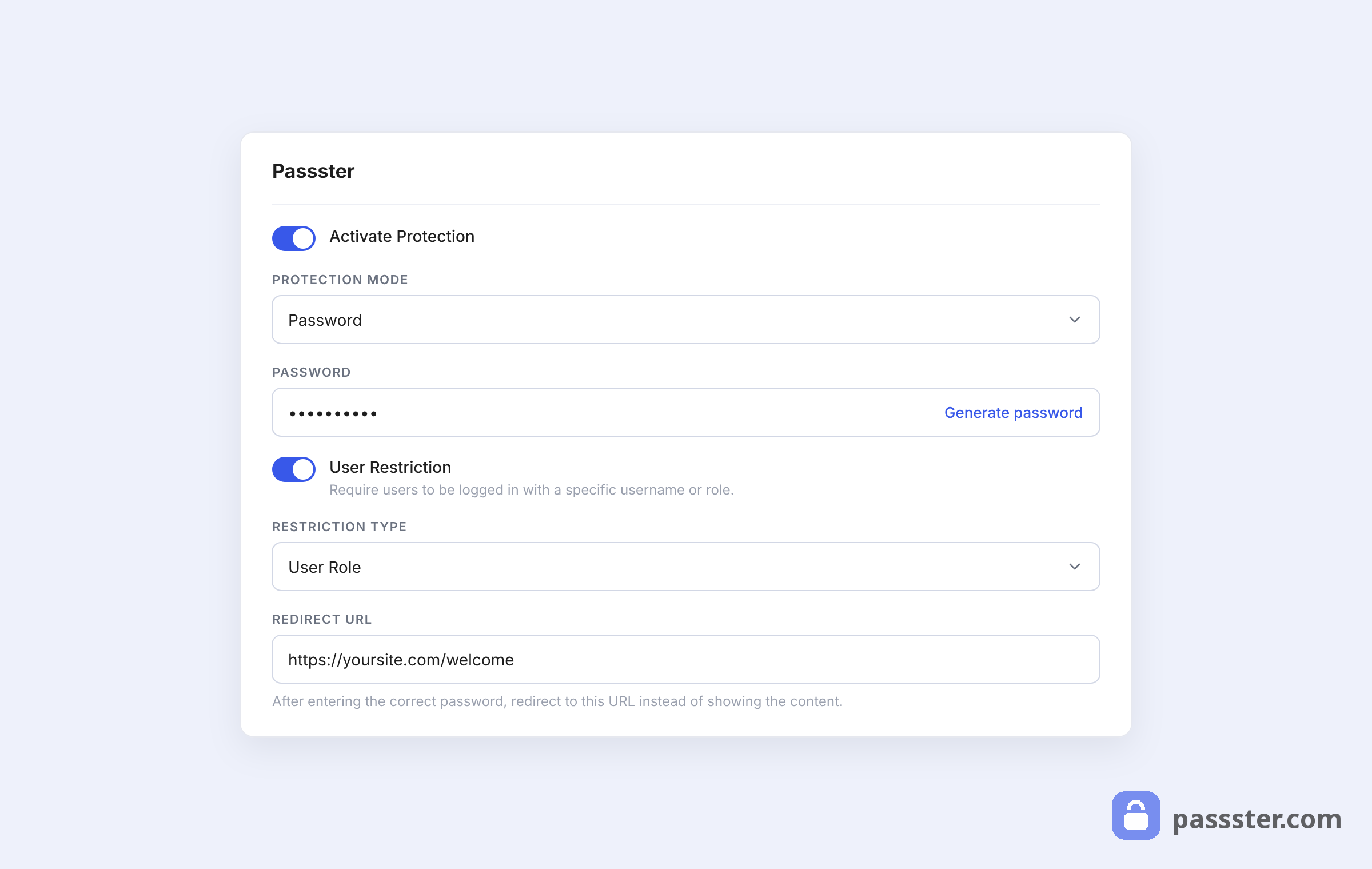
Open the page you want to protect in WordPress. In the Passster (Page Protection) meta box on the right side of the screen:
- Toggle Activate Protection on.
- Set Protection Type to Password.
- Enter a password in the Password field.
Click Publish (or Update) when you’re done.
The front end will show a password prompt before any of the page content loads:
Authorized users enter the password and get through to the page:
Single password vs multiple password protection
Passster supports three password modes — single password, multiple passwords, and password list — each suited to a different access-control scenario. To switch modes, change the Protection Type setting in either Area Protection or Page Protection:
- Password: one password; every authorized user shares it.
- Passwords: multiple passwords; each user or group gets their own credential.
- Password List: manage a large set of passwords from the back end, making it straightforward to grant and revoke access at scale.
The multi-password mode is the right fit when you need to track who has access. It’s also the better choice when you need to revoke one person’s credentials without resetting the password for everyone else.
Passster vs the native Oxygen approach: which should you use?
For most WordPress users, Passster is the faster, lower-risk path to password-protecting Oxygen Builder pages — no PHP required, five-minute setup, and no exposure to the template bypass bug. The native Conditions API is the right choice only if you want zero plugins and are comfortable editing PHP.
Oxygen’s own documentation describes the no-plugin process: register a “Password Required” condition via a PHP snippet, add a Div element with that condition applied, and drop in a Code Block with get_the_password_form() to render the WordPress password form. The setup works, but it requires getting the PHP exactly right to avoid triggering the template bypass issue.
Here’s how the two approaches compare:
| Passster | Native Conditions API | |
|---|---|---|
| Code required | None | PHP snippet |
| Setup time | ~5 minutes | 20–30 minutes |
| Area (section) protection | Yes | Possible, but complex |
| Full-page protection | Yes | Yes |
| Multiple passwords | Yes | No |
| Bypass bug risk | None — Passster handles this | Low if set up correctly |
| Oxygen 6 support | See below | Built into Oxygen 6 |
Passster and Oxygen 6: Compatibility
Oxygen 6, released in early 2026, is not fully backwards-compatible with Classic Oxygen — and as of June 2026, Passster has not yet confirmed official compatibility with the new version. Oxygen 6.1 followed in May 2026, adding multi-element selection, variable fonts, and PHP 8.4 support.
Passster is not listed on the official Oxygen 6 verified add-ons list as of June 2026. That doesn’t mean it won’t work — Passster operates at the WordPress layer rather than inside the Oxygen editor itself — but no official confirmation is available yet.
If you’re on Classic Oxygen, all steps in this guide apply as written.
If you’re on Oxygen 6, Passster’s Page Protection meta box operates outside the builder and should work without issues. The shortcode-based Area Protection may also still work, but test it in a staging environment first. For full-page protection, Oxygen 6’s native Conditions API is a safe bet until Passster confirms Oxygen 6 compatibility.
Other ways to restrict access to content
Password-based protection is just one of the access methods Passster supports. Beyond passwords, there are a few others worth knowing:
- Unlock via link. Send users a direct access link so they reach protected content without entering a password manually.
- CAPTCHA or reCAPTCHA. Add a challenge to a protected area to block bots and spam accounts.
- User role protection. Grant access based on WordPress user roles — useful when logged-in subscribers should automatically see gated content without entering a password.
For a full overview, see the guide to 6 Different Ways to Restrict Content in WordPress.
Conclusion
Classic Oxygen users have two solid options: Passster (no code, five-minute setup, area or full-page modes) or the native Conditions API (PHP required, more flexible for developers). Either way, skip the built-in WordPress visibility setting — it doesn’t work with Oxygen pages. For Oxygen 6 users, Passster’s page-level protection should still work, but check compatibility before deploying to production.
Frequently Asked Questions
No. WordPress’s built-in “Password Protected” visibility setting checks the wp_posts database table, but Classic Oxygen stores its layout in wp_postmeta. When a page uses an Oxygen template, the password check fires on an empty entry and the Oxygen content loads anyway. This is a known bug (GitHub issue #1035, filed 2020, unresolved as of 2026) — not a configuration error.
Passster has not yet posted official Oxygen 6 compatibility. Passster’s Page Protection meta box operates at the WordPress level and should work without configuration changes. The shortcode-based Area Protection may also work, but test in a staging environment before deploying to production. For full-page protection, Oxygen 6’s native Conditions API is a confirmed alternative in the meantime.
The most likely cause is the wp_posts / wp_postmeta mismatch: WordPress’s built-in “Password Protected” visibility setting does not work with Oxygen templates. To fix it, use Passster’s Page Protection feature or configure Oxygen’s native Conditions API. Both approaches bypass the problematic wp_posts check entirely.
Yes, using Oxygen’s native Conditions API. Register a “Password Required” condition via a PHP snippet, apply it to a Div element containing your content, and add a Code Block with get_the_password_form() to render the form. This requires PHP editing but has no plugin dependency. Passster’s Area Protection achieves the same result without writing any code.
Area Protection locks a specific block of content within a page. You create a protected area in the Passster admin, add your content there, then place the resulting shortcode anywhere on your Oxygen page — visitors see a password prompt only for that section. Page Protection locks the entire page or post: a meta box toggle in the WordPress editor prevents any page content from loading until the visitor enters the correct password.