Offering downloadable files on your WordPress site is useful — for real visitors, and for bots. Without a verification gate, automated scripts can hammer your download links, inflate your bandwidth, and pull your files without any human intent behind the request.
Securing WordPress downloads with a CAPTCHA challenge is one of the most practical defences against that. Automated bots probe download links just as routinely as they probe login pages — Imperva’s 2024 Bad Bot Report found that bad bots accounted for 32% of all internet traffic in 2023, a year-over-year rise that shows no sign of slowing. A CAPTCHA puts a human-verification step in front of every download request that bots struggle to clear.
Passster combined with Filr makes this practical. Filr organizes and hosts your downloadable files; Passster wraps the file list behind a verification challenge. Unlike CAPTCHA plugins that only protect forms, Passster can gate any block of content — a file table, a download button, or a WooCommerce product — with a single shortcode wrap.
What Is CAPTCHA and reCAPTCHA
CAPTCHA (Completely Automated Public Turing test to tell Computers and Humans Apart) is a security challenge that distinguishes real users from automated bots. Passster’s built-in CAPTCHA displays a short math or character puzzle — a human solves it in seconds, but an automated script can’t reliably crack it.
reCAPTCHA is Google’s version of the same concept. reCAPTCHA comes in two current flavors:
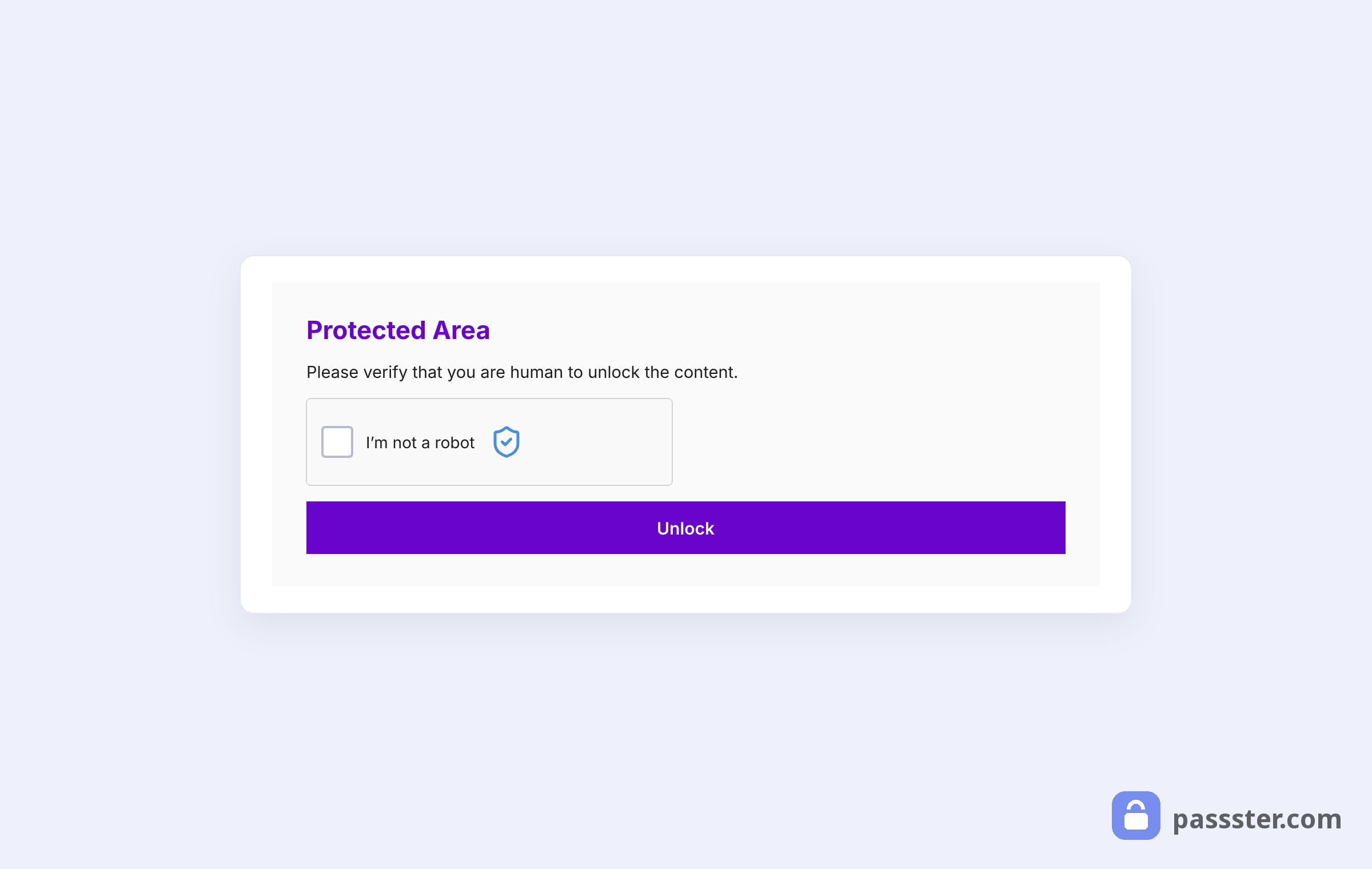
- reCAPTCHA v2: the familiar “I’m not a robot” checkbox. Suspicious behavior triggers an image-selection puzzle the visitor must solve before gaining access.
- reCAPTCHA v3: fully invisible. reCAPTCHA v3 runs a behavioral scoring algorithm in the background, requiring no user interaction.
A third option has become increasingly popular: Cloudflare Turnstile. Turnstile is privacy-first, GDPR-friendly, and free with no monthly request cap. Passster added Turnstile support in v4.2.15 (March 2025), and Turnstile is often the best choice for sites that need invisible verification or serve European audiences.
Which Protection Type Should You Use?
Passster supports four verification methods — CAPTCHA, reCAPTCHA v2, reCAPTCHA v3, and Cloudflare Turnstile — each offering a different trade-off on user friction, API requirements, and privacy compliance. Here is a side-by-side comparison:
| CAPTCHA | reCAPTCHA v2 | reCAPTCHA v3 | Turnstile | |
|---|---|---|---|---|
| User friction | Low (puzzle) | Low (checkbox) | None | None |
| API keys required | No | Yes (Google) | Yes (Google) | Yes (Cloudflare) |
| GDPR-friendly | Yes | No | No | Yes |
| Free tier | Unlimited | 10K/month* | 10K/month* | Unlimited |
| WooCommerce compatible | Yes | Yes | Yes | Yes |
| Setup complexity | Lowest | Medium | Medium | Medium |
\*Google migrated all reCAPTCHA users to reCAPTCHA Enterprise in late 2025. The free tier now covers 10,000 assessments per month — down from roughly 1 million before. Sites that exceed that limit need to enable billing in Google Cloud Console to avoid service disruption.
When to pick each:
- CAPTCHA: the simplest starting point. No external accounts needed, works without any API keys, and is compatible with WooCommerce.
- reCAPTCHA v2/v3: stronger bot detection if you’re seeing sophisticated automated traffic. Factor in the Enterprise cost if you expect more than 10K downloads per month.
- Turnstile: best choice if GDPR compliance matters or you want invisible challenges with no usage cap.
How to Secure Downloads With CAPTCHA in WordPress
Passster and Filr work together to protect WordPress file downloads: Filr manages file storage and generates the display shortcode; Passster wraps that shortcode behind a verification challenge.
Step 1: Create a Filr List
Once you’ve installed Filr, start by creating a list to organize your downloads. A list acts like a folder — it groups related files and makes them easier to manage as your library grows.
From your WordPress dashboard, go to Files > List. Enter a name and a brief description for the list.
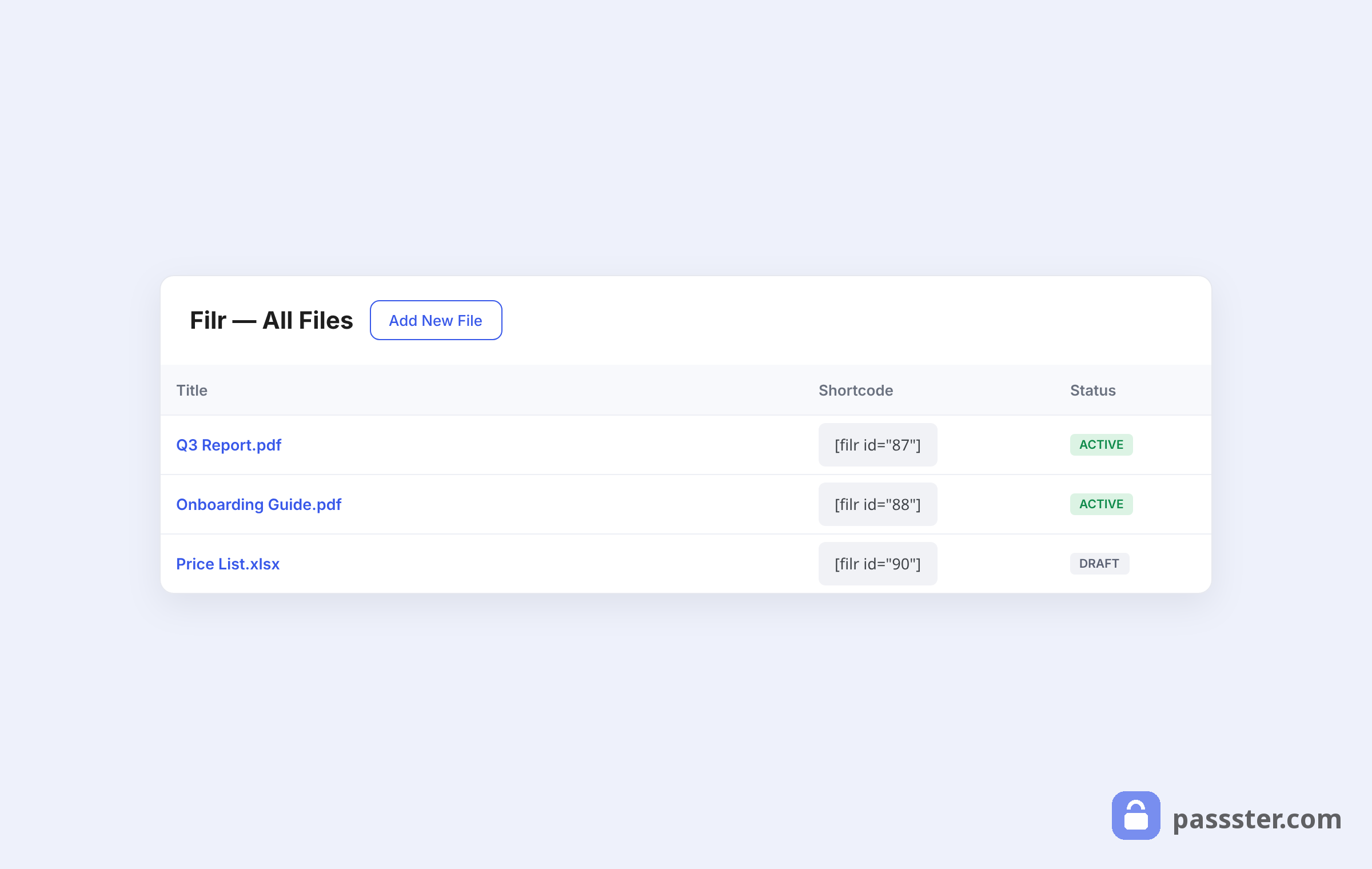
Click Add New List. Filr generates a shortcode for the list — copy it now, as you’ll need it in Step 3.
Step 2: Upload Files to WordPress
Next, add your actual files. Filr stores them in a secure folder rather than the public WordPress Media Library, so visitors can’t guess a direct URL and bypass your gate.
Filr supports two download modes:
- Individual downloads: each file gets its own download button. Use this when visitors should choose which files they want.
- Bulk download (zip): Filr packages all files in the list into a single zip archive. Use this when visitors should grab everything at once.
Go to Files > Add New, give the entry a title, and upload your files using the File Upload metabox. Assign the files to the list you created in Step 1 using the Lists metabox.
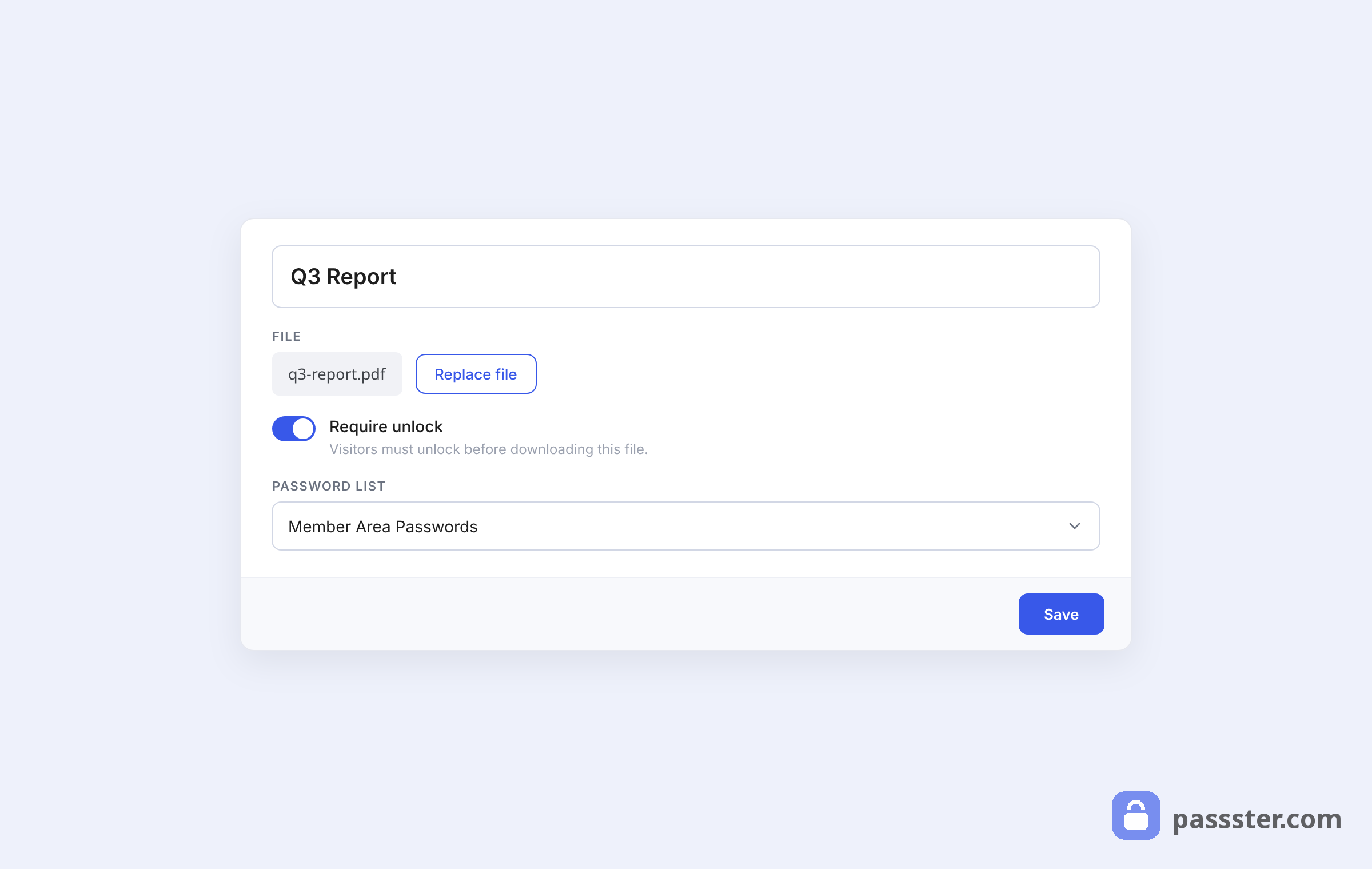
The Advanced Options metabox lets you expire a file by date or by the number of downloads. You can also enable Encryption File to obfuscate the filename and prevent direct linking. Then click Publish when you’re done.
Step 3: Add Downloadables to a Page
Now make the file list visible on the front end.
Go to Pages > Add New and create the page where visitors will download your files. Add a Shortcode block in the editor and paste the Filr shortcode from Step 1.
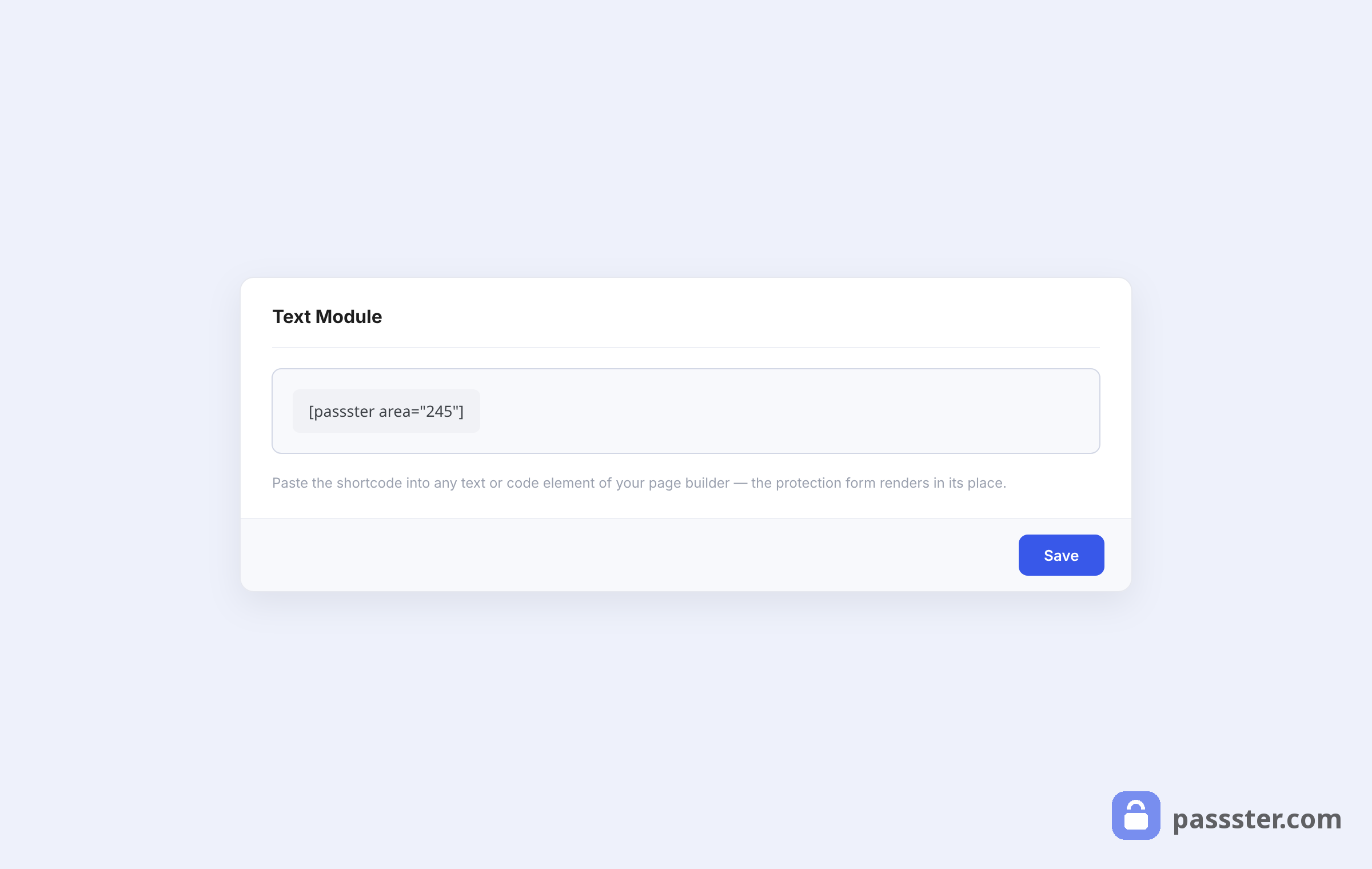
You can adjust the appearance of the front-end file table by going to Files > Settings > Shortcode. Preview the page to confirm the table renders correctly.
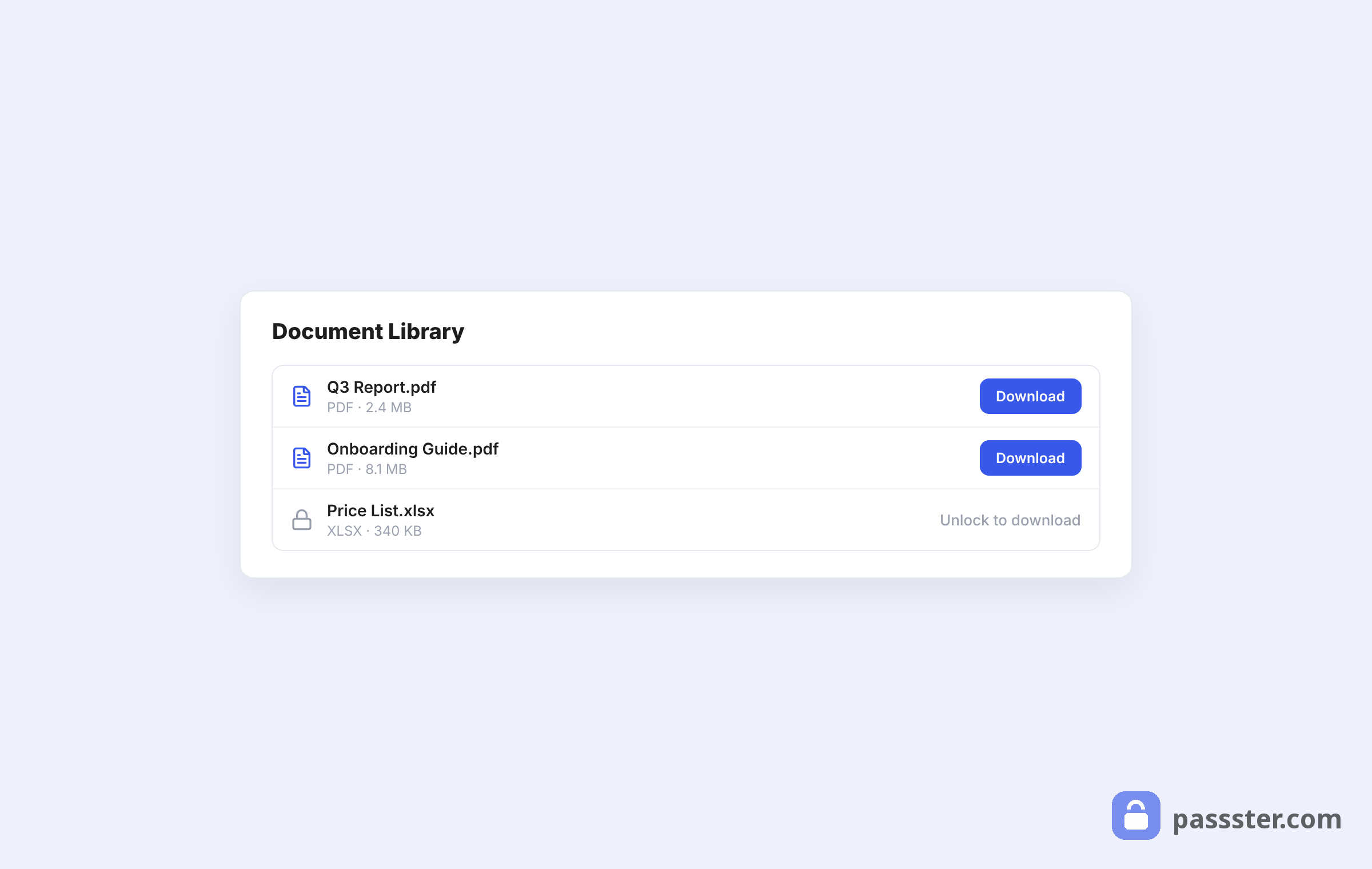
At this point the files are visible to everyone. Step 4 adds the verification gate in front of them.
Step 4: Add a Verification Gate with Passster
Passster wraps any content block — including your Filr shortcode — behind a challenge. Pick the method that matches your needs.
#### Method 1: CAPTCHA
Passster’s built-in CAPTCHA requires no API keys or external accounts — Passster’s CAPTCHA is the fastest method to set up.
From the WordPress dashboard, go to Settings > Passster. Open the Integrations tab and toggle CAPTCHA Protection on.
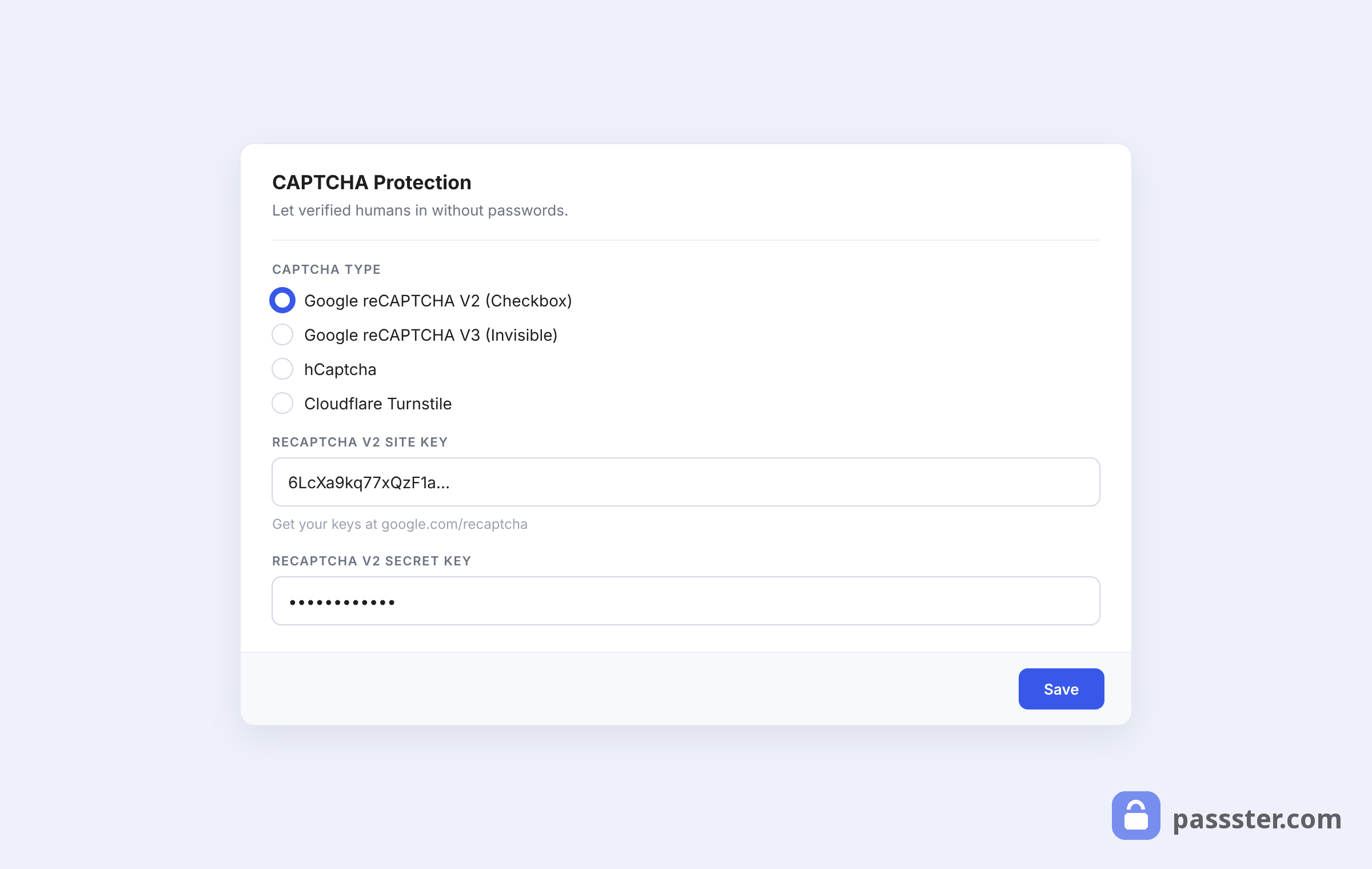
Click Save Changes, then open the Captcha tab to configure the puzzle:
- Captcha Code Length: the number of characters in the puzzle image.
- Width and Height: the pixel dimensions of the CAPTCHA image on screen.
- Background color: a hex color code for the image background.
- Difficulty: Lines in Background and Lines in Front make the puzzle harder for bots to solve via image recognition. Note that adding too many lines can also make it hard for real users to read.
You can also enable Use only numbers for a simpler numeric puzzle. Once the settings look right, click Save Changes.
Next, go to the Shortcode tab and set Protection Type to Captcha. Click Save Changes to generate the Passster shortcode.
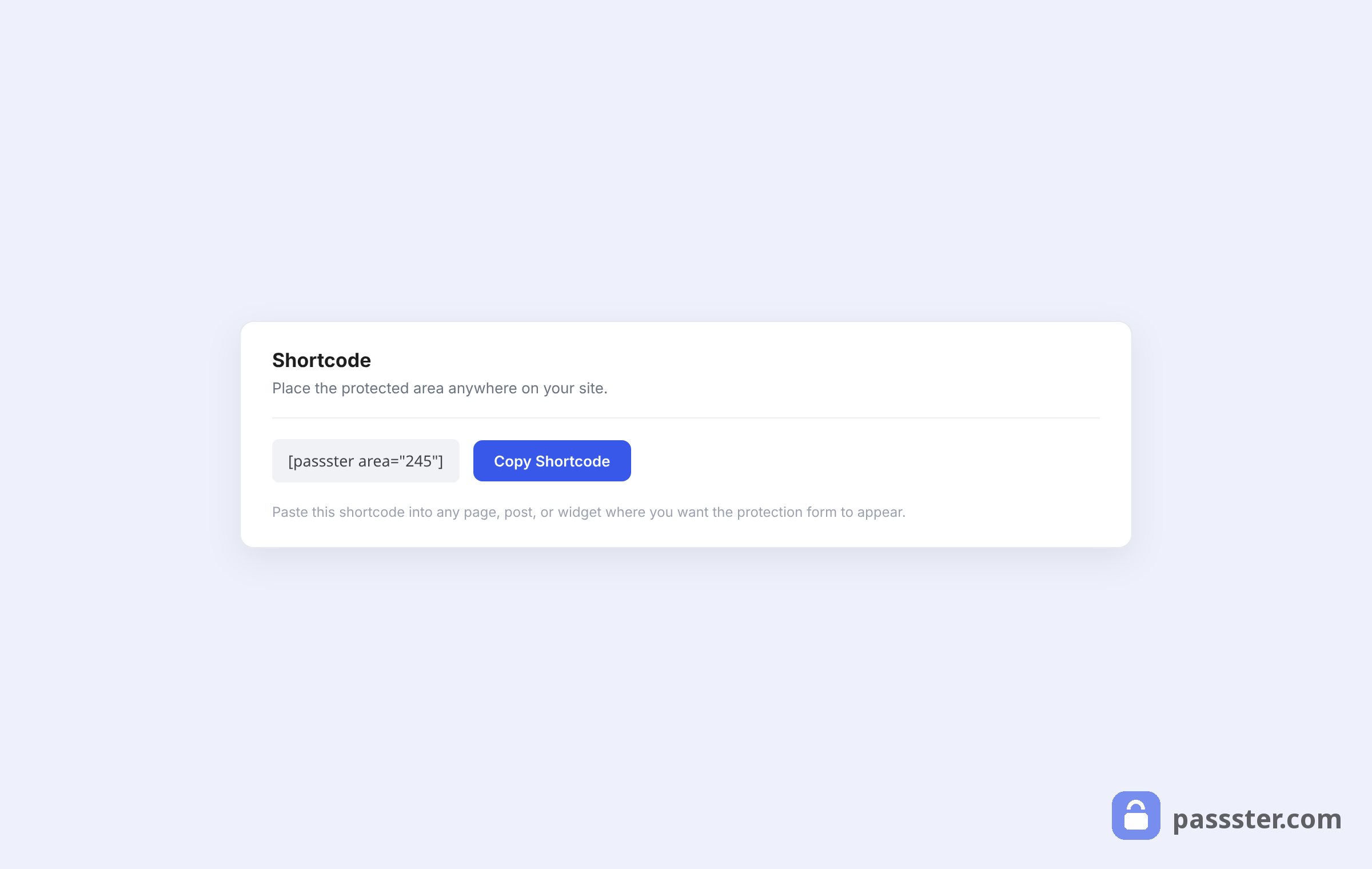
Back on your downloads page, wrap the Filr shortcode inside the Passster shortcode so that completing the CAPTCHA reveals the file list.
Preview the page — the CAPTCHA challenge will appear in front of the download table.
#### Getting Your reCAPTCHA API Keys
Both reCAPTCHA methods (v2 and v3) require a Site Key and Secret Key from Google. Here’s how to get them:
- Go to google.com/recaptcha/admin and sign in.
- Register a new site. Choose reCAPTCHA v2 for the checkbox experience, or reCAPTCHA v3 if you want invisible scoring.
- Enter your domain name and submit.
- Google displays your Site Key and Secret Key — copy both.
- In WordPress, go to Settings > Passster > reCAPTCHA and paste the keys into the corresponding fields. Save changes.
Free-tier note: Google’s 2025 Enterprise migration capped the free reCAPTCHA tier at 10,000 assessments per month. If your downloads page sees heavy traffic, check your usage in Google Cloud Console and enable billing before you hit the limit.
#### Method 2: reCAPTCHA
With your API keys saved, go to Settings > Passster and open the Integrations tab. Toggle Google reCAPTCHA on.
Click Save Changes. Then open the Shortcode tab, set Protection Type to reCAPTCHA, and click Save Changes to generate the shortcode.
Finally, wrap the Filr shortcode on your page inside the new Passster shortcode.
Visitors will see the Google reCAPTCHA checkbox before the download table loads. With reCAPTCHA v3, the check runs invisibly in the background.
#### Method 3: Cloudflare Turnstile
Turnstile is invisible by default, requires no Google account, and the free tier has no monthly cap. That makes Turnstile a practical choice for high-traffic download pages or any site that needs GDPR compliance.
First, get your credentials from the Cloudflare Turnstile dashboard. Create a new site widget in “Managed” mode and copy the Site Key and Secret Key.
In Passster, go to Settings > Passster > Integrations and toggle Activate Turnstile on (Passster added Turnstile support in v4.2.15, March 2025). Paste your keys into the Turnstile settings tab and save.
Then open the Shortcode tab, set Protection Type to Turnstile, and click Save Changes. Wrap the Filr shortcode with the generated Passster shortcode exactly as in the earlier methods. The Turnstile check runs silently; the download table appears only after the visitor passes.
Wrapping Up
Protecting your WordPress downloads from bots and automated scripts is straightforward with Filr and Passster together. Filr handles file management and secure storage; Passster adds the verification gate — all through a shortcode wrapper, no custom code required.
For most sites, the built-in CAPTCHA method gets you protected with the least setup. If you need invisible challenges or GDPR compliance, Turnstile is worth the extra five minutes. And if you’re already invested in Google’s ecosystem, reCAPTCHA v2 or v3 integrates cleanly — just track your free-tier quota after Google’s 2025 Enterprise migration.
Frequently Asked Questions
CAPTCHA presents a visual puzzle — math or character-based — that visitors solve manually. reCAPTCHA v2 is Google’s “I’m not a robot” checkbox that may trigger an image-selection puzzle for suspicious traffic. reCAPTCHA v3 is invisible: reCAPTCHA v3 scores visitor behavior in the background without any user interaction, blocking likely bots automatically without interrupting legitimate visitors.
Visit google.com/recaptcha/admin, sign in, and register a new site. Select the reCAPTCHA version you need (v2 or v3), enter your domain, and submit. Google then shows your Site Key and Secret Key. In WordPress, go to Settings > Passster > reCAPTCHA and paste both keys into the corresponding fields before enabling reCAPTCHA.
Yes, with a limit. After Google’s mandatory reCAPTCHA Enterprise migration in late 2025, the free tier covers 10,000 assessments per month — a significant reduction from the previous allowance of roughly 1 million. Sites with high download traffic that exceed 10,000 monthly verifications must enable billing in Google Cloud Console to avoid service interruption.
Turnstile is Cloudflare’s privacy-first CAPTCHA alternative. Turnstile runs silently in the background — no puzzles, no checkboxes — but unlike reCAPTCHA, Turnstile does not use Google’s infrastructure, making Turnstile GDPR-compliant out of the box. The free tier has no monthly cap. Passster added Turnstile support in v4.2.15 (March 2025), so any current Passster installation supports Turnstile.
Yes. Passster v4.2.15 (released March 2025) added Cloudflare Turnstile support — activate Turnstile under Settings > Passster > Integrations > Activate Turnstile. Passster Pro also supports hCaptcha, which provides an alternative to both Google reCAPTCHA and Cloudflare Turnstile for sites that prefer a different verification provider.
After Google’s 2025 Enterprise migration, Google caps the reCAPTCHA free tier at 10,000 assessments per month. If a site exceeds that limit, verification challenges stop working for the rest of that month until you enable billing in Google Cloud Console. To avoid disruption on high-traffic download pages, switch to Cloudflare Turnstile (unlimited free tier) or configure billing in Google Cloud before reaching the cap.