

Divi is one of the most popular WordPress page builders, but it doesn’t include built-in password protection. To password protect a Divi Builder site — a specific section, an entire page, or multiple pages at once — you need a plugin. This guide shows you how to do it with Passster, which has more than 10,000 active installs on WordPress.org and adds the area-level and page-level protection that Divi’s native tools don’t provide.
Does Divi Builder have built-in password protection?
Divi Builder itself has no native password protection; WordPress provides a built-in “Password Protected” visibility option under Page Settings, but it limits you to one password per page and cannot protect partial content.
Set it under Page Settings → Visibility → Password Protected. Visitors see a prompt before any content loads — no plugin needed.
The limitations matter for most real use cases: one password per page, no partial protection (you can’t gate a section, row, or column within a page), and no bulk-protection across multiple pages at once. The default password form also ignores Divi’s visual styling. For membership content, client portals, or gated downloads, the native option rarely goes far enough.
That’s where Passster comes in.
How to password protect a Divi Builder site with Passster
Passster adds two dedicated protection methods: Area Protection (for content within a page) and Page Protection (for entire pages or posts). Both are fully compatible with Divi Builder.
Install and activate Passster from the WordPress plugin directory before following the steps below.
Create a protected area
Area Protection lets you wrap any content — text, images, audio, video, downloadable files — inside a shortcode container. Embed that shortcode anywhere in your Divi page, and visitors see a password prompt in its place.
Here’s how to set one up:
- Go to Passster → Protected Areas in the WordPress admin and click Add New.
- Give the protected area a title — for example, Exclusive Membership Content.
- In the Shortcode Configuration metabox on the right, set the Protection Type to Password and enter a password.
- Add the content you want to protect in the text editor — text, media, or any other content type.
- Click Publish. A shortcode appears in the Shortcode metabox — copy it to your clipboard.
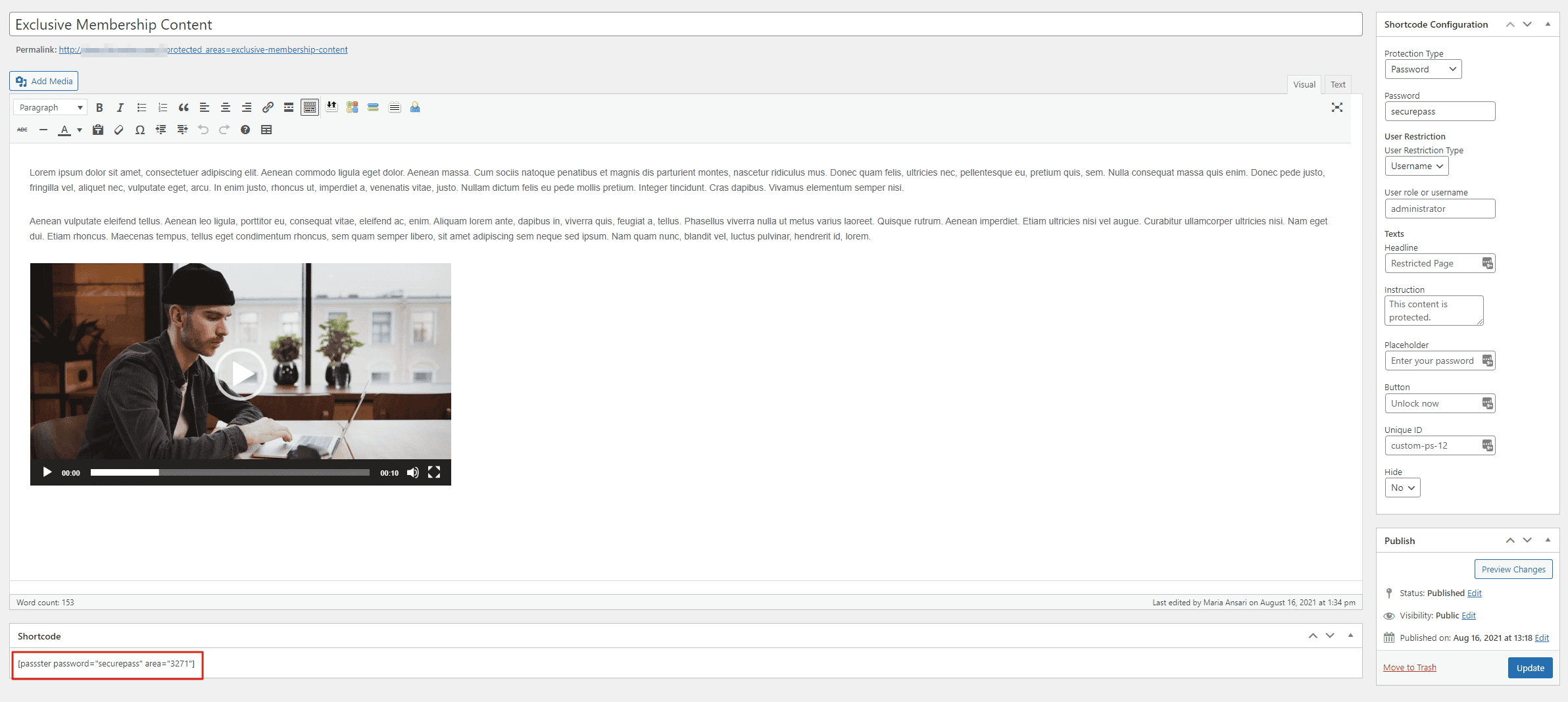
Now open your Divi page in the editor. Add a Code module (or a shortcode block in the standard editor) wherever the protected content should appear, then paste the shortcode.
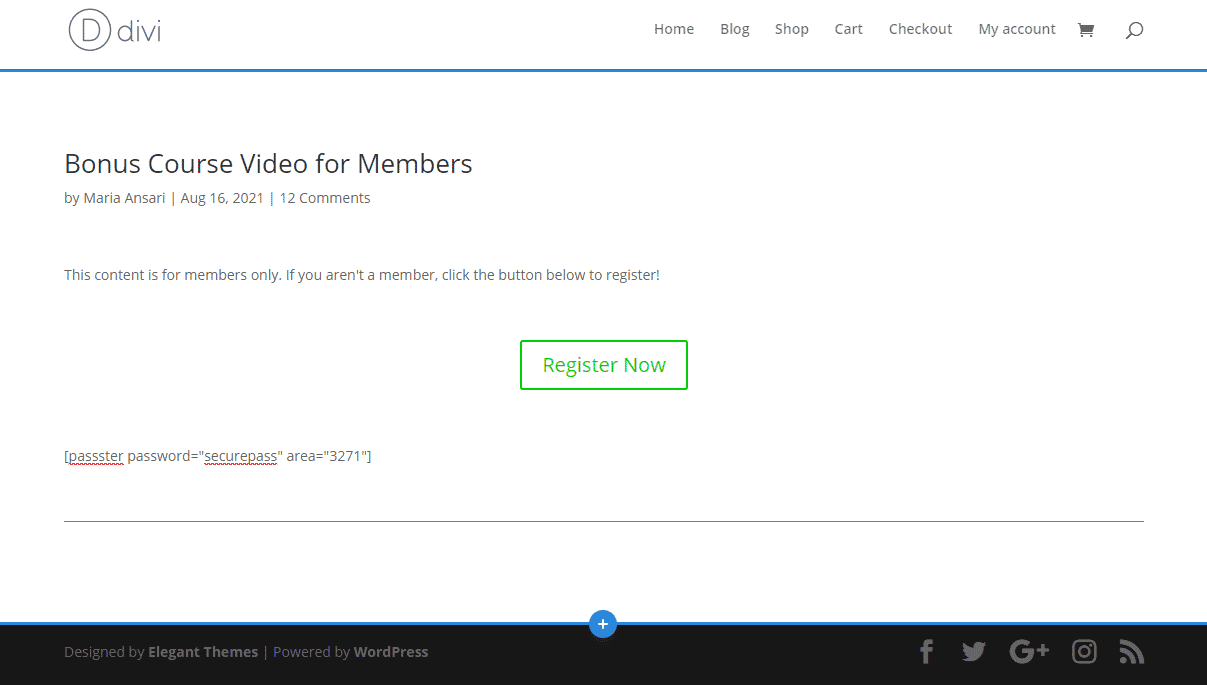
On the front end, visitors see a password prompt where the protected content would be:
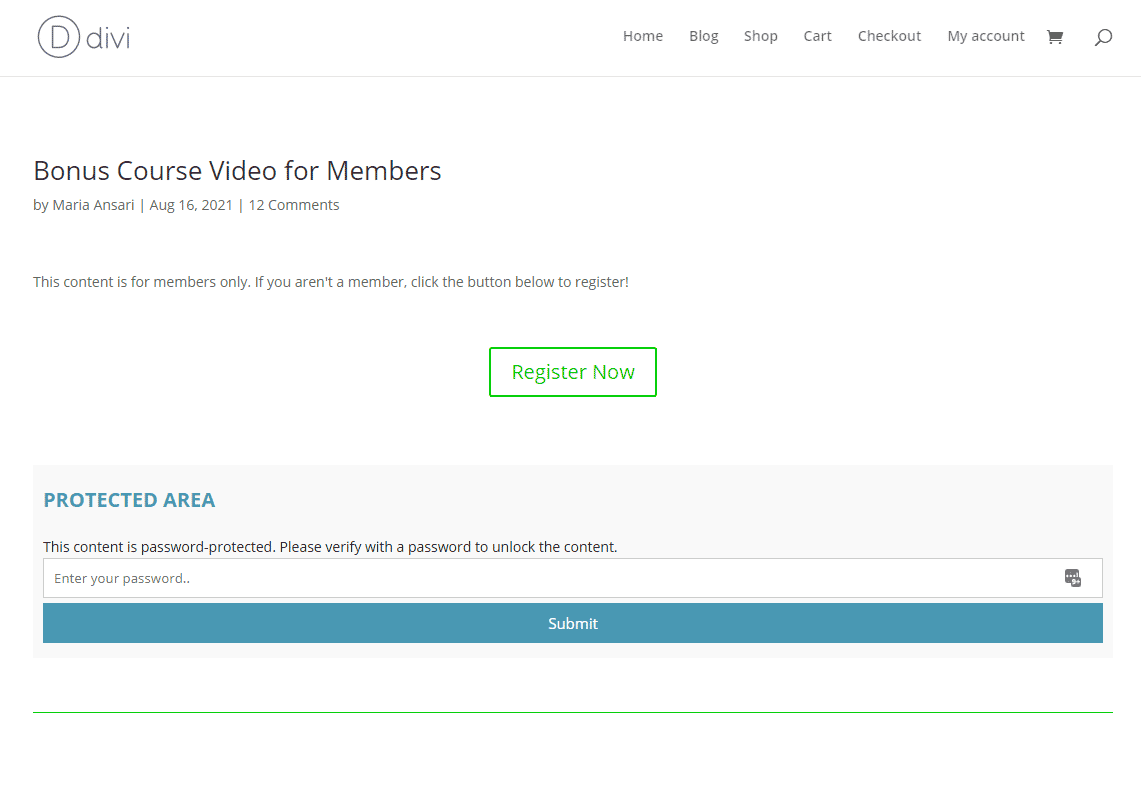
Once they enter the correct password, the content appears:

Multiple password options
Before moving to Page Protection, it’s worth knowing that Passster supports two multi-password modes you can select in the Shortcode Configuration:
- Passwords — assign multiple passwords that all unlock the same protected area. Useful when a small group each needs their own credential.
- Password List — build a master list of unique passwords that apply across multiple protected areas. This is the right choice if you want to give each user a distinct code and revoke individual access later without changing a shared password.
Both modes work in Area Protection and Page Protection alike.
Restrict access to entire pages and posts
If you want to lock down an entire page — not just a section within it — use Passster’s Page Protection feature. Page Protection works at the post/page level via a metabox and is fully compatible with Divi Builder layouts.
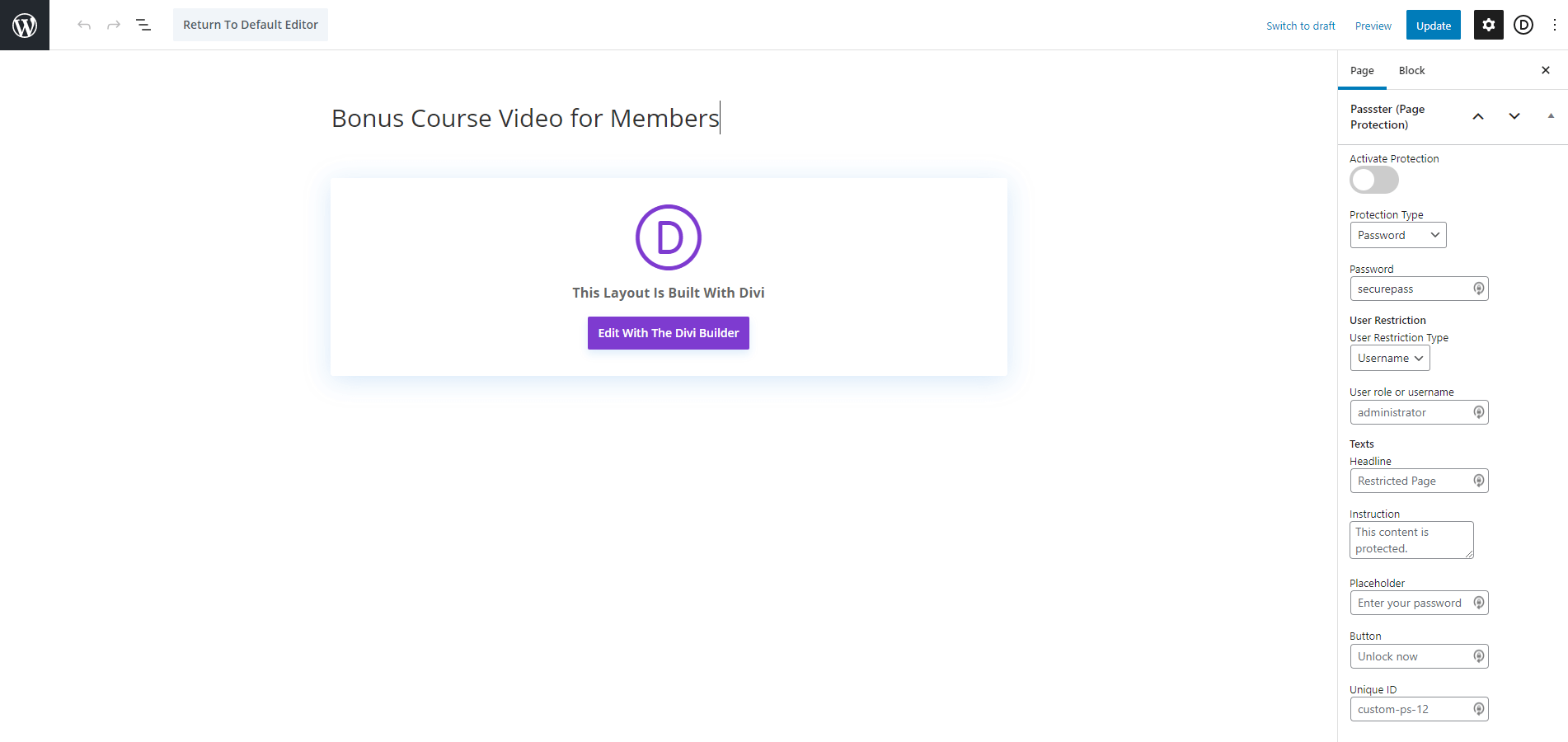
- Open the page you want to protect in the Edit Page screen.
- Find the Passster (Page Protection) metabox on the right side.
- Toggle Activate Protection on.
- Set the Protection Type to Password and enter a password.
- Click Publish (or Update).
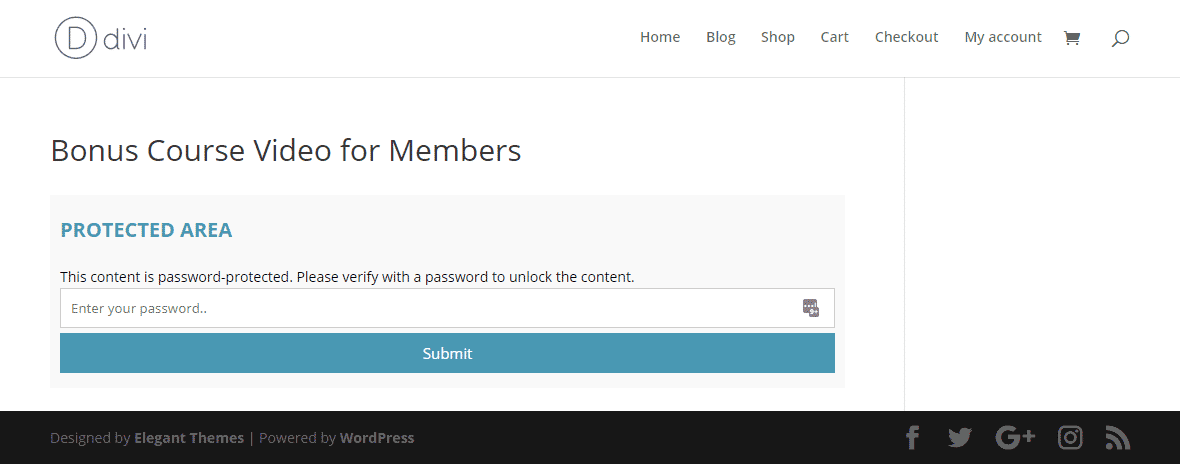
Visitors who aren’t authenticated see a password prompt instead of the page content:
Caching note: If you’re running a caching plugin like WP Rocket or LiteSpeed Cache, add password-protected pages to its exclusion list. A cached page can bypass the protection check and serve unprotected content to unauthenticated visitors. This applies to native WordPress password protection as well — it’s a caching configuration issue, not a Passster one.
Managed WordPress hosts like Kinsta, WP Engine, and SiteGround also run server-level caches that operate independently of any plugin. If you’re on managed hosting, check your host’s caching documentation and add protected page URLs to its exclusion list alongside your plugin’s settings.
What about DiviPasswords?
DiviPasswords, released by Elegant Themes in April 2025, is a native Divi extension that adds element-level password protection — sections, rows, columns, and individual modules — directly from the Divi builder interface. DiviPasswords hides content from the DOM until the visitor enters the correct password.
If your site runs entirely on Divi and element-level protection is all you need, DiviPasswords is worth knowing about. It ships as part of an Elegant Themes membership, not as a standalone plugin — there’s no free version on WordPress.org. If you’re not already paying for a Divi license, DiviPasswords isn’t an option.
Passster’s advantages sit elsewhere:
- Theme-agnostic. Passster works with any WordPress theme or builder. If you ever migrate away from Divi, your protection setup carries over.
- Multiple passwords per area. DiviPasswords protects each element with a single password. Passster supports multiple passwords per area, plus per-user password lists with individual revoke capability.
- More restriction methods. Beyond passwords, Passster also supports secure links, CAPTCHA/reCAPTCHA, and user-role gating — none of which DiviPasswords offers.
- Page-level and content-level protection in one plugin. You don’t need separate tools to cover both scenarios.
Other ways to restrict access with Passster
Passster provides three restriction methods beyond passwords, making it more versatile than any Divi-specific protection tool:
- Unlock via link. Send users a secure URL that grants immediate access without a password prompt. Useful for time-limited sharing or when you want friction-free access for trusted contacts.
- CAPTCHA or reCAPTCHA. Gate content behind a challenge form to block bots and automated spam accounts. Passster supports both standard CAPTCHA and Google reCAPTCHA.
- User-role protection. Restrict content to specific WordPress user roles — editor, subscriber, a custom role — or to individual registered users. This is the closest Passster gets to full membership functionality without a dedicated membership plugin.
None of these options are available in native WordPress password protection or in DiviPasswords.
Ready to protect your Divi site?
WordPress’s native password protection covers the simplest cases, but it only goes so far — one password, one page, no section-level control. Passster fills every one of those gaps: Area Protection for sections, Page Protection for full pages, multi-password support, and restriction methods that go beyond what any Divi-specific tool offers.
Frequently Asked Questions
Divi Builder itself has no built-in password protection. WordPress includes a native “Password Protected” visibility option that works without a plugin, but it protects only one page at a time with one password. It can’t gate a section within a page or lock multiple pages in bulk. For anything beyond a single locked page, a plugin like Passster is the practical solution.
Use Passster’s Area Protection to password protect a section or row in a Divi layout. Create a Protected Area in the Passster admin, copy the generated shortcode, and paste it into a Code module on your Divi page where the section begins. Visitors see a password prompt for that block only — the rest of the page remains fully accessible.
Passster’s Page Protection works page-by-page via each page’s edit screen. For bulk access management across many pages, use a Password List — a master list of credentials that can apply across any number of Protected Areas and pages, letting you manage and revoke individual access from one place.
Yes — a misconfigured cache can serve a cached copy of a protected page to visitors who haven’t authenticated, bypassing the password prompt entirely. Add password-protected page URLs to your caching plugin’s exclusion list (WP Rocket, LiteSpeed Cache, and similar plugins all support this) and check your managed host’s server-level cache settings separately.
DiviPasswords is a native Divi extension (Elegant Themes, April 2025) that protects individual elements — sections, rows, columns, modules — inside the Divi builder. Passster Area Protection uses a shortcode embedded anywhere in a Divi page and works across any WordPress theme or builder. Passster also supports multiple passwords per area, secure link access, CAPTCHA, and user-role gating, which DiviPasswords does not offer.