One of the trickiest parts of sharing downloadable content on WordPress is keeping it accessible to the right people — and no one else. By default, any file you upload to the WordPress media library is publicly accessible. In fact, anyone who finds or guesses the URL can download it, regardless of whether the page it lives on requires a password.
That gap is why simply protecting a page isn’t enough on its own. You need a file library that hides the direct URL and a password gate in front of it. This tutorial shows how to password protect downloads in WordPress using WP Document Library and Passster.
Why password-protecting downloads matters
WordPress does not protect uploaded files from direct access. A PDF, ZIP, or image uploaded to the media library gets stored at a predictable path like /wp-content/uploads/2024/01/your-file.pdf. Page-level password protection hides the page — it doesn’t block the file itself. Someone who knows the direct URL can bypass your password gate entirely, as Elsner’s 2025 WordPress file protection guide notes.
Direct URL access refers to downloading a file by navigating directly to its storage path on the server — no login, no password prompt, no page required.
This is why restricting file downloads in WordPress requires two layers:
- A file library plugin that stores files outside the standard media library path and serves them through a controlled handler — hiding the real URL from the browser.
- A password gate like Passster that prevents users from reaching the download page in the first place.
Common use cases:
- Client deliverables: sharing design files, reports, or contracts with specific clients
- Digital products: PDFs, templates, or software downloads for paying customers
- Member-only resources: gating downloads behind a membership or course
- Lead-gen gating: exchanging a download for a sign-up or referral password
Password protection methods for WordPress downloads
Passster provides two password protection methods for WordPress downloads: a single shared password for small audiences, and per-user passwords for segmented access control. Passster has more than 10,000 active installations on WordPress sites (WordPress.org, 2025).
Simple password protection creates a single password for all users. It’s the easiest method and works well for small, trusted audiences — a freelancer sharing portfolio files with a client, or a membership site giving subscribers access to a resource pack.
Multiple password protection gives a different password to each user or user group. This is useful for segmented audiences: you can grant access to different customer tiers and revoke individual passwords without changing the one everyone else uses. Passster Pro supports entire password lists, which makes this practical even at scale.
Other access methods are also available — role-based access, CAPTCHA, and unlock-via-link — if those fit your workflow better. For a full comparison, see 6 Different Ways to Restrict Content in WordPress.
How to password protect downloads, files, and documents in WordPress
This four-step setup uses two plugins: WP Document Library (formerly Filr) for secure file storage, and Passster for the password gate.
Step 1: Create a new file list in WP Document Library
Start by creating a list to hold your downloadable files. Lists keep your files organized on the back-end — if you need to add, update, or remove files later, you’ll know exactly where to find them.
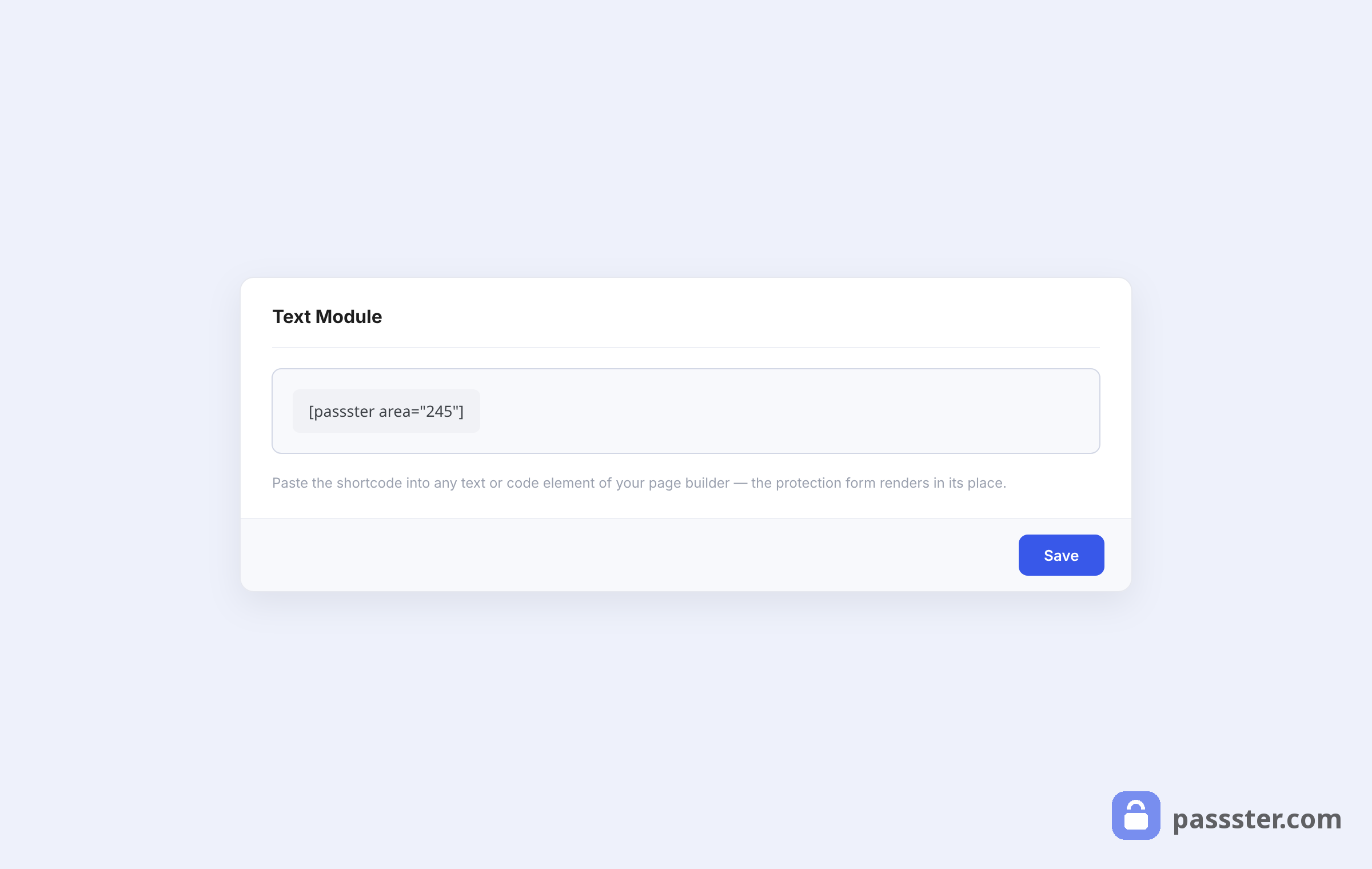
Go to Files > Lists in the WordPress dashboard. Give your list a name and a short description, then click Add New List.
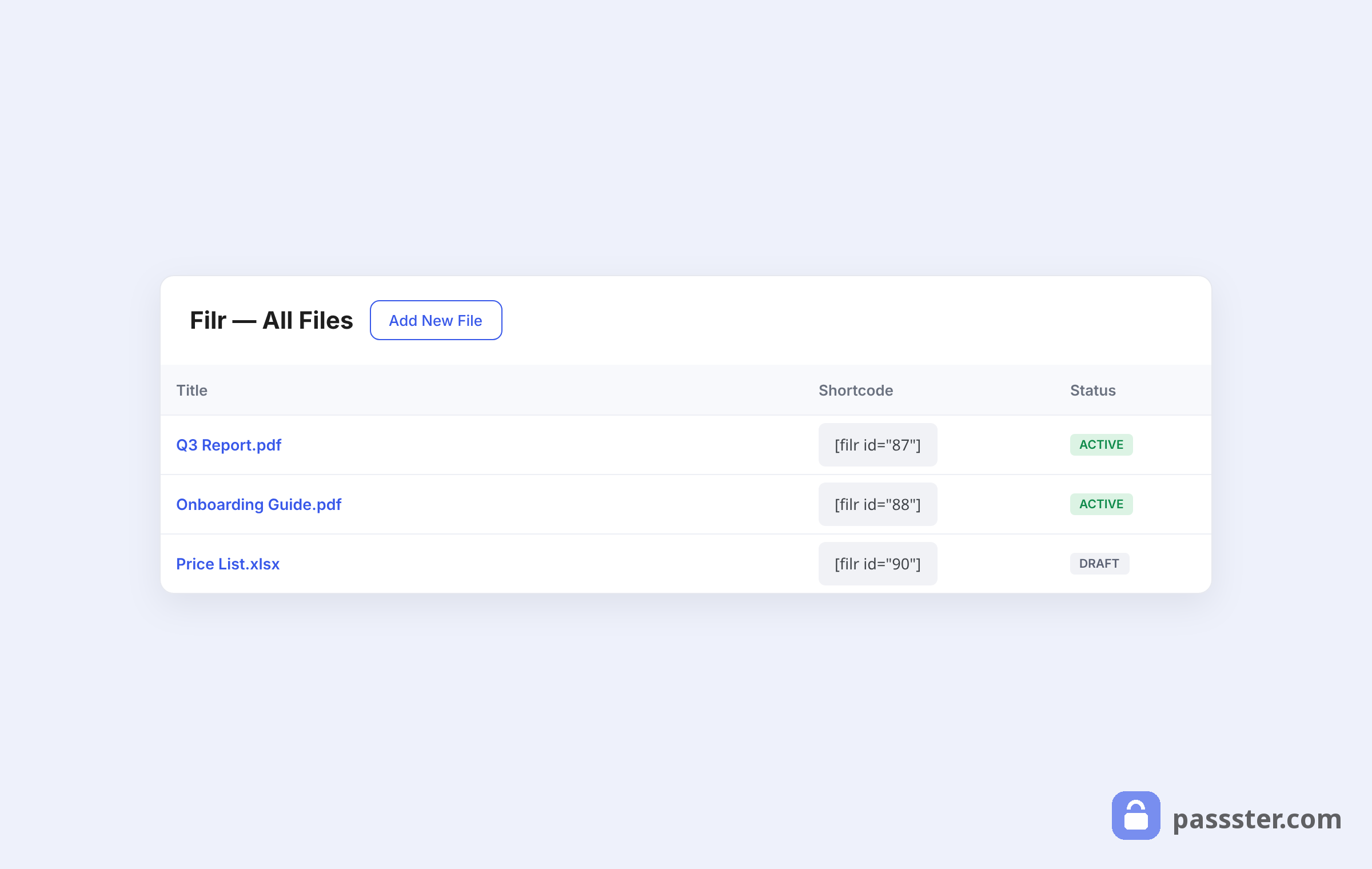
Once saved, the new list appears on the right side of the page with a shortcode. Copy that shortcode — you’ll need it in Step 3.
Step 2: Upload your files
WP Document Library stores files in a secure folder outside the standard media library path. This prevents direct URL access. WP Document Library supports any file format — PDFs, ZIPs, Word docs, images, and more.
Go to Files > Add New. Give the file a name, then use the File Upload meta box to upload it. Assign it to the list you created in Step 1 using the Lists meta box on the right.
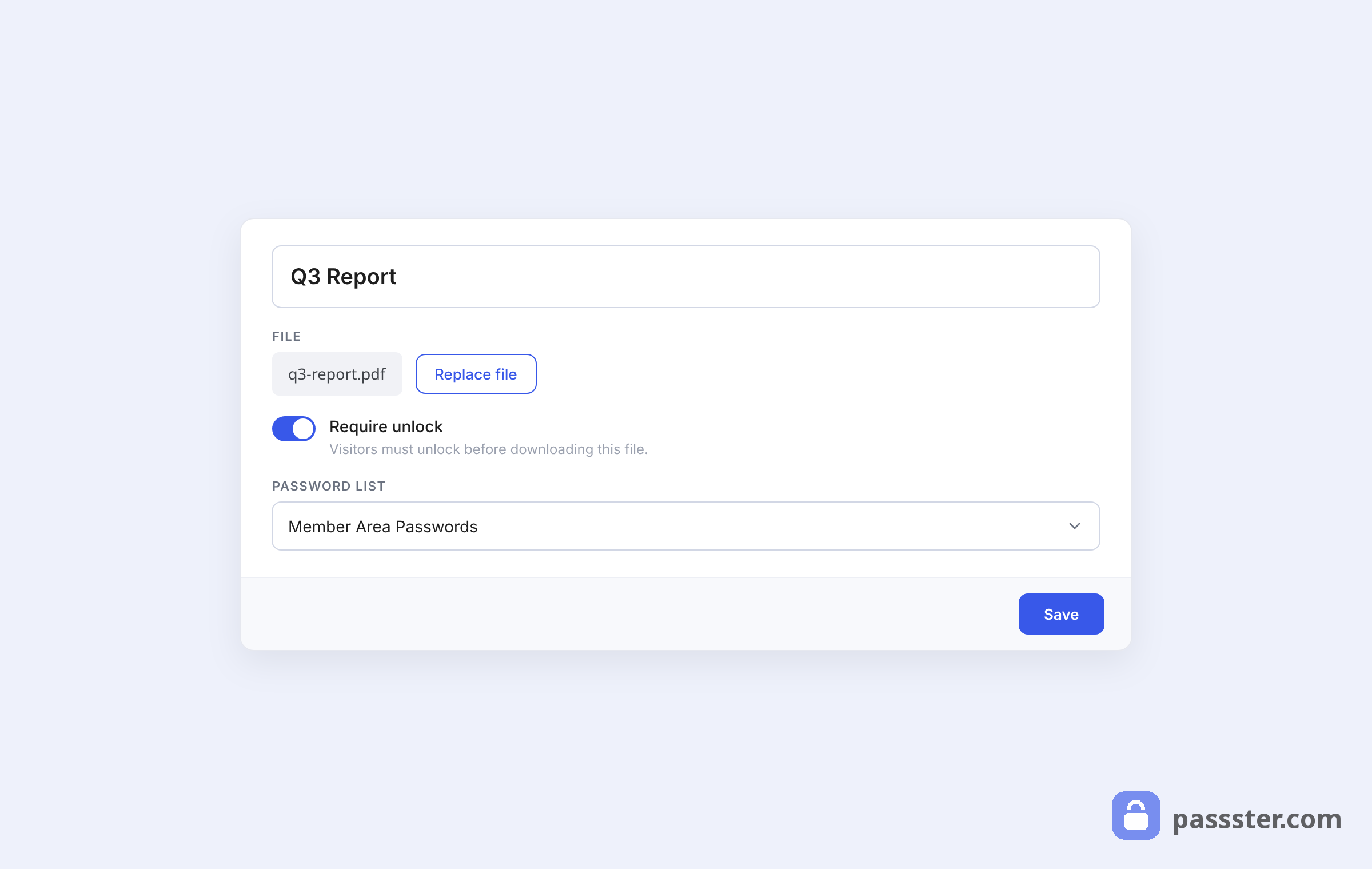
You can also set file expiry: use Expire by date or Expire by downloads to automatically deactivate a download after a deadline or a set number of clicks.
Pro tip: Enable Encrypt Filename to further obscure the file path. Then click Publish to continue.
Step 3: Add the document library to a page
Create a new page (Pages > Add New) and paste the shortcode from Step 1 into a Shortcode block. Publish the page.
The document library appears on the front-end with a download button for each file in your list.
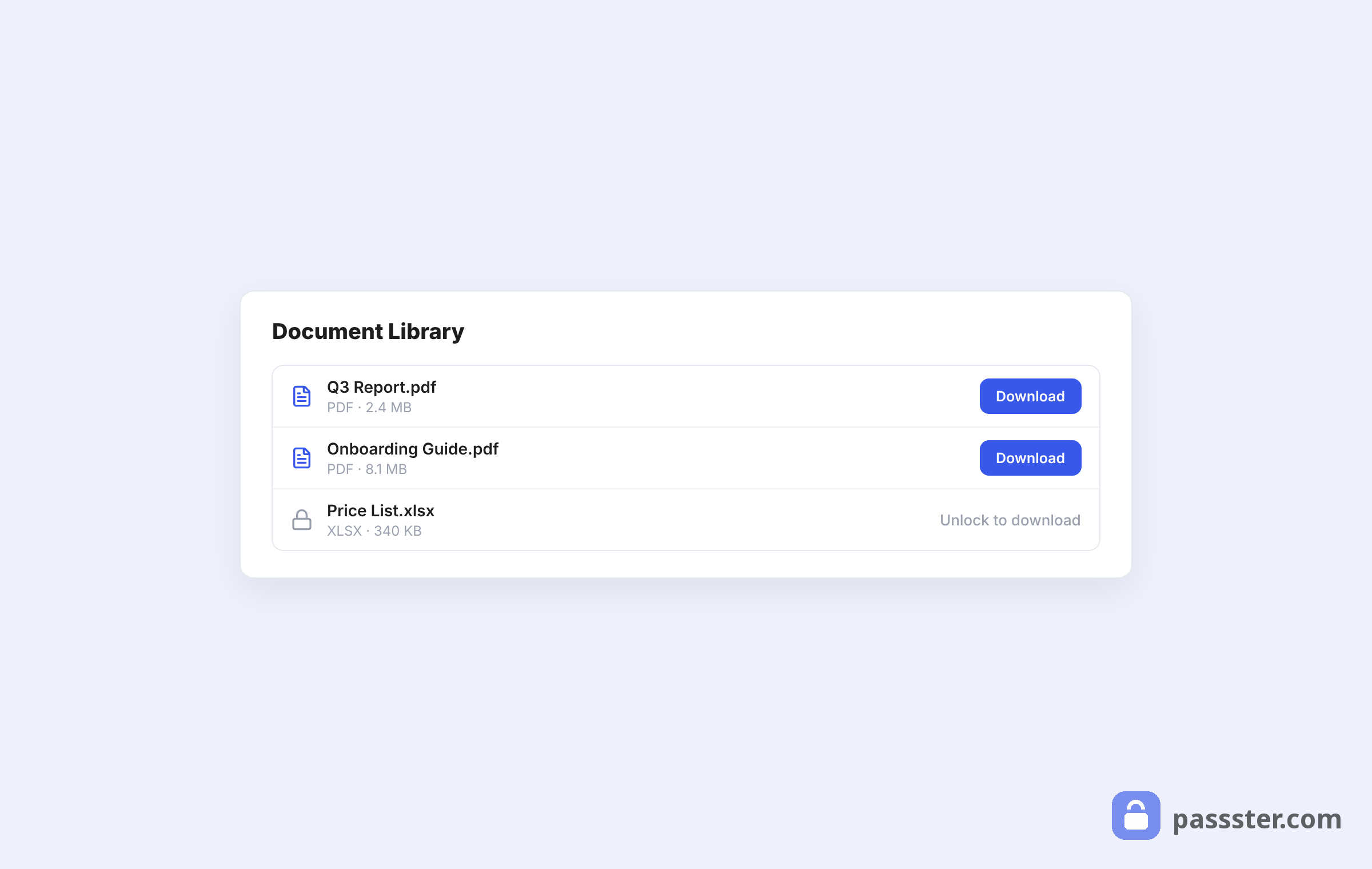
At this point the page is live but unprotected. Step 4 adds the password gate.
Step 4: Password-protect the download page with Passster
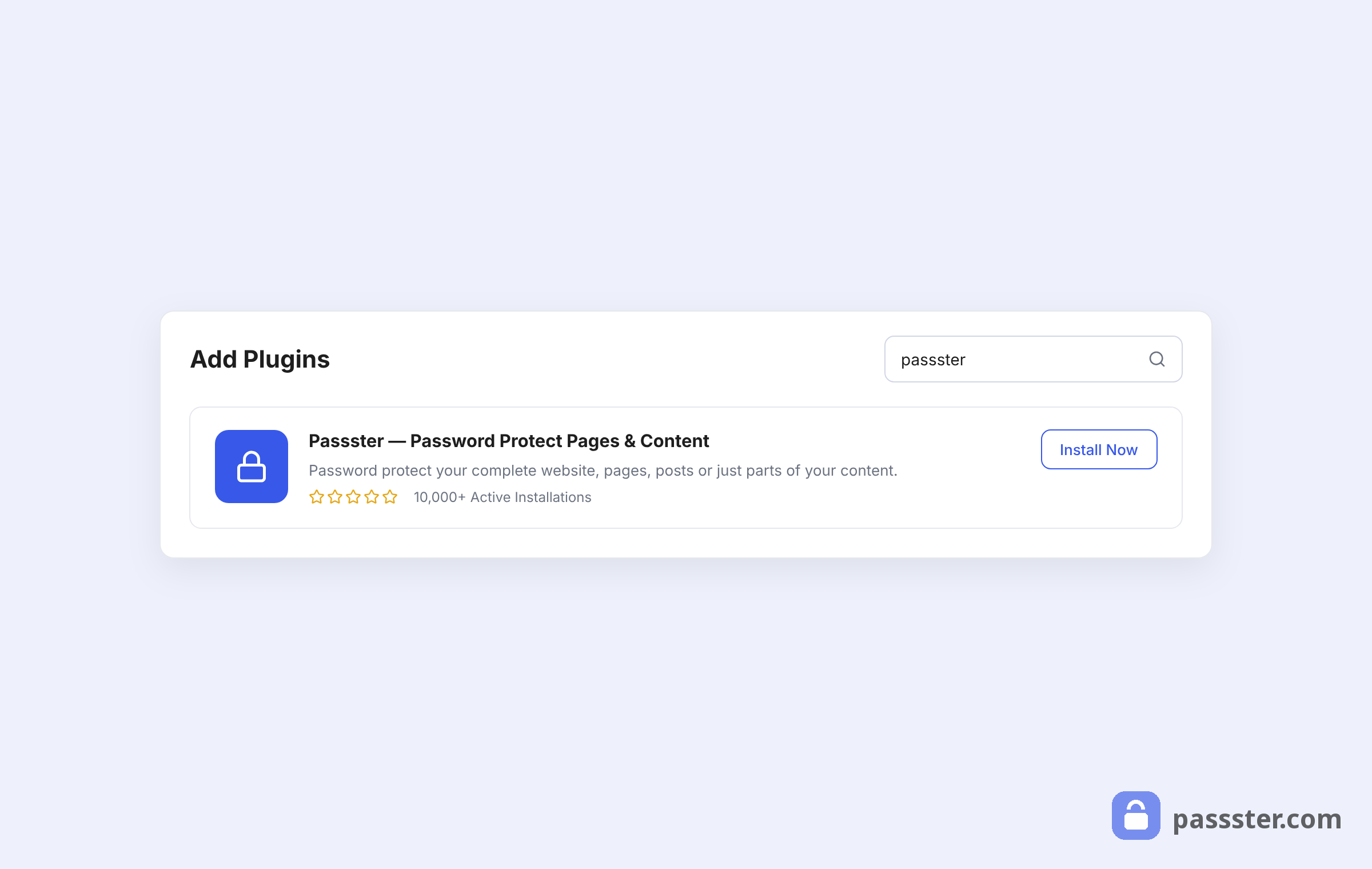
Go to Plugins > Add New, search for Passster, and install and activate Passster – Password Protection.
Navigate to the page where you added the WP Document Library shortcode and open the Passster (Page Protection) metabox in the page editor.
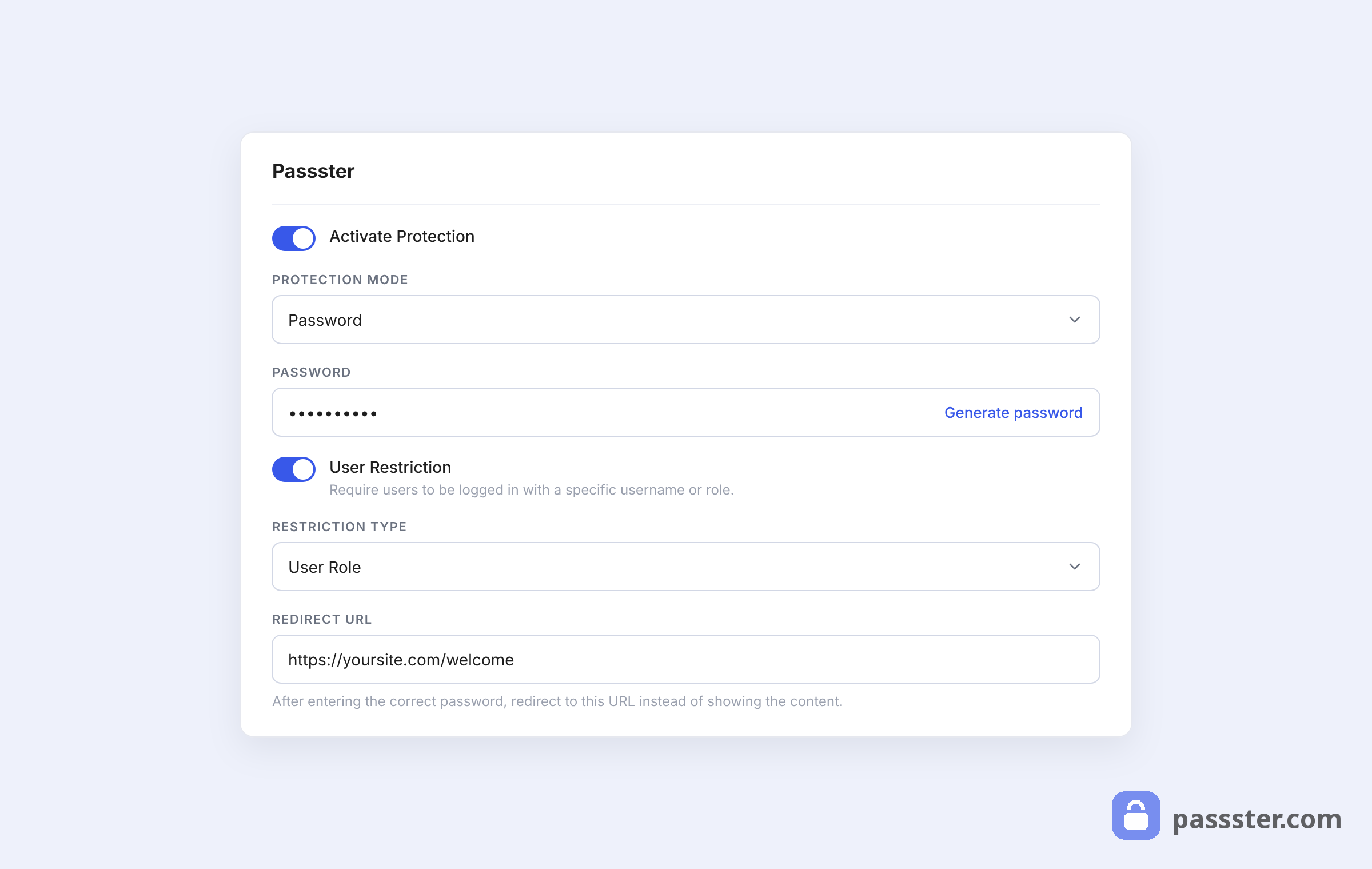
Set Protection Type to Password and enter your password in the field below. Save the page — the entire document library is now behind a password gate.
To use multiple passwords or a full password list (useful for large user groups), check out Passster Pro.
Frequently asked questions
Not on its own. WordPress page protection restricts access to the page, but it doesn’t block the file at the server level. WP Document Library addresses this by serving files through a secure handler and offering filename encryption, which hides the real file path. Use both plugins together for complete protection.
WordPress does not restrict access to files stored in the standard media library by URL — any file with a known path is publicly accessible. WP Document Library solves this by storing files outside the standard media path and serving them through a secure download handler. Combine WP Document Library with Passster’s page-level password gate for both layers of protection.
Yes — each file in WP Document Library has Expire by date and Expire by downloads options. Once a file expires, the download button deactivates — useful for time-limited promotions or single-use access codes.
Change or delete the password in the Passster metabox and save the page — anyone using the old password loses access immediately. With Passster Pro, you can manage individual passwords from a list, so you can revoke one user’s access without affecting everyone else.
Yes — Passster supports partial content protection, which lets you wrap a specific block or shortcode (such as a single download link) in a password gate rather than protecting the entire page. This is useful when you want to display some content publicly but restrict access to the download itself.
Get started
WP Document Library and Passster cover both sides of the problem: URL protection for the files themselves, and a password gate in front of the page that displays them. Together they give you a clean, manageable setup for any download you need to keep private.
Ready to set it up? Get WP Document Library and Passster today.